
Starlink Mini already contains a Wi-Fi router. Adding Router Mini, Starlink's mesh unit, can improve a weak indoor laptop connection. First confirm the Mini itself is online, then add the indoor router.
Wireless pairing is the simpler connection to try. A wired mesh connection gives another route through obstructed rooms, but the Mini's outdoor Ethernet connection needs the specified cable to retain its water-resistance rating.
Get the Mini online before extending its network
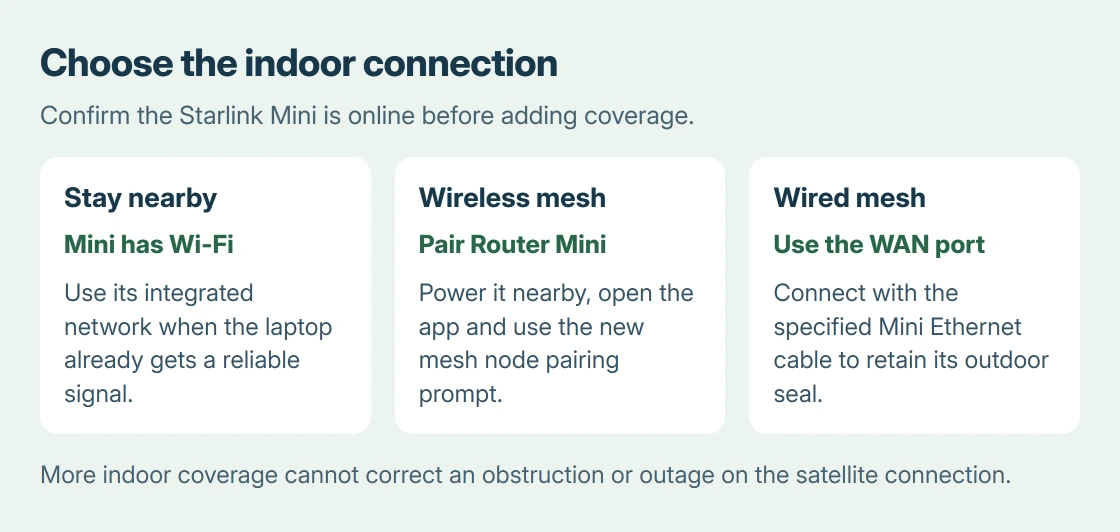
Starlink's Mini X setup manual identifies the Mini's integrated Wi-Fi and separates dish setup from the additional Router Mini. The extra indoor unit is not a second satellite receiver.
Connect the laptop or phone to the Mini's working Wi-Fi and check its status in the Starlink app. If the app reports an outage, obstruction or an offline Mini, resolve that before adding mesh coverage.
Status: Starlink's Mini X and Router Mini installation PDFs checked October 25, 2026. No Starlink equipment or Wi-Fi coverage was tested for this guide.
These setup and connection remedies are documented by the vendor. Improving indoor Wi-Fi cannot remove a tree or roof that blocks the Mini's view of the satellites.
Pair Router Mini wirelessly in the app
Place the extra router off the floor, away from large electronics, metal and thick walls. Starlink's Router Mini installation guide recommends keeping mesh routers within about two rooms of each other.
Connect Router Mini to its power supply. Open the Starlink app while connected to the existing network. Allow 1-2 minutes for the New Mesh Node(s) notification.
Select Pair or Pair All. The manual says the connection appears on the Network screen and can take 1-5 minutes. Check that screen before moving the router farther away.
If the notification never appears, move Router Mini closer to the main Mini and try again. Starlink documents this remedy for a missing pairing prompt. Keep the unit out of the dead spot until it pairs.
Use Ethernet when the wireless path is poor
For a wired mesh setup, power Router Mini and connect the Mini's Ethernet port to Router Mini's WAN port, marked with the Starlink symbol. This is the destination shown in the installation guide.
Use the 15 m Mini Starlink Ethernet Cable specified for a wired Mini connection. The Mini X manual warns that an ordinary RJ45 cable removes the Mini's IP67 rating, even though an Ethernet connection can still function.
That distinction matters outdoors: a working connection does not establish a water-sealed port. Check the exact kit instructions before routing or exposing a replacement cable.
A third-party router is a different configuration. The bridge-mode explanation helps distinguish changing which device routes the network from simply extending an existing wireless network.
Check the laptop after the mesh connection succeeds
Open a website near the Mini, then in the room served by Router Mini. Compare the same laptop in both locations. This room comparison is ours; it checks the indoor link without claiming a measured speed improvement.
Microsoft says to compare the same network on another device when a Windows connection fails. If a phone works beside the laptop, the remaining fault may be on the PC.
The Windows home Wi-Fi connection steps cover joining the network on that computer. Use the existing Starlink network credentials rather than creating a second internet-provider configuration.
If neither location works, check the Starlink app's alerts and main connection again. If mesh access fails while the Mini stays online, give Starlink Support the connection method, router status and cable details.
The Short Version
Get the Mini online. Pair Router Mini nearby in the app, or connect its WAN port using the specified Mini Ethernet cable. Then test in the weak room. Extending coverage cannot repair the satellite connection.

Isaac Smith is the founder and editor of PC Glance, a website that covers computers, laptops, and technology. He is a tech enthusiast and a computer geek who loves to share his insights and help his readers make smart choices when buying tech gadgets or laptops. He is always curious and updated about the latest tech trends.