Wi-Fi router interference can cause drops despite a strong signal. Move nearby electronics away and try 5 GHz first. A distant room with weak reception needs a coverage fix; interference can affect a device right beside the router.
An internet outage can look similar. When several devices fail over both Wi-Fi and Ethernet, check the modem or internet service before changing wireless settings. Compare the connections before erasing your router setup.
In this guide
1. Compare the connection close to the router
Bring your laptop or phone into the same room as the router. Repeat the task that fails, such as a video call or a large download. Keep the device in one place while comparing changes so distance doesn't change the result.
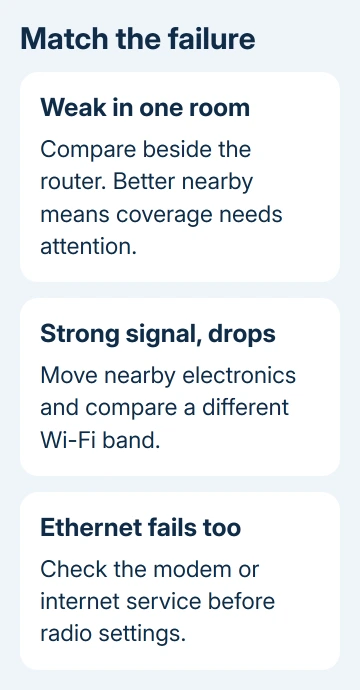
Compare another phone or laptop using that network in the same spot. If both struggle, check the router, surroundings or internet service. If only one fails, start with that device rather than changing the household network.
For an Ethernet comparison, connect a computer to the router and turn its Wi-Fi off. Both need suitable Ethernet ports. If wired access works but wireless fails, check the wireless link before deciding the router needs replacing.
If Ethernet is slow too, pause other devices' large downloads and check the provider's service status. Busy internet service affects wired and wireless traffic together. Wireless channels can't increase the speed coming into the house.
2. Move the router out of the interference
Place the router centrally in the open, away from the TV, cabinets and floor. Keep its ventilation openings clear. Metal furniture and thick walls can weaken the signal before it reaches your computer.
Microsoft's home Wi-Fi advice explains that microwave ovens, cordless phones and Bluetooth equipment can share the busy 2.4 GHz band. Notice whether the connection drops when a nearby appliance starts.
Move the router or wireless device away from that equipment, then repeat the same task. Don't disable every appliance in the house at once. Changing one nearby item lets you tell whether that item affects the connection.
I'd move the router before spending money on its replacement. An expensive router placed behind the same metal cabinet still has to send its signal through the cabinet. A small move can help without changing a single network setting.
When the connection improves nearby but fails in one distant room, use the weak Wi-Fi signal checks for placement and coverage. Focus on getting a stronger signal into that room rather than treating every room as an interference problem.
3. Try the other wireless band
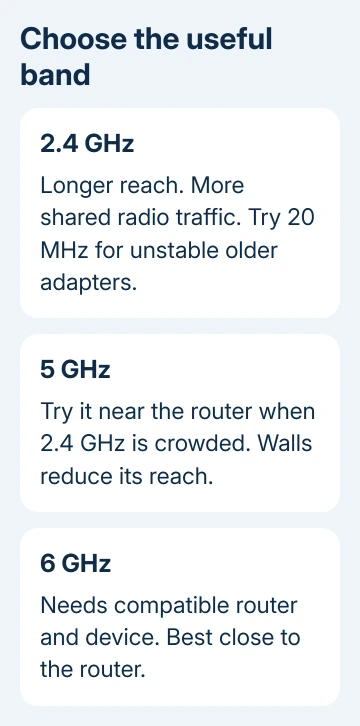
Open your device's Wi-Fi list. A router may show separate names for its two wireless bands, often with a band added to the name. Join the 5 GHz network while you're reasonably close to the router and repeat the failed task.
On Windows 11, select the network controls beside the clock, open the available Wi-Fi networks and select your network's name. For Windows 10, open available connections using the taskbar's network icon.
For an iPhone or iPad, the network list is in Settings > Wi-Fi. On a Mac, use System Settings > Wi-Fi. Android's Wi-Fi controls are usually under Network & internet > Internet, though Samsung uses Connections > Wi-Fi.
The 5 GHz band generally has more capacity and less congestion, but less reach through walls. Keep 2.4 GHz for older devices and rooms where it works better. You don't need to replace a working device just because it uses a different band.
Some routers combine the bands under one name and choose automatically. Check your router's app or manual for its band controls. A 6 GHz connection needs compatible equipment at both ends, and its availability also depends on local rules.
If one band fails, check its channel or width settings next. If both bands fail while Ethernet works, compare another wireless device and check router firmware before changing the computer's drivers.
4. Pick a less crowded radio channel
Nearby networks share radio channels. Interference and congestion aren't always visible as weak signal bars, so full Wi-Fi bars don't rule them out. The useful comparison is whether the same task works more reliably after a change.
Open the router's app or the administration address in its manual. Find the affected band's wireless settings. Menu names vary by maker; another router's button sequence may not apply even when its page looks similar.
Use the router channel instructions to select a channel suited to that band. Record the previous selection before saving. Reconnect the device after the router applies the change, then repeat your comparison in the same room.
A brief disconnect is expected while the radio restarts. Check whether your call or download stays stable afterward. If things get worse, restore the earlier channel before changing anything else.
5. Try 20 MHz when strong 2.4 GHz Wi-Fi keeps dropping
Channel width controls how much radio spectrum a network uses. It is separate from the channel number. A wider setting can carry more data, but some older adapters and drivers don't work well with 40 MHz on 2.4 GHz.
In the router's 2.4 GHz wireless settings, look for Channel Width. When it's Auto or 20/40 MHz, try 20 MHz, save and reconnect. Try this when reception looks strong but the connection remains unreliable.
Don't copy that setting to every band. The 5 GHz and 6 GHz radios have different width choices and capabilities. If 20 MHz helps, leave that band stable rather than chasing the largest advertised speed in the settings page.
When the wireless link still fails
Find firmware for your router's exact model and hardware revision on its maker's support page. If multiple wireless devices fail but Ethernet works, tell the maker which bands failed and ask about radio or firmware faults.
If Ethernet also fails, request a modem and incoming-line check from the provider. Give the drop times and modem light pattern. Before a factory reset, get the provider's setup details and confirm why erasing settings is needed.
The Short Version
Compare nearby Wi-Fi with another device and Ethernet. Move the router away from obstructions and electronics, then try 5 GHz. Change the affected band's channel if needed; try 20 MHz specifically for unstable 2.4 GHz connections.
Checked November 10, 2026.