
Changing the Wi-Fi channel means opening the router's wireless settings, choosing a band, and saving a different channel. Nearby networks sharing crowded frequencies can cause slow transfers or dropped connections.
Leave automatic selection enabled unless there is a problem to solve.
The setting belongs to the router. A laptop's Wi-Fi menu chooses which network to join, so start with the router's administration page rather than the computer's adapter settings.
1. Sign in to the router that supplies the Wi-Fi
Connect to your home network, using Ethernet if convenient. Open the management address listed in the router's manual or on its label. Sign in with the router admin password.
The network password and management password can differ. The router login recovery options explain what to try when the administration password is missing.
Status: NETGEAR, TP-Link and Microsoft channel instructions reviewed October 25, 2026. Controls vary by router. No wireless settings were changed here.
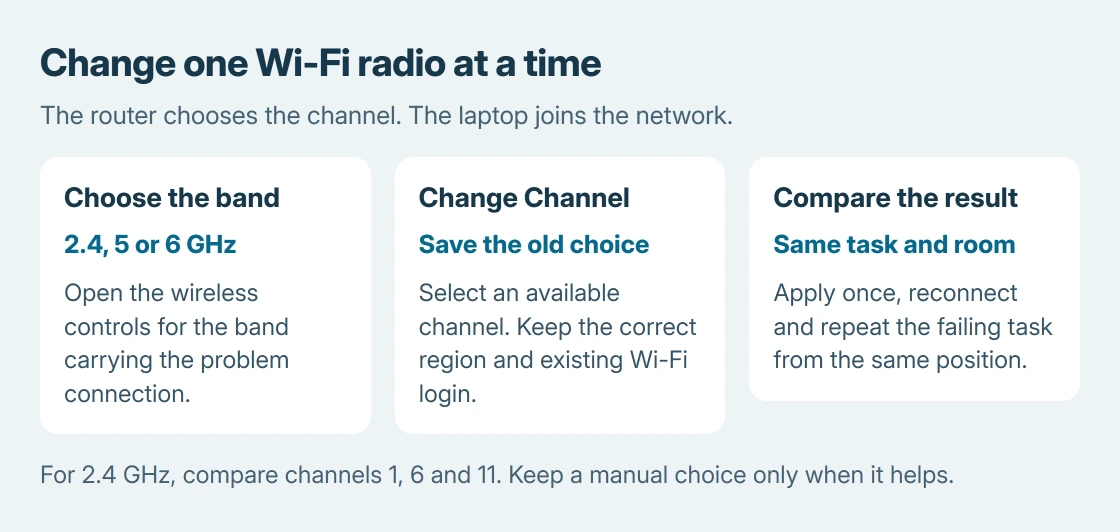
Before editing, record the band's existing channel and width. Keep the network name and password unchanged during this check so devices can reconnect with their existing credentials.
2. Find Channel inside the affected band's settings
NETGEAR says to open routerlogin.net from its router's network, sign in, and choose Wireless. Scroll to the relevant band, select a value from Channel, then click Apply.
For TP-Link models covered by its wireless configuration instructions, use tplinkwifi.net, then Advanced > Wireless > Wireless Settings. Select the band and edit its channel before saving.
TP-Link says newer interfaces can instead put these controls under Wi-Fi > Main Network > 2.4/5/6GHz Advanced Settings. Match the interface and model shown in the manual rather than searching for an identical menu on every router.
A shared Wi-Fi name does not mean the bands share one channel. Change the radio carrying the troublesome connection. A channel control missing from the interface needs the model's instructions or provider's help.
3. Choose a channel for the actual band
Microsoft documents channel selection in its home Wi-Fi layout guidance. A Wi-Fi analyzer's network graph helps show nearby networks and their relative signal strength.
For 2.4 GHz, compare channels 1, 6 and 11. Microsoft recommends those non-overlapping choices. Choose using the local network graph; channel 11 is not automatically better than channel 1.
For 5 GHz, compare the available choices for congestion. Use only channels offered for the router's real location. Changing its region to unlock more channels can conflict with local radio rules.
For 6 GHz, NETGEAR's channel instructions recommend a Preferred Scanning Channel (PSC) when selecting manually. That recommendation concerns finding and joining the network.
If the signal is weak everywhere except beside the router, try placement first. A less crowded channel cannot remove the walls between a laptop and its access point.
4. Save once, reconnect, and compare the same task
Apply the change when a brief Wi-Fi interruption will not disrupt a call or upload. After reconnection, repeat the failing task from the same position with the same device.
Check the connection where it previously failed. A faster test beside the router does not establish that the bedroom connection improved. If there is no benefit, return to the recorded setting or Auto.
For a strong 2.4 GHz signal that remains unreliable, Microsoft also suggests 20 MHz channel width when Auto or 20/40 MHz causes compatibility problems. Test that separately so the effect of each change stays clear.
NETGEAR warns that extenders need matching channels after a router channel change. Follow the extender's setup instructions if it stops working. The extender placement guide covers the separate coverage question.
When channel changes do not help
Ask the router maker or internet provider about the exact model if manual channels are unavailable or the change will not save. Give them the affected band and whether Ethernet has the same problem.
Slow wired traffic needs its own connection checks. Repeatedly changing wireless channels cannot explain a fault that also happens with Wi-Fi bypassed.
The Short Version
Sign in to the router, open the affected band's wireless settings, change Channel and apply it. Compare 1, 6 and 11 on 2.4 GHz. Keep the original setting available and retain a manual choice only when the connection improves.

Isaac Smith is the founder and editor of PC Glance, a website that covers computers, laptops, and technology. He is a tech enthusiast and a computer geek who loves to share his insights and help his readers make smart choices when buying tech gadgets or laptops. He is always curious and updated about the latest tech trends.