

iMac screen issues need different checks depending on whether the desktop appears. A picture that disappears after a resolution change needs its previous setting restored.
An iMac that starts but never shows a picture needs Apple's blank-startup procedure instead.
Persistent lines, patches or distortion also need a hardware check. Start by deciding whether the problem affects the built-in panel or a separate monitor connected to the iMac.
Match the symptom before changing anything
Disconnect an optional external display and check the iMac's own screen. If only the separate monitor fails, use the external display connection checks for that cable, adapter and display.
If the built-in picture is visible but too dark, raise its brightness with the keyboard's brightness control or System Settings > Displays. A visible desktop lets you check settings without forcing a shutdown.
Status: iMac display, Recovery and Apple Diagnostics guidance checked October 25, 2026. Intel and Apple silicon startup controls differ. No iMac hardware was tested.
A problem confined to waking from sleep follows a different pattern. The Mac wake failure guide covers a screen that works at startup and fails after sleeping.
Restore the display setting when the picture changes
Open Apple menu > System Settings > Displays. With multiple screens attached, select the iMac's built-in display before choosing Default. Compare the same text or window afterward.
Apple documents this in its resolution instructions. An unsuitable resolution can change the apparent size and clarity of the desktop.
If the screen went black immediately after choosing a resolution, wait 15 seconds for it to revert. If it stays dark, press Esc to restore the previous choice.
Apple says to use safe mode and select Default if the picture still will not return after that change. This recovery applies to a bad resolution selection; it does not explain a fixed stripe across the panel.
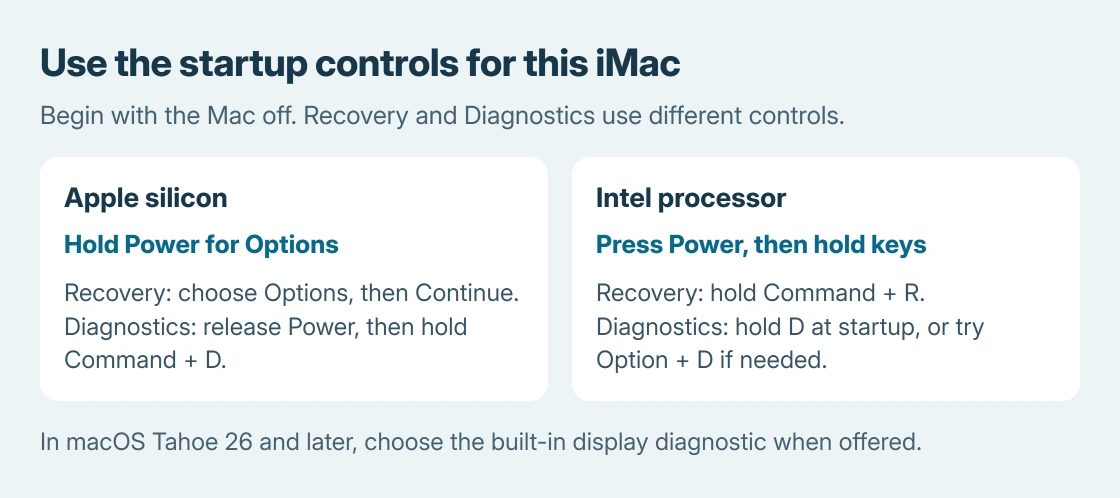
On Apple silicon, start from off and hold Power for startup options. Select the startup disk, hold Shift, then click Continue in Safe Mode. On Intel, start while holding Shift until the login window appears.
After restoring Default in Displays, restart normally. Apple's safe-mode instructions cover those two startup methods.
Use Recovery for an iMac stuck on a blank startup screen
If the iMac appears powered on but never reaches the desktop, press Power for as long as 10 seconds until it shuts off. Start it again. A forced shutdown can discard unsaved changes.
For a screen that stays blank, Apple's startup screen guidance proceeds to macOS Recovery. Use the instructions for the processor in this iMac.
- Apple silicon: from off, hold Power until startup options appear. Select Options, then Continue.
- Intel: start the iMac and immediately press Command + R together. Keep both keys down while waiting for an Apple logo or a spinning globe.
Apple's Recovery entry instructions explain the password and startup-disk prompts. A wired Mac keyboard can help when an Intel iMac does not recognize a wireless startup shortcut.
When Recovery is visible, Apple directs a startup-disk repair with Disk Utility. Back up important files before disk work when access allows it.
In Disk Utility, choose View > Show All Devices. Run First Aid from the last listed volume upward through the disk's volumes and volume groups.
Continue with its containers, then the physical disk, following Apple's disk repair instructions. Use Run or Repair Disk when prompted for each item.
Restart when repair finishes. If the blank startup persists, return to Recovery for Apple's macOS reinstallation procedure.
If First Aid reports an unrepairable disk, give Apple that result before choosing a reinstall.
Recovery displaying correctly shows that the panel can produce an image in that environment. It does not establish that every display component works reliably during normal use.
Run the built-in display diagnostic for persistent defects
Apple states that macOS Tahoe 26 and later can offer a specific built-in display test in Apple Diagnostics. Earlier versions run diagnostics automatically instead of presenting that selection.
Shut down and unplug accessories except the keyboard, mouse, display, Ethernet if used, and power. Keep the iMac ventilated and follow the appropriate startup method.
On Apple silicon, hold Power until Options appears, release it, then hold Command + D until the Mac restarts. On Intel, start while holding D. Try Option + D if D alone fails.
Follow the displayed instructions and select the built-in display diagnostic when offered. Record any reference code. A completed test with no reported problem does not guarantee that an intermittent fault has disappeared.
Give Apple the screen behavior and test result
Contact Apple or an authorized repair provider if the built-in display still has fixed defects or cannot show Recovery. Report the iMac model, processor, macOS version and diagnostic code, plus whether the problem appears before login.
A blank Recovery attempt does not prove the screen itself has failed. Apple identifies firmware recovery as another possibility on Apple silicon and T2-equipped Macs.
Ask support to match the procedure to the machine before any erase or restore.
The Short Version
Check the built-in screen separately. Undo a bad resolution change first. Use the appropriate Recovery shortcut for a blank startup and Diagnostics for persistent display defects. Give Apple those results if service is needed.

Isaac Smith is the founder and editor of PC Glance, a website that covers computers, laptops, and technology. He is a tech enthusiast and a computer geek who loves to share his insights and help his readers make smart choices when buying tech gadgets or laptops. He is always curious and updated about the latest tech trends.