An iMac that shows no sign of turning on needs a power check first. If it shows a logo or error symbol, check the startup disk instead. First check the cable, hold Power for about 10 seconds, release it, then give the button a normal press.
If the screen comes on but startup stops, move to the matching recovery steps. Erasing the iMac isn't the first repair for either case.
In this guide
1. Restore power before trying keyboard shortcuts
Check that the power cable is secure at the iMac and a working outlet. If a power strip is involved, confirm that it supplies power. Try another compatible cable or power adapter if one is available.
On an iMac with an external power adapter, check the connection from the wall to the adapter and from the adapter to the computer. A loose connection at either end can keep the iMac from turning on, even when macOS isn't the problem.
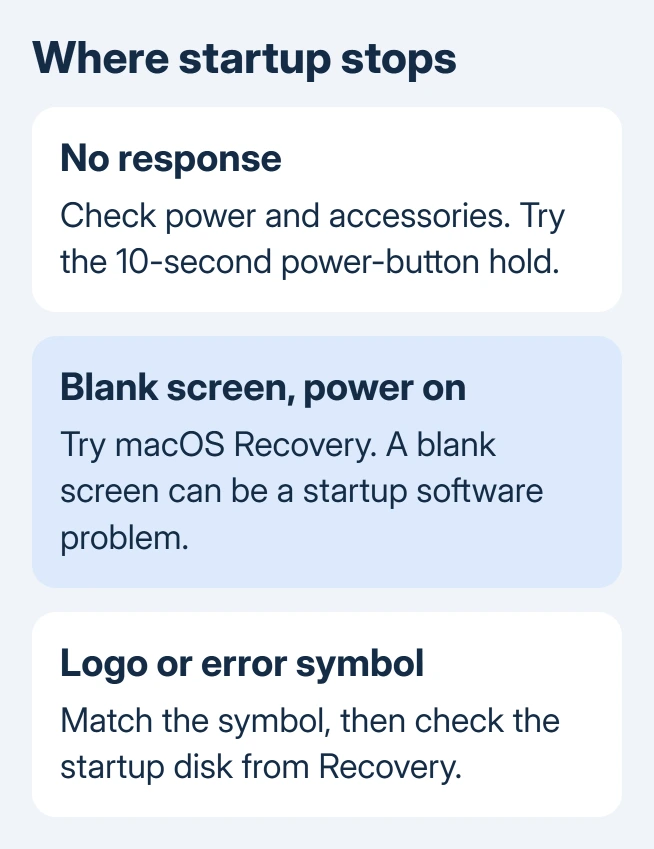
Keep the iMac's Power button held for roughly 10 seconds, release it, then press and release it normally. Apple's power troubleshooting steps recommend this before moving on to startup software.
Unplug nonessential accessories: printers, external drives, USB hubs and phones. Repeat the power-button check. If it starts, log in, then reconnect each accessory separately to see which device or cable brings the fault back.
Have a keyboard and mouse ready to use in Recovery. A wired keyboard is useful if an older Intel iMac doesn't recognize a wireless keyboard early enough for a startup shortcut.
2. Reset the power controller on an Intel iMac
Only Intel-based iMacs use this step. The system management controller, or SMC, manages power and related hardware functions. Resetting it can help an Intel iMac with startup power trouble.
Shut the iMac down. Unplug its power cord, wait 15 seconds, then reconnect it. Wait 5 seconds, then use Power to start the iMac. Use those desktop steps rather than a MacBook key combination.
Apple silicon iMacs don't need this SMC procedure. If your Apple silicon iMac still shows no sign of power after the cable and accessory checks, arrange service. Recovery shortcuts can't load while the computer isn't turning on.
If the iMac now powers on but gets stuck, move on to startup repair. Follow the steps for the picture it shows rather than repeating the power reset every time.
3. Match the startup screen to the next action
A flashing question-mark folder means the iMac can't find a working startup disk. A circle with a slash means it can't use the macOS on the selected disk. Both point to disk or system repair; switching outlets won't fix those messages.
The Apple logo and its progress bar show that startup is underway. An update can leave that bar paused for a long time, so allow the installation to finish instead of repeatedly cutting power while it is working.
If startup remains stuck, hold Power until the iMac shuts off, disconnect nonessential accessories and try once more. If the next start stalls there too, use Recovery in section 5 to check the startup disk.
A blank screen can still be a software startup problem when the iMac is on. Try Recovery next. For lines, color defects or an image that fails independently of startup, the iMac screen checks address the display branch.
I'd write down the symbol or photograph it before restarting. A repair request that names a question-mark folder helps support distinguish a disk problem from a broken display.
4. Try safe mode if ordinary startup hangs
Safe mode checks whether software loaded during startup contributes to the problem. Use it when the iMac powers on but won't finish a normal start, rather than when it has no power.
On Apple silicon, shut down, hold Power until startup options load, and select the startup disk. Keep Shift down while selecting Continue in Safe Mode. Log in afterward. A second login request can appear.
On Intel, start the iMac while holding Shift. Release it at the login screen, then sign in. A firmware password must be turned off before safe mode can start.
If safe mode works, restart normally and compare startup. A problem that returns outside safe mode needs its startup software checked. If neither route reaches a usable session, proceed to Recovery.
5. Open Recovery using the right iMac procedure
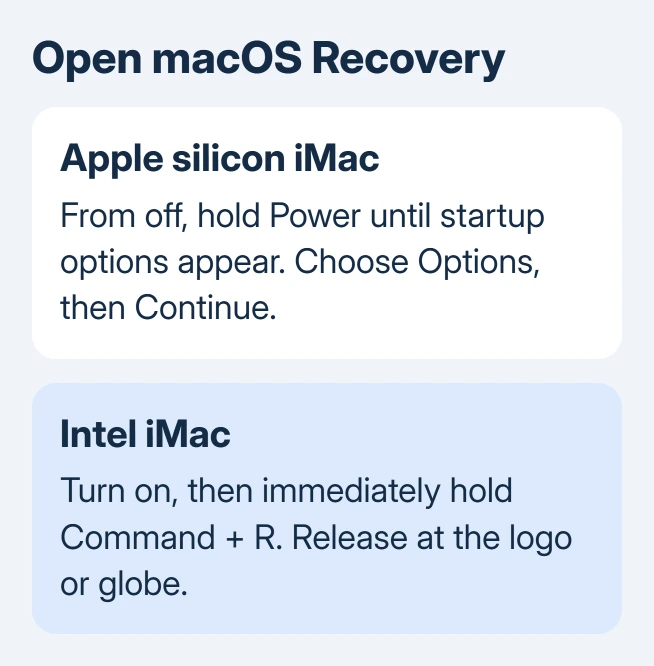
On an Apple silicon iMac, start with the Mac off. Keep Power held as the iMac starts, releasing it when startup options load. Select Options > Continue, and follow the prompts. Choose a user and enter their login password if asked.
On an Intel iMac, give Power a normal press and immediately hold Command + R. Release both keys at an Apple logo or the globe used by internet Recovery. Enter the requested password to continue.
If an Intel iMac doesn't enter Recovery, try Option + Command + R for internet Recovery. A globe indicates the internet route; use a reliable network. A firmware-password request needs that password before the startup shortcut can continue.
Recovery should show Disk Utility, the macOS installer and other recovery tools. Reaching them means the iMac can run its recovery environment, even though the ordinary startup system isn't loading.
6. Repair the startup disk before reinstalling macOS
In Recovery, choose Disk Utility > Continue, then View > Show All Devices if offered. For important unbacked-up files, ask about file recovery before repairing a disk that could already be damaged.
Begin with the startup device's last listed volume and run First Aid. Work upward through the other volumes, then any container, then the storage device itself. Unlock a volume with its password if prompted.
When First Aid finishes, quit Disk Utility and restart. If the iMac starts normally, make a separate backup of your important files before returning to ordinary work.
If the disk repairs successfully but startup still fails, return to Recovery and choose Reinstall macOS. Proceed through the installer, choosing the usual macOS volume, usually Macintosh HD, rather than the Data volume.
Reinstalling macOS through Recovery is designed to keep apps and personal data. Leave Erase alone for this repair. The iMac factory-restore procedure is a separate task for a deliberate reset, not the next click in a startup check.
For information that needs restoring afterward, recover the iMac account or individual files from a suitable Time Machine copy.
If Disk Utility can't see or repair the internal device, stop before erasing. Give Apple Support the disk name, First Aid error and backup situation. Ask about storage service and recovering your files.
7. Arrange service when startup repair can't begin
No power after the cable checks calls for hardware service. If it turns on but can't open Recovery, ask for help with startup. An Apple silicon firmware repair can require another Mac; ask whether that procedure applies to this iMac.
Give support the serial number from the iMac's label or purchase records. Describe the startup screen and the steps you've tried. Tell support if unbacked-up files are your priority, before anyone proposes a disk erase.
With the display unavailable, look up the iMac serial from the stand, box or account to prepare the service request.
The Short Version
Begin by checking the power connection, then use the Intel SMC reset if needed. In your model's Recovery, try disk repair before a macOS reinstall. A missing disk, failed repair or continued lack of power needs service.
Checked November 15, 2026.
 If you have any business, I can build it online