
Yes, certain older iMacs can work as a monitor for another older Mac through Target Display Mode. A modern iMac, including an Apple silicon model, doesn't become a regular monitor just by connecting an HDMI or USB-C cable.
Check both computers' models and macOS versions before buying an adapter. Some newer Macs can receive AirPlay instead, but that streams the picture and has its own requirements.
Check both computers before choosing a cable
On each computer, select About This Mac from its Apple menu. Note the model year and macOS version. On newer macOS, System Settings > General > About also shows the model information.
Apple lists specific iMacs from 2009 through mid 2014 in its Target Display Mode requirements. The iMac serving as the display must run macOS High Sierra 10.13.6 or earlier.
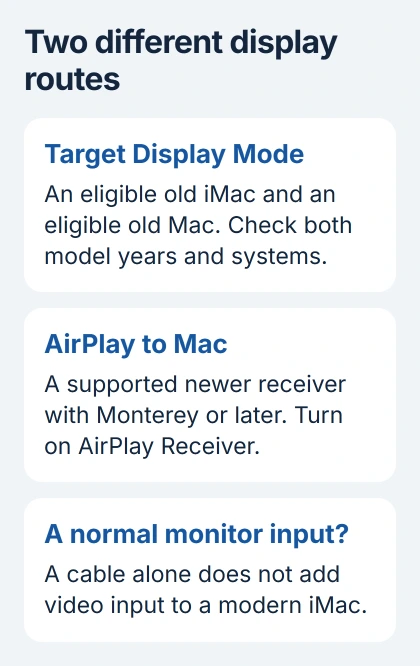
The Mac sending the picture must have been introduced in 2019 or earlier and run macOS Catalina or earlier. A new Apple silicon Mac can't use this wired feature.
If either computer doesn't meet those requirements, skip the Target Display Mode steps. An adapter can change a connector, but it can't add the feature to an unsupported iMac or operating system.
The iMac model list helps distinguish machines with similar cases. A 27-inch screen or a familiar-looking port by itself doesn't identify a compatible model.
For an iMac with a faulty picture, check its own display first. I'd check that the screen works and both Macs qualify before spending money on an old display setup.
Match the cable to the eligible iMac
The cable you need depends on the iMac's generation. The connectors can look alike, so check the cable and port markings rather than judging by shape alone.
| Eligible iMac generation | Cable used for Target Display Mode |
|---|---|
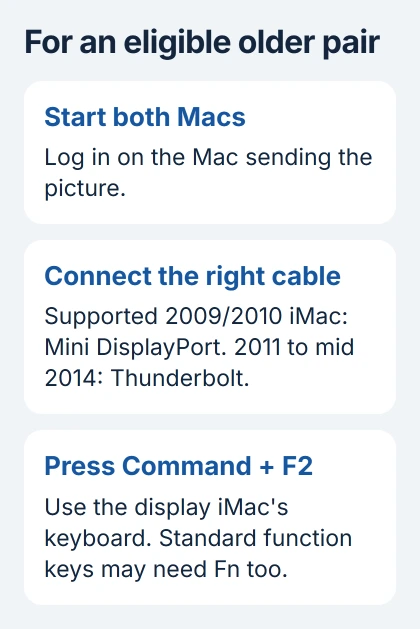
| Supported 2009 or 2010 models | Mini DisplayPort |
| 2011, 2012, 2013 or mid 2014 models | Thunderbolt or Thunderbolt 2 |
A Mini DisplayPort cable isn't a Thunderbolt cable, even though the plugs look alike. The later iMacs in the table need a Thunderbolt connection. A video-only cable that fits won't do the same job.
Check the other Mac's ports too. If you need an adapter, make sure it works with your cable and the connection the iMac needs. An HDMI-to-Mini DisplayPort cable won't work as a general solution for these iMacs.
Target Disk Mode lets another computer access a Mac's storage. Its Thunderbolt cable checks can help you identify a cable, but starting that mode won't put another desktop on the iMac's screen.
Start Target Display Mode on a supported pair
Turn on both Macs and let them finish starting. Log in to a macOS account on the Mac that will send the picture, then connect the correct cable between the computers.
Press Command + F2 on the keyboard attached to the iMac you're using as a display. When its screen shows the other Mac's desktop, Target Display Mode is working.
If the iMac uses standard function keys, try Command + Fn + F2. Some third-party keyboards and older keyboards don't support the command properly, so try the keyboard supplied with the iMac when available.
To leave the mode, press the same shortcut again. Disconnecting the cable or restarting either computer also ends it. The iMac itself keeps running while it displays the other Mac's desktop.
Apps already running on the iMac continue to run. For example, audio it was playing can continue even though its display now shows the other computer. Close unwanted playback before switching.
Handle sound, accessories and a failed shortcut
To hear sound through the iMac's speakers, open Sound in System Preferences on the Mac sending the picture. In Output, select the iMac. Adjust the volume on that Mac too.
Connect other accessories to the Mac sending the picture. Target Display Mode doesn't let that Mac use the iMac's camera or ports, so the iMac won't work as a docking station.
If both Macs qualify but the shortcut does nothing, restart them, reconnect the cable and try again. You can also choose Log Out on the display iMac to return to its login window, then retry the shortcut.
Before changing software, recheck both Macs' model years and macOS versions. An eligible old iMac still can't use this wired feature with an unsupported new Mac.
Don't downgrade a working Mac just to try this setup. If you need the feature and your macOS is too new, talk to support about a compatible setup and your backups before changing it.
Use AirPlay only when the receiving Mac supports it
For a newer iMac, check whether it supports AirPlay to Mac. The Mac receiving the picture needs macOS Monterey 12 or later and supported hardware, including iMacs introduced in 2019 or later and iMac Pro.
The Continuity requirements list the hardware that supports AirPlay to Mac. The requirements differ for sending and receiving, so check the receiving iMac first if you're sending from an older device.
In current macOS, open System Settings > General > AirDrop & Continuity and turn on AirPlay Receiver. Some releases call the section AirDrop & Handoff. Monterey uses System Preferences > Sharing > AirPlay Receiver.
Choose who may send content using Allow AirPlay for. For your own devices, Current User limits receiving to your account. For the normal setup, connect each device to the same Wi-Fi network.
On the Mac sending the picture, open Control Center > Screen Mirroring and choose the receiving iMac if it appears. Choose from the display options your macOS offers, and enter an AirPlay code or password if asked.
AirPlay streams the picture instead of using a monitor's video input. If the iMac doesn't appear, check that it meets the requirements, allows receiving and uses the same network before buying a video adapter.
When a normal monitor is the practical choice
Target Display Mode doesn't support Windows or Boot Camp. For a PC, game console or unsupported Mac, use a display with a video input for that device. An iMac won't accept the connection just because a cable fits.
If two eligible Macs still won't connect after the cable and keyboard checks, contact support. Give them both model years, both macOS versions and the exact cable type so they can check whether the setup should work.
The Short Version
Wired Target Display Mode needs two eligible older Macs and the correct cable. Check both model years and systems before using Command + F2 on the iMac. For supported newer hardware, consider AirPlay receiving.
Checked November 5, 2026.

Isaac Smith is the founder and editor of PC Glance, a website that covers computers, laptops, and technology. He is a tech enthusiast and a computer geek who loves to share his insights and help his readers make smart choices when buying tech gadgets or laptops. He is always curious and updated about the latest tech trends.