
Your first thought was probably that somebody has got onto your Wi-Fi. Mine would have been too, and I get why a Privacy Warning under the name of your own home network is an unsettling thing to find.
Nobody has broken in. That line is not about an intruder and it is not a virus alert.
It is your iPhone saying the network could reveal something about your phone. Five different things produce that identical label, so work down this list and stop at the one that is yours.
First, read which warning you actually have
Tap the network name. Then the small information button beside it. The specific complaint is usually spelled out in grey text on that screen.
Apple, on Wi-Fi router settings: "If your Apple device shows a privacy or security warning about a Wi-Fi network, that network could expose information about your device."
Could expose. Not has been attacked, not is infected. It describes how the network is set up and nothing more.
Fix 1: Turn Private Wi-Fi Address back on
This is the commonest cause by a distance. It is also very often self-inflicted.
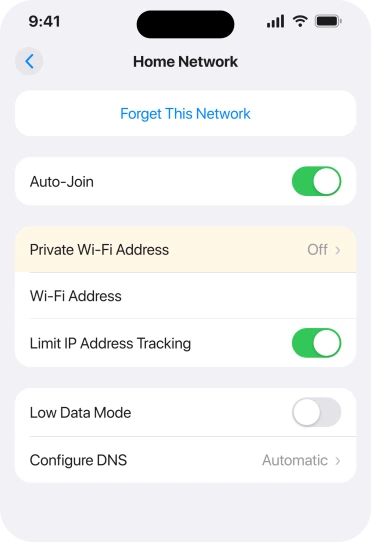
Your iPhone normally hands each network a made-up hardware address instead of its real one.
Apple: "To improve privacy, your iPhone, iPad, iPod touch, Mac, Apple Watch, or Apple Vision Pro identifies itself to each network using a different Wi-Fi address, and might rotate (change) the address periodically."
Switch that off and the network sees your phone's permanent address. That is exactly what the warning reports.
Go to Settings, Wi-Fi, the information button, then Private Wi-Fi Address, and turn it on.
Turning that switch off is standard advice for routers that keep dropping an iPhone, and it is advice we give ourselves in our Wi-Fi troubleshooting guide.
If somebody flipped it months ago to cure a connection problem, this warning is the bill arriving.
Fix 2: If the router hates it, choose Fixed rather than Off
Off is where everyone jumps to, and there is a middle setting that keeps both sides happy.
On iOS 18 and later that switch has three states, not two. Apple: "Off: When set to Off, your device uses its hardware MAC address." Fixed keeps one made-up address for that network permanently.
Rotating changes it periodically and is the default.
If your router only ever misbehaved with Rotating, try Fixed. You keep a private address, the router keeps a stable one to recognize, and the warning goes.
Apple also names the cases where a network genuinely cannot cope, so you can tell whether yours is legitimate.
On its private network address page Apple says a network may be unable to use a private address "for example, to provide parental controls or to identify your iPhone as authorized to join".
School and workplace networks land here constantly.
Even then Apple is firm about the default. Apple: "For better privacy, leave Private Address turned on for all networks that support it."
Fix 3: Change the router's security protocol
If the grey line mentions weak security, the fault is in the router. No iPhone setting will silence that one honestly.
Apple: "Don't create or join networks that use older, deprecated security protocols. They're no longer secure, they reduce network reliability and performance, and they cause your device to show a security warning."
Apple then names the settings to avoid, which is unusually specific for a support page. WPA/WPA2 mixed modes. WPA Personal. WEP, "including WEP Open, WEP Shared, WEP Transitional Security Network, or Dynamic WEP (WEP with 802.1X)".
And TKIP, "including any security setting with TKIP in the name". Networks with no security at all get the same treatment, with None, Open and Unsecured all called "strongly discouraged".
What you want is WPA3 Personal, which Apple calls "the newest, most secure protocol currently available for Wi-Fi devices". If older gear in the house cannot cope, WPA2/WPA3 Transitional lets both live together.
That change happens in the router's own settings page, not on the phone. On a landlord's router or in a coffee shop you cannot fix it, and the warning is doing its job by telling you so.
Fix 4: Look at what is filtering your DNS, including your own ISP
Every time you open a site your phone asks a name server where that site lives. Encrypting that question stops the network operator reading a list of everywhere you go, and Apple names a network blocking it as one of the warnings.
Usually there is nothing to change on the phone. Schools block it. So do offices and hotels.
But there is one case you can fix, and it came from an owner rather than from Apple.
On Xfinity's own community forum thread about this warning, a poster reports that turning off Advanced Security in the Xfinity account app cleared it.
That feature inspects traffic at the gateway, which is exactly what Apple's DNS warning describes.
If your home network shows this and you have never touched the router, check whether your provider has a security or protection feature switched on in its own app.
This is user-reported rather than documented by Apple, and it will not apply to every provider, but it costs a minute to look.
Weigh it up before you switch anything off. That feature is doing something for you as well, and I would only turn it off long enough to confirm it is the cause.
Fix 5: Stop hiding the network name
This one surprises people. Hiding a network feels like a security measure, and it is the opposite.
Apple: "Hiding the network name doesn't conceal the network from detection or secure it against unauthorized access."
The reason it earns a warning is that your phone has to go looking.
Apple: "because of how devices search for and connect to Wi-Fi networks, using a hidden network might expose information that can be used to identify you and the hidden networks you use, such as your home network".
So a phone that knows a hidden network calls that name out quietly in every coffee shop you walk into. Your home network. Announced to strangers.
Turn the name broadcast back on at the router and secure it with WPA3 or WPA2/WPA3 Transitional instead, which is what Apple recommends in place of hiding.
Fix 6: Decide honestly which of these you actually need to do
Not every one of these needs doing. I would rather you knew which is which than fixed things at random.
On a home network you control, a warning about your own private address is a preference, not a danger. Nobody outside your house is collecting your phone's address from your kitchen router.
A weak security warning on your own router deserves twenty minutes, because that one affects everything in the house rather than just your phone.
On any network you do not control, the warning is information you should act on by using it less, not by silencing it. A trusted VPN moves the problem elsewhere rather than removing it.
Fix 7: Turn off Auto-Join for your carrier's networks, which is the one that matters
Scroll your Wi-Fi list. You may find networks you never joined on purpose, named after your mobile carrier. This is the fix I would do today even if all six of those came back clean.
Apple: "Wireless carrier Wi-Fi networks are public networks set up by your wireless carrier and its partners. Your iPhone or other Apple cellular device always recognizes these as known, managed networks, and it joins them automatically."
A warning on one of those is a different order of problem entirely.
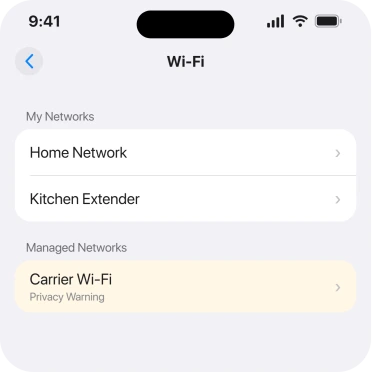
Apple: "If you see a privacy warning under the network's name in Wi-Fi settings, your cellular identity could be exposed if your device were to automatically join a malicious hotspot impersonating that network."
Your cellular identity. Not a browsing habit. The thing that identifies your line on the mobile network, handed to whoever set up a hotspot with the right name.
Apple's fix is to stop the automatic joining. Open Settings, tap Wi-Fi, tap Edit in the corner to see every network your phone knows, scroll to the Managed Networks section, and turn Auto-Join off for that one.
You lose nothing you chose. Those networks exist to take load off the cellular network, not to serve you.
Our page on CarPlay dropping its connection covers the one case where a saved network genuinely matters to you.
What does not work
- Forgetting the network and rejoining. The warning is about configuration, so it returns. One owner on that Xfinity thread reports doing exactly this after rebooting the gateway, and it came back a few days later. On iOS 18 and later, forgetting also throws away the private address your phone was using there.
- Reset Network Settings. Same reason, and it costs you every saved Wi-Fi password on the phone.
- Turning Wi-Fi off and on. It changes nothing about the router's protocol or the network's DNS policy.
- Installing a security app. There is no malware involved in any of the five causes.
- Ignoring it on a carrier network. That is the one case where the warning points at real exposure rather than a preference.
Status: iOS 26.6, checked 17 August 2026. Apple names five causes for this one label, mostly on a single page, doc 102766, and the label on screen reads the same for every one.
Is a Wi-Fi privacy warning on iPhone dangerous?
Usually not. Apple's own wording is that the network "could expose information about your device", which is a statement about configuration rather than an attack.
The exception is a warning on a carrier network, where Apple says your cellular identity could be exposed to a hotspot impersonating that network.
How do I get rid of the privacy warning on my home Wi-Fi?
Turn Private Wi-Fi Address back on for that network first, or set it to Fixed if Rotating upsets your router.
If the warning mentions weak security, change the router to WPA3 Personal or WPA2/WPA3 Transitional. If it mentions DNS, check whether your provider has a security feature filtering traffic at the gateway.
Why does my iPhone say Weak Security on Wi-Fi?
Because the router is using a protocol Apple considers deprecated. Its list includes WPA/WPA2 mixed modes, WPA Personal, every form of WEP, and anything with TKIP in the name. The fix is in the router's settings, not on the iPhone.
The Short Version
- Read the grey line under the network name first. Five different causes share one label.
- Turning Private Wi-Fi Address back on fixes the commonest one in thirty seconds.
- If your router only misbehaves with Rotating, use Fixed rather than Off.
- Weak Security is a router protocol problem. Aim for WPA3 Personal.
- A DNS warning at home can come from your own provider's security feature, which one owner reported switching off to clear it.
- Hiding a network name causes a warning rather than preventing one.
- The one to act on today is Auto-Join for your carrier's networks, because Apple says your cellular identity is what is exposed there.
Where to Next
One label, five causes, and a phone that gives you no hint which is which unless you know to tap the little information button.
Tap it. Read the grey line. Then take the matching fix from this page. And whatever the answer turns out to be, switch Auto-Join off for the carrier networks while you are in there.
And if the camera will not read a code at all, six things stop that working.
Where a coloured dot appears at the top of the screen, those two dots mean something specific.
If the grey line on your screen says something not covered here, paste the exact wording in the comments and I will tell you which of the five it belongs to.

Isaac Smith is the founder and editor of PC Glance, a website that covers computers, laptops, and technology. He is a tech enthusiast and a computer geek who loves to share his insights and help his readers make smart choices when buying tech gadgets or laptops. He is always curious and updated about the latest tech trends.