
You have spotted a little orange or green dot at the top of your screen, and now you are wondering which app is quietly listening to you. That is a fair thing to want an answer to.
Orange means an app is using the microphone. Green means the camera, or the camera and the microphone together. That is Apple's entire definition, and it runs to two sentences.
The useful part is what those two sentences leave out, and I want to start with the difference between an orange dot appearing from nowhere and a green one.
Apple's definition, in full
There is not much of it. From Apple's page on the indicators, updated in May 2026:
"An orange indicator means the microphone is being used by an app on your iPhone."
"A green indicator means either the camera only or the camera and microphone are being used by an app on your iPhone."
So green covers both. An app on a video call lights green, not both dots, and you cannot tell from the dot alone whether your microphone is live as well.
If your dot is a square rather than a circle, that is a setting rather than a fault.
Apple: the indicator "appears as an orange square if the Differentiate Without Color setting is turned on in Settings > Accessibility > Display & Text Size."
Why an orange dot with nothing open is normal, and a green one is not
This is the part worth understanding, and it comes from a rule Apple states on its privacy page rather than on the indicator page.
Apple: "In iOS and iPadOS, access to the camera is disabled for an app when it is in the background."
The microphone has no such rule. Calls, voice memos, dictation, music apps and navigation all need the microphone while you are doing something else, so a blanket background block would break them.
Ours, reasoned from that: an orange dot when you have nothing obviously open is ordinary, because something in the background is allowed to hold the microphone.
A green dot in the same situation is the genuinely odd one, because Apple documents that a backgrounded app cannot reach the camera at all.
That asymmetry is the thing on this page most likely to change what you do, and it is worth carrying away on its own.
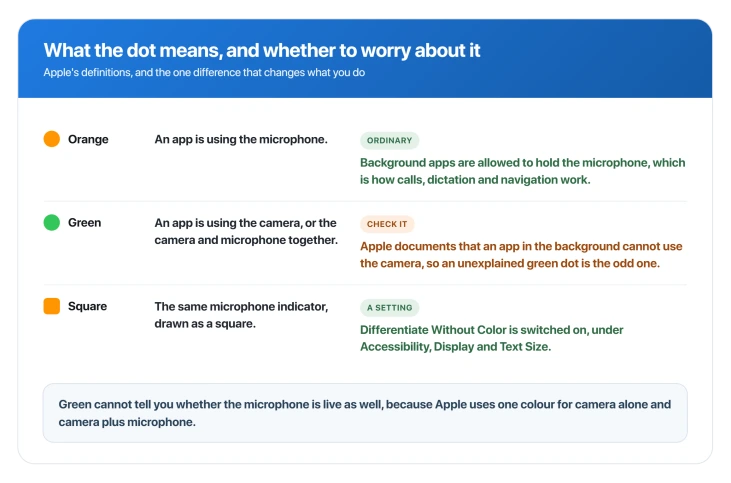
So if you saw orange and worried, I would let it go. If you saw green with nothing obvious running, that is the one I would look into.
Calls, screen recording and Siri
A phone call, a FaceTime call and a screen recording each have their own separate status icon, which Apple lists as "Phone call", "FaceTime" and "Screen recording", alongside "Camera in use" and "Microphone in use".
Being careful here, because it is easy to overclaim: Apple lists these as separate indicators, and does not say anywhere we read whether a call or a screen recording also lights the orange or green dot.
Separate icons exist. That is all that is documented.
If the camera preview itself is black or frozen rather than the dot being the puzzle, that is a different fault, and a black or frozen iPhone camera is the page for it.
Siri and Voice Control are the gap. Voice Control has its own status icon on Apple's list, and Siri Eyes Free is there too. What Apple never says, on any of those pages, is whether either one also lights the orange dot.
Apple has published nothing to base an answer on, so we are not going to guess.
What you can do is watch: invoke Siri with the status bar in view and see for yourself, and once the App Privacy Report is on it will log any microphone access by name.
Finding out which app it was
Two tools, and they are good at different things.
Control Center is the quick one, and Apple's own word for what it shows is telling: "Control Center shows you when an app has recently used the microphone or camera." Recently, not currently.
It answers "what just happened", and it does not keep a history.
The App Privacy Report is the one that actually answers the question, and it has a catch big enough that it needs saying first.
Apple, on its App Privacy Report page: "Data & Sensor Access shows how many times and when an app accessed privacy-sensitive data or device sensors in the past 7 days. This may include details about an app's access to Location, Photos, Camera, Microphone, Contacts, and more."
Seven days of history, per app, per sensor. Turn it on at Settings > Privacy & Security > App Privacy Report, then Turn on App Privacy Report.
The catch: it is off until you switch it on, and Apple says it "starts gathering information only after you turn it on, so it may take a little time for details to appear".
It cannot tell you about the dot you saw yesterday. It can only tell you about the next one.
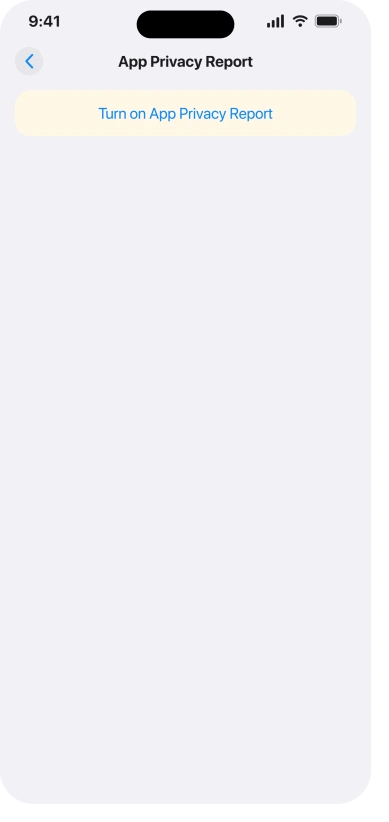
So switch it on now and it becomes the answer next time. Note also that turning it back off "will also clear the report data from your device", so leaving it on is the whole point.
The question actually driving this search
People do not look up the orange dot out of curiosity. They look it up because they are worried somebody is listening.
There are three parts to this, in the order the evidence supports them.
What Apple does state. "No app can access the microphone or camera without your permission." And the background camera rule, which is a real restriction rather than a reassurance: a backgrounded app cannot use the camera at all.
What Apple does not state, and we are not going to pretend otherwise. Apple publishes a hardware microphone cut-off in its platform security guide, for Mac laptops with a T2 chip or Apple silicon and for iPads from 2020.
On both it works by closing the lid or the case, which is why there is no iPhone equivalent to publish.
The iPhone is not in that list, and it has no lid to close. That is not a claim about the indicators in either direction, and nothing we found suggests the dots can be defeated.
It means only that Apple has published no iPhone equivalent, so neither will we.
What to actually do, rather than watch the status bar: turn on the App Privacy Report and look at seven days of real records.
Apple recommends it for exactly this worry in its own Personal Safety guide, aimed at someone concerned that apps were installed or changed without their permission.
That guide points at the report, not at the dots.
So if you are trying to work out who was listening, I have to be straight with you. The dot on its own cannot tell you, and nothing on the phone remembers it afterwards.
The screen where you can act instead of watch
Everything so far is observation. If you want to do something instead, the lists are two taps from the same place.
Settings > Privacy & Security > Microphone shows every app you have granted the microphone, with a switch beside each. Settings > Privacy & Security > Camera does the same for the camera.
Anything on either list that has no business being there can be switched off in one tap, and unlike the report this works on the dot you saw yesterday.
If your worry is a person rather than an app, that same Privacy & Security pane holds Safety Check, and Apple's Personal Safety guide is written for exactly that situation.
It is also worth checking Settings > General > VPN & Device Management for a profile you did not add.
For a related worry about what the phone hands over without asking, what NameDrop actually sends works through a feature people assume is riskier than it is.
Status: current as of iOS 26.6. No iOS 26 release from 26.0 to 26.6 mentions the privacy indicators, and Apple's indicator page still illustrates itself with iPhone 15 and iOS 17 screenshots.
Can you turn the dots off?
No control for it appears on any Apple page we read, and the accessibility setting mentioned earlier changes the orange dot's shape rather than removing it. There is no such switch, so anything offering you one is selling something else.
Why does the orange dot appear when I am not using anything?
Because a backgrounded app is allowed to use the microphone, which is how calls, dictation, voice memos and navigation work. It is the common case. Open Control Center to see which app was responsible most recently.
Is a green dot with no camera open a problem?
It is the one worth checking, because Apple documents that apps in the background cannot use the camera. Open Control Center straight away to see the app named, and turn on the App Privacy Report so a repeat is recorded.
Does the dot mean I have been hacked?
On its own, no. Apple's line is that "no app can access the microphone or camera without your permission", so a dot means a permission you granted is being used, which is the feature working. If you want evidence rather than reassurance, the App Privacy Report gives you seven days of per-app records, and Apple points worried users there itself.
The Short Version
- Orange is the microphone. Green is the camera, or the camera and microphone together, so green cannot tell you whether the mic is live too.
- Apple documents that a backgrounded app cannot use the camera. It publishes no equivalent rule for the microphone, which calls, dictation and navigation all need in the background.
- So an unexplained orange dot is ordinary, and an unexplained green one is the one to look into. That reading is ours.
- Calls, FaceTime and screen recording have their own separate status icons. Apple does not say whether they also light the dots.
- Control Center shows the app that used a sensor recently. It keeps no history.
- The App Privacy Report keeps seven days, but only from the moment you switch it on, so it is useless for a dot you already saw.
Where to Next
Treat the dots as an alarm rather than an investigation. They tell you a sensor is live right now, they cannot name the app unless you catch them in the act, and they keep no record at all.
Two minutes spent turning on the App Privacy Report turns every future dot into something you can actually look up. That is the one part of this you can change today, and I would do it now rather than the next time a dot worries you.

Isaac Smith is the founder and editor of PC Glance, a website that covers computers, laptops, and technology. He is a tech enthusiast and a computer geek who loves to share his insights and help his readers make smart choices when buying tech gadgets or laptops. He is always curious and updated about the latest tech trends.