A Blink Sync Module that won't connect after a router name or password change needs its saved Wi-Fi details updated. If your network hasn't changed, restart the router and unplug the module for 10 seconds before trying setup again.
Read the lights first: solid blue with blinking green means it's trying to reconnect; blinking blue with solid green means it's ready for setup. Solid red during setup points to a connection problem or a password that may be incorrect.
In this guide
1. Read the lights and check the phone's connection
Check the module itself, rather than only the camera thumbnails. The Blink app can show several cameras offline because their shared Sync Module is disconnected. Resetting each camera won't restore that shared connection.
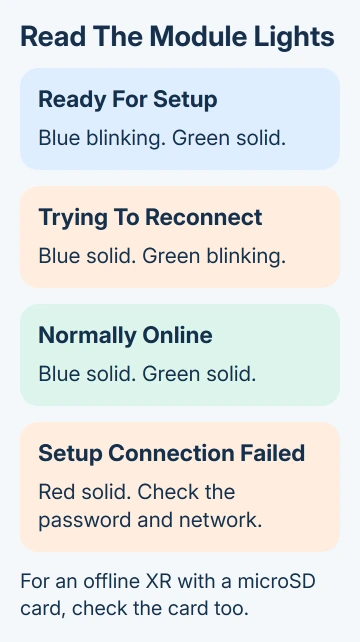
Solid blue and solid green normally means the module is online. Solid blue and blinking green means it's trying to return to its previous network. Blinking blue and solid green is the pairing state used during setup.
With no lights, check the adapter, cable and outlet before changing the router. Push the power connector in firmly and try an outlet you know works. A module with no power can't receive new Wi-Fi settings.
Connect your phone to the home Wi-Fi and open a normal internet page. When that page won't load, repair the phone's connection first. The module needs internet access as well as a Wi-Fi connection to the router.
If the problem is signing into the account before the module screen opens, use the Blink Home Monitor access guide. Account access and module Wi-Fi setup are separate problems.
2. Restart the network without deleting the system
For a previously working network, unplug the router's power, wait 30 seconds, and reconnect it. Let the router finish starting and confirm the phone can get online through it again.
Then unplug the Sync Module for 10 seconds and reconnect it. Watch the LEDs while it starts. A return to solid blue and solid green means the connection has recovered.
Blink recommends these power checks before rebuilding setup in its module troubleshooting steps.
I'd do that restart before a reset. It keeps your existing setup while checking whether the module or router got stuck reconnecting after a power interruption.
If the router name or password changed, a restart won't teach the module the new details. Continue to the Wi-Fi update procedure. If nothing changed and it stays offline, check network compatibility and signal next.
3. Check the 2.4 GHz network and the module's position
Blink communicates over 2.4 GHz Wi-Fi. Check that your router has that band enabled. A network available only on 5 GHz won't provide the connection the module needs.
A combined network name for multiple bands isn't automatically wrong. Blink supports mesh networks and shared network names, while its own connection uses 2.4 GHz. Don't rename the whole household network just because it shares a name.
The supported Wi-Fi security types are WEP, WPA and WPA2. Check router compatibility if it uses WPA3-only security. Use a supported secure mode, such as WPA2, rather than weakening the network to WEP.
During setup, put the module near the router with no large obstructions between them. The placement guidance suggests roughly 3 to 10 feet from the router, rather than pressing the module against it.
Temporarily unplug mesh pods or extenders and try with the main router alone. Reconnect them after the module has joined successfully. If this changes the result, the extra network equipment needs attention.
The system also needs at least 2 Mbps upload speed. Good signal bars aren't a substitute for working internet access. The phone's Wi-Fi speed checks can help distinguish a weak connection from a setup-password failure.
4. Enter the Wi-Fi details through the module screen
Open Blink's Home screen, tap Sync Module, then choose Change Wi-Fi Network. This updates the shared module connection rather than the standalone Mini camera's separate Wi-Fi setting.
Follow the prompt to put the module into pairing mode. Press its Reset button until an LED turns red, then release it. Some models need a pin to reach the button. Wait for blinking blue and solid green.
On Sync Module Core, XR and Sync Module 2, the reset button is on the back. The first-generation Sync Module has its recessed reset control on the side, next to the USB port.
When the lights match, tap Discover Device. Accept the phone's request to join the module's temporary Wi-Fi network. This temporary connection lets the app send your home-network details to the module.
Choose your home Wi-Fi network, enter its password and tap Join. Use the Wi-Fi password, not your Blink account password. Check uppercase letters and similar-looking characters before submitting it again.
Once it connects, you'll see a message naming your Blink system. Tap Done to finish. Check that the offline banner disappears and that the cameras using the module become available.
5. Fix phone permissions or a blocked setup connection
Turn off the phone's VPN during setup, then restore it after the module connects. A VPN or security filter can interfere while the phone moves between the temporary module network and the home connection.
On an iPhone, allow Local Network access for Blink in its app permissions. Recent iOS versions group app settings under Settings > Apps > Blink; the permission may also appear under Privacy & Security > Local Network.
On Android, open Settings > Apps > Blink > Permissions and review requests the app makes during setup. Menu labels vary by phone; the Android app-permission controls explain where to change them.
Retry discovery after correcting a denied permission. If the temporary connection works but the light turns red when joining home Wi-Fi, return to the password, supported security mode and router access controls.
Check the router for a blocked-device notice. A Blink device can appear under the name of its Wi-Fi chip rather than a recognizable Blink label. Don't remove household-wide security settings without checking which device was blocked.
6. Check an XR card problem before arranging support
A Sync Module XR with a microSD card can show offline because of a card or power problem, even with blue and green LEDs. This extra check applies to XR with a card, not every Sync Module model.
Disconnect the XR from power and remove the microSD card. Inspect it for damage, then reconnect the module without the card. Wait for solid blue and green before reinserting an undamaged card or its replacement.
If the module goes offline again after you put the card back, the card may be faulty and need replacement. Don't format it as the first experiment if you need its recordings.
For persistent red during setup, follow the model's factory-reset instructions on the troubleshooting page. For a previously connected module stuck reconnecting, that page directs you to delete and re-add it.
If it still fails, open Contact Support on Blink's troubleshooting page. Provide the module model, LED pattern, router security mode, whether its Wi-Fi details changed, and the result with extenders disconnected.
The Short Version
Read the LEDs, confirm power and restart both devices. Use Change Wi-Fi Network when the password changed. Confirm 2.4 GHz compatibility, phone permissions and signal. On XR, check a fitted microSD card before rebuilding setup.
Checked November 10, 2026.