An Android hotspot lets a laptop, tablet, or another phone use your phone's internet connection. Swipe down and tap Hotspot to turn it on, then join its Wi-Fi name from the other device using the hotspot password.
If that tile isn't there, open the phone's hotspot settings instead. Pixel puts them under Network & internet; Samsung Galaxy uses Connections. Set up the name and password there before trying to connect the laptop.
In this guide
Get the phone ready to share its connection
Check that the phone itself can access the internet using cellular data. A hotspot can broadcast a Wi-Fi network even when the phone has no usable internet connection to share.
Check your carrier's tethering allowance before a long session. Some plans limit hotspot use or charge separately, so an unlimited phone-data plan doesn't automatically mean unlimited laptop tethering.
Google says you can share an Android connection through a hotspot or tethering. The ordinary Wi-Fi hotspot is the simplest choice when the other device has Wi-Fi and you want to connect without a cable.
I'd connect one device first and open a small page before starting a large download. That checks the complete connection without immediately using a large part of the allowance.
Turn it on from Quick Settings
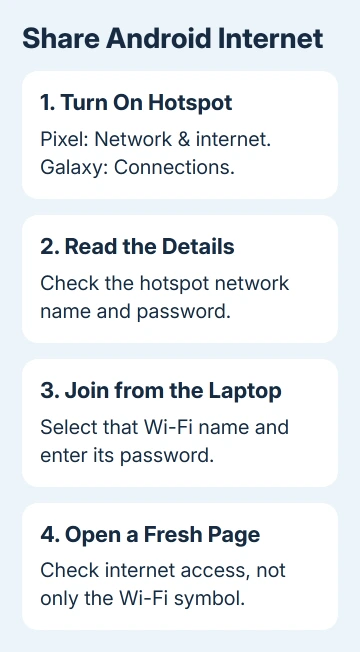
Swipe down to reveal the Quick Settings panel. Expand the panel if needed, then tap Hotspot. Touch and hold the tile to open its settings rather than simply toggling it.
If Hotspot isn't visible, use the panel's Edit control to add it where your version allows. The settings route in the next section also works without rearranging the panel.
Find the hotspot's name and its password in those controls. These are the details your laptop needs. The hotspot password isn't your Google Account password or the phone's screen-unlock code.
Keep password protection enabled. A shared connection that anyone nearby can join can use your data allowance without permission.
Find the full settings on Pixel or Samsung
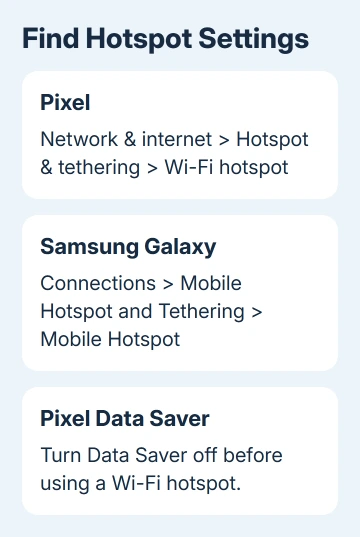
On a Pixel, open Settings > Network & internet > Hotspot & tethering > Wi-Fi hotspot. Turn on Wi-Fi hotspot, then tap the hotspot name or password if you want to change it.
If Data Saver is enabled on the Pixel, open Settings > Network & internet > Data Saver and turn it off. The Pixel hotspot procedure requires this for Wi-Fi tethering.
On a Samsung Galaxy, open Settings > Connections > Mobile Hotspot and Tethering. Turn on the switch for Mobile Hotspot. Tap the Mobile Hotspot entry to see its settings.
Galaxy versions can put the network name, password, band, and security in an Information section. Available options vary with the carrier, model, and software, so use the labels shown on your phone rather than expecting Pixel's layout.
Other Android makers can change the names and location too. Search Settings for hotspot if neither menu route matches. That takes you to the phone's controls without needing a separate hotspot app.
If you're changing the password on an existing setup, use the hotspot password steps. Devices that remember the old password must reconnect with the new one.
Connect the laptop or tablet to the new network
Leave the hotspot on while you open the other device's Wi-Fi network list. Select the name you just checked, enter its password, and choose Connect or Join.
On Windows 11, open the taskbar network controls and open the Wi-Fi network list. On Windows 10, use the taskbar's Wi-Fi icon. On a Mac, use Control Center > Wi-Fi or the Wi-Fi menu.
For another Android phone or an iPad, open that device's Wi-Fi settings and select the hotspot's name. The joining device doesn't need to create its own hotspot.
Open a fresh webpage or an app that needs internet. The Wi-Fi symbol shows that your device joined the hotspot. Loading new content confirms that it can also reach the internet through your phone.
If the hotspot name appears but the password is rejected, compare the characters on the phone's settings screen. After a password change, forget the old saved network on the device that's joining and connect again.
Fix a missing network or a connected device without internet
If a Galaxy hotspot doesn't appear on an older laptop, check its band setting. 2.4 GHz is compatible with more devices. Keep the network visible while setting it up so the laptop can find its name.
A device that joins but can't load anything needs a different check. Review the phone's mobile-data connection and remaining tethering allowance; changing the Wi-Fi password won't add internet access to an exhausted plan.
Use the hotspot connected but no internet checks for that result. It separates a carrier restriction from a receiving-device problem without immediately clearing all network settings.
When sharing is unavailable or the plan blocks tethering, ask your carrier whether hotspot service is enabled on that line and which allowance applies. Give your phone model and error text, rather than just saying the Wi-Fi is slow.
Use a cable when Wi-Fi isn't the right connection
For a Windows computer, connect the Android phone with a suitable USB cable. Open hotspot and tethering settings, then turn on USB tethering. The cable must carry data, not just charge the phone.
Android's general instructions don't support USB tethering to a Mac. Use Wi-Fi for that pairing rather than trying repeated cable changes to unlock an unsupported method.
When finished, turn off the hotspot or USB tethering. Plug the phone into power during longer sessions, and use an automatic idle shutoff if your phone offers it. A hotspot doesn't need to stay available after the laptop disconnects.
The Short Version
Turn on Hotspot, check its name and password, then join that Wi-Fi network from the other device. Pixel and Galaxy use different settings paths. Confirm internet access and watch the plan's tethering allowance.
Checked November 11, 2026.