
Reset the hotspot password on the phone sharing its connection, then reconnect your other devices with the new password. You don't need to reset the phone or its network settings.
The menu depends on whether you're using an iPhone, Pixel, or Samsung Galaxy. Changing this password doesn't change your mobile account login, your phone's unlock code, or your home router's Wi-Fi password.
Change the password on the phone providing Wi-Fi
Use the phone whose hotspot name you see in your laptop's Wi-Fi list. That phone sets the password. Editing the password saved on your laptop won't change the one you need to join the hotspot.
Finish any download or call using the shared connection first. Devices may need to reconnect after the change, so choose a moment when losing that connection won't interrupt important work.
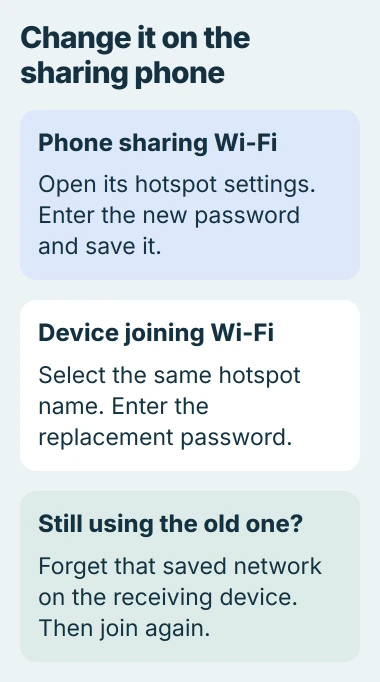
Keep the hotspot's existing name while you change its password. That makes the network easier to find afterward and lets you check whether the password change fixed the connection.
If you've forgotten the password, look in the phone's password field first. An unlocked phone can show you its hotspot details, which saves you guessing which password your laptop remembers.
Replace the Wi-Fi password on an iPhone
On the sharing iPhone, open Settings > Personal Hotspot. If that entry isn't on the main Settings page, look under Cellular > Personal Hotspot instead.
Tap Wi-Fi Password, replace the existing text, and tap Done. Return to Personal Hotspot to check that it saved your new password. Enable Allow Others to Join when you're ready to connect the other device.
Apple says the password must contain at least eight characters. Its Personal Hotspot instructions specify English letters, numbers, and ordinary punctuation, rather than emoji or characters from other writing systems.
Choose a password you don't already use for email or banking. A longer, memorable combination is easier to share correctly than a short string of similar-looking letters and digits.
Keep Personal Hotspot open while you connect the first device. Select the iPhone's network on that device and type your new password. If it won't connect, compare what you typed with the password shown on the iPhone.
If the hotspot switch is missing or grayed out, use the iPhone sharing-setting checks. A password change can't turn on a feature that your phone or mobile plan hasn't made available.
Set a different password on Pixel or another Android phone
On your Pixel, go to Settings > Network & internet > Hotspot & tethering > Wi-Fi hotspot. Tap Hotspot password, type the new password in the box, and save it.
Turn on the Wi-Fi hotspot and check the network name displayed there. Google's Pixel hotspot help places both name and password settings on this page.
On another Android phone, swipe down to Quick Settings and touch and hold Hotspot. Tap the name or password setting. Some versions first open a page called Set up Wi-Fi hotspot.
Phone makers use different labels, so search Settings for hotspot if you can't find the tile. Change the password on the hotspot page, not a saved password for a Wi-Fi network your phone connects to.
Keep a security option that uses a password. None removes the password altogether, so anyone nearby could attempt to use your connection. It isn't a way to reset a forgotten password.
If the hotspot won't stay on, look for its automatic shutoff setting. A phone that turns sharing off while no devices are connected may disappear before you've entered the new password on the laptop.
Save the change on a Samsung Galaxy
Open Settings > Connections > Mobile Hotspot and Tethering > Mobile Hotspot. Turn on the hotspot if needed, then open its network details to edit the password.
Tap the network name to open the settings you can edit. Select Password, enter the replacement, then tap Save.
The Galaxy connection guide shows the name, password, band, and security options together. For a password change, keep the other working settings as they are.
Open the hotspot details again after saving to check that your new password appears. If you went back without saving, the phone may still be using the old one.
On the other device, find your Galaxy in the Wi-Fi list and enter the new password. When it connects, try opening a webpage to check that the shared internet works too.
Reconnect a laptop that remembers the old password
A laptop may keep trying the old password. If it reports an incorrect password without letting you enter a replacement, forget that saved network, then select the hotspot again.
On Windows 11, open Settings > Network & internet > Wi-Fi > Manage known networks. Find the phone's hotspot name and select Forget. Rejoin from the taskbar Wi-Fi list with the new password.
Forgetting the network removes only the connection saved on your laptop. Your phone keeps its hotspot and settings. Check the name carefully so you don't forget your home network by mistake.
For the normal connection steps on Windows, Mac, or another phone, join the phone's hotspot again. Once one device works, update the remaining devices individually.
If Wi-Fi connects but pages don't load, test the sharing phone's own internet connection. A correct hotspot password gets the devices connected; it can't restore missing cellular service or a used-up plan allowance.
I'd check that one laptop connects before sharing the new password with other people. That catches a typo while both devices are still in front of you.
An Apple device joins without asking for the new password
Instant Hotspot lets Apple devices connect through a shared Apple Account, or Family Sharing when it's turned on, without the Wi-Fi password. Changing the password doesn't stop devices that connect through those accounts.
Review Family Sharing inside Personal Hotspot if you're changing who may connect. The Instant Hotspot settings distinguish family access from ordinary password-based joining.
If a device joins unexpectedly, check which account and sharing settings allow it. Contact the phone maker if you can't stop that access. Your carrier can help if the hotspot service itself isn't available.
The Short Version
Change and save the password on the phone providing the hotspot, then reconnect your other devices. Forget a saved network if it keeps using the old password. An Apple device may still join through Apple Account or Family Sharing access.
Checked November 4, 2026.

Isaac Smith is the founder and editor of PC Glance, a website that covers computers, laptops, and technology. He is a tech enthusiast and a computer geek who loves to share his insights and help his readers make smart choices when buying tech gadgets or laptops. He is always curious and updated about the latest tech trends.