Wi-Fi bars show the strength of the signal reaching your device from the router, not your internet speed. For a Windows percentage, enter netsh wlan show interfaces in Command Prompt and check Signal.
Phones offer a simpler first check: compare the Wi-Fi icon in the room where the connection struggles with the icon near the router. Keep the same device and network for both readings, so the comparison tells you something useful.
In this guide
Read the connected network's signal on Windows
In either Windows 11 or 10, search Start for Command Prompt and open the result. Enter this command, then press Enter:
netsh wlan show interfaces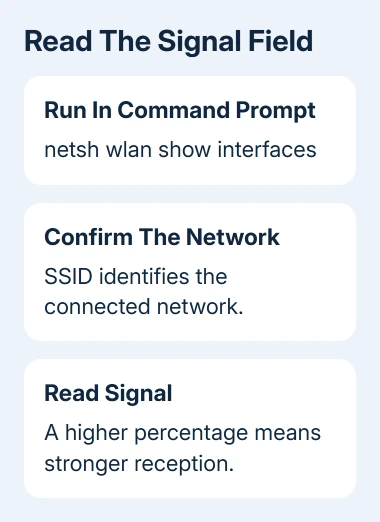
Find the wireless interface whose State is connected. Check its SSID, the network name, before reading the Signal percentage. This matters if your computer has more than one wireless adapter or several saved networks.
A larger percentage means that adapter is receiving a stronger signal. Record the number and the room you're in. Run the command again after moving, because the existing command output doesn't update itself.
Don't read Receive rate or Transmit rate as the signal percentage. Those show how fast the wireless link can transfer data. They don't show your broadband plan's speed or measure an internet download.
For a quick visual check, Windows 11 puts nearby networks in Quick Settings. Click the network, sound, or battery area, then open the Wi-Fi network list. Windows 10 has the list under the taskbar's network icon.
The filled parts of each Wi-Fi icon give a rough comparison. Use the command when you need a number you can record, rather than trying to decide whether an icon gained a small segment.
If Windows requests location access before showing wireless details, follow its prompt and review Settings > Privacy & security > Location on Windows 11. On a managed PC, ask IT if that permission is locked.
If the result says the interface is disconnected, join your Wi-Fi network first. A computer connected only through Ethernet doesn't have an active Wi-Fi signal reading for that wired connection.
Compare nearby networks without joining each one
Windows can also list visible access points. In the same Command Prompt window, run:
netsh wlan show networks mode=bssidMicrosoft says this wireless command adds signal, channel, and radio information. Each BSSID identifies a wireless radio in a router or access point.
Mesh systems can have several BSSIDs under one network name. Compare the radio your device uses, rather than treating all entries with that name as one connection.
This scan helps explain why a network looks strong in the list but your active connection is weaker. It doesn't tell you whether another access point can handle more traffic or has a working internet connection.
Keep the output private if you send it for help. Share the signal and band information needed for the problem, rather than posting a complete list of your home and neighboring networks.
Find the Mac's received-signal reading
Hold Option while clicking the Wi-Fi status icon in the menu bar. Look for RSSI, short for received signal strength indicator. The reading uses dBm, a unit for received radio power, instead of a percentage.
These numbers are usually negative. A reading of -50 dBm is stronger than -75 dBm because it's closer to zero. Those numbers show how the scale works. Two connections with the same reading won't necessarily perform the same way.
Record RSSI and the network name. Keep Noise separate if it's shown: that's unwanted radio energy, rather than the strength of the network you're measuring. Tx Rate is a connection rate, not another signal reading.
I'd compare the Mac in two locations before changing any router settings. A clear improvement near the router gives you a practical reason to examine coverage where you normally work.
For repeated disconnections, the Mac and Windows Wi-Fi reports provide more detail than a single reading. One signal reading can't explain every earlier disconnection.
Check the signal on iPhone and Android
On iPhone, open Settings > Wi-Fi and confirm the checkmark is beside your network. Use that network's Wi-Fi icon for a rough strength check. The normal Wi-Fi settings screen doesn't give the Windows-style Signal percentage.
Check the curved Wi-Fi icon rather than the cellular bars. Cellular bars measure the mobile network, so they can improve while the Wi-Fi connection stays weak. A speed test can use the cellular connection when Wi-Fi isn't active.
On a Google Pixel, open Settings > Network & internet > Internet. The fuller Wi-Fi icon represents stronger signal. Other Android brands arrange these settings differently; Samsung places the network list under Connections > Wi-Fi.
Some Android versions show extra information when you open the connected network's details. Use a signal reading if your phone provides one, but don't expect every manufacturer to display the same fields or units.
For either phone, compare the same network in the problem room and near the router. Avoid judging one phone against a laptop's percentage. Different antennas and displays make that a poor measurement of how much coverage changed.
Turn the reading into a useful next step
Take one reading where you normally work, then another a few feet from the router. Keep the device's position and orientation reasonably similar. Repeat once if the result changes sharply while you're standing still.
A much stronger signal nearby points to poor coverage or obstacles between your usual spot and the router. Little change, with slow downloads in both places, calls for a separate Wi-Fi speed test.
With a mesh network, note whether the device switches access points as you move. After that switch, you're measuring the connection to a different radio. That can explain a stronger signal without any change to your router's settings.
For dropped calls despite strong signal, send router support the model, room, readings, and failure time. Ask them to check the connected access point and its internet link at that time.
The Short Version
On Windows, read Signal from netsh wlan show interfaces. On Mac, Option-click Wi-Fi and compare RSSI. Phones provide Wi-Fi icons for a rough check. Compare the same device in two locations, then test speed separately.
Checked November 11, 2026.