Yes, planes can have Wi-Fi, but access depends on the airline and the aircraft operating your flight. Keep Airplane Mode on, turn Wi-Fi back on, then join the onboard network and finish its sign-in page.
Some flights offer internet access, some offer only a local entertainment network, and some have neither. The Wi-Fi icon doesn't show which service is available or whether internet access is free.
In this guide
Check the service on your actual flight
Look for Wi-Fi in the airline's flight details or preflight email. Check each leg separately. Airlines can run several systems, so the next aircraft might not have the same service as the first.
For example, Delta currently describes free internet for SkyMiles members on nearly every flight, with some aircraft still in transition. Its flight-search badge and aircraft list help you check the planned service.
The aircraft can change before departure. Keep essentials available offline before boarding. I'd save your boarding pass and destination documents even if the flight advertises Wi-Fi, so a connection failure doesn't leave you stuck.
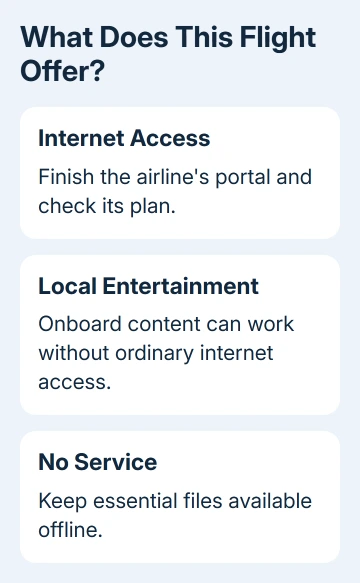
Free messaging, internet and entertainment are different offers. A messaging plan may cover selected apps without giving your browser full access. Check the description before buying a pass for a task it doesn't include.
Ask the cabin crew which network to join if the onboard instructions are unclear. They can tell you whether the system is available for that flight and when passengers may use it.
Turn on Wi-Fi while leaving Airplane Mode enabled
For iPhone and iPad, use Settings, turn Airplane Mode on, then open Wi-Fi and turn Wi-Fi on. Select the network named in the airline's instructions. That keeps your device's cellular connection off while it uses onboard Wi-Fi.
Apple's Airplane Mode instructions explain that you can use Wi-Fi and Bluetooth when the airline permits them. Follow the crew's instructions during the flight, including any request to put a device away.
On Android, open the quick settings panel, enable Airplane mode, then enable Wi-Fi and choose the airline's network. Manufacturers arrange the tiles differently, so use the Settings app's Wi-Fi controls if the tile isn't visible.
On Windows, open the taskbar network controls. Enable Airplane mode if available, then enable Wi-Fi and select the airline network. A Mac joins through its Wi-Fi menu; macOS has no Airplane Mode switch.
Don't turn cellular service back on just because a web page hasn't loaded. The aircraft's Wi-Fi sign-in process is a separate step. The free Wi-Fi connection guide explains why joining a network and reaching the internet are different.
Complete the onboard sign-in page
After joining, wait for the welcome page. If it doesn't appear, use the onboard instructions to open the portal in a browser. Type the address printed in those instructions instead of guessing the sign-in website.
On Delta-equipped service, choose the DeltaWiFi.com network, then open deltawifi.com if the sign-in page doesn't open. Follow the portal prompts, including signing in to your SkyMiles account when required for the free service.
The Delta Wi-Fi steps explain that airline's portal. You need the onboard connection to reach the portal; opening the address at home won't bring up the same sign-in page. Airport Wi-Fi is a different network too.
Before paying, check which devices, flight or time period the pass covers, and which services it includes. If you only need messages, compare that offer with full internet access instead of assuming the plans cost the same.
After the portal says you're connected, load a fresh web page or send a message using the service you've selected. Saved pages and downloaded entertainment can work offline, so opening those won't tell you whether your internet pass works.
Fix a connected network that won't open the portal
First, check that your device joined the named aircraft network. An old saved network or a nearby personal hotspot isn't the onboard service. Return to Wi-Fi settings and compare the selected name with the seatback instructions.
For Delta's service, connect to Wi-Fi before turning on your VPN, an app that sends your internet traffic through a private connection. Its onboard connection steps give this order.
If your VPN starts automatically, pause it to reach the sign-in page if work policy permits. If your company laptop won't let you pause it, ask your IT team for help instead of changing its security settings.
The airline also recommends forgetting the network and rejoining if access still fails. On iPhone, open that network's details using its information button and choose Forget This Network. Rejoin and reopen the portal.
If several passengers can't connect, ask whether the aircraft's internet system is operating. Phone settings can't restore an unavailable service. If another device works, check your device's selected network and portal.
Know what onboard internet can and can't replace
Cellular service, the onboard Wi-Fi network and the plane's internet link are separate connections. Your device can have a strong onboard signal while the aircraft has poor or unavailable internet access.
Performance can change during the trip. Keep an offline alternative for an essential upload or meeting. For calls, follow airline rules rather than treating a working app as permission to use it.
Local entertainment can serve movies even when ordinary websites won't load. Use the entertainment instructions if that is your flight's service. Some aircraft don't offer any internet pass to buy.
If you paid and the service never worked, keep the purchase receipt and note the flight number, date, device and error. Use the airline's Wi-Fi help or the provider named on the receipt to request technical help or a refund review.
Ask which provider handled that particular flight. Give customer service the provider's name and your purchase details. That helps them find the right transaction, especially when connecting flights use different onboard systems.
The Short Version
Check Wi-Fi for the actual flight. Leave Airplane Mode enabled, turn Wi-Fi on, join the named network and finish the portal. Confirm whether the offer includes internet, messaging or local entertainment.
Checked November 10, 2026.