
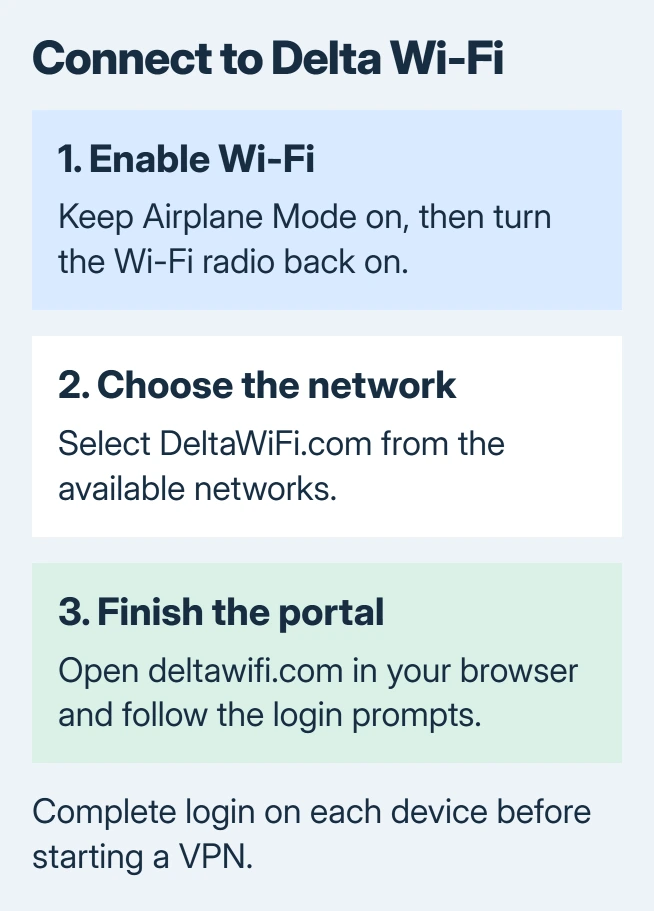
To connect to Delta Wi-Fi, join the aircraft's DeltaWiFi.com network and complete its browser sign-in page. Once the crew permits device use, enable Airplane Mode, switch Wi-Fi back on and select that network.
If the sign-in page stays closed, type deltawifi.com into the browser's address bar. Free Delta Sync access uses a SkyMiles login; the options depend on the aircraft's service.
Join the aircraft network first
Open the device's Wi-Fi settings and select DeltaWiFi.com. On iPhone, the list is in Settings > Wi-Fi. A Windows laptop lists networks from the network area beside the taskbar clock.
DeltaWiFi.com is the name documented by the vendor for this connection in its onboard instructions. Follow the crew's guidance about when connectivity is available.
Status: Delta's onboard connection and aircraft-service pages checked October 31, 2026. Free access and coverage vary by flight. No onboard connection was tested.
Keep Airplane Mode enabled while turning Wi-Fi back on. Enabling the Wi-Fi radio separately does not require restoring cellular service.
A connected Wi-Fi icon only confirms the nearby network connection. It does not establish working internet access until the portal has authorized the session.
Open the portal and complete its login
If no welcome page appears, open Safari, Chrome or another browser and enter deltawifi.com directly in its address bar. Searching for a login page can lead away from the aircraft's portal.
For Delta Sync, sign in with the SkyMiles account requested by the portal. Delta's current service overview confirms that members use this login for free access on equipped aircraft.
Repeat the login on the laptop if the phone is already connected. Completing it on one device does not automatically finish the other device's browser session.
Connect through the portal before starting a VPN. Delta supports VPN use afterward, but its login page is unavailable once the VPN connection is active. For a managed work laptop, follow the company's connection policy.
On an iPhone with no portal, Apple says the network's information button can offer Join Network in its captive-network instructions. The iPhone welcome-page guide explains those controls.
Match the access option to this flight
Delta Sync and the older Wi-Fi Onboard service can present different choices. The older service may offer a paid flight pass alongside free messaging, rather than the same free browsing experience.
Read the portal's description before selecting a purchase. Free messaging is not equivalent to unrestricted internet access. The service on a connecting flight can also differ from the one just used.
Check the flight's predeparture email or Delta's aircraft-service listing when planning which devices need access. A previous flight working for free does not prove that today's aircraft has the same equipment.
Rejoin once, then check the flight's service
Delta recommends forgetting the aircraft network and reconnecting when sign-in remains stuck. On iPhone, open the network's information panel in Wi-Fi settings and choose Forget This Network, then join again.
After signing in again, try a small ordinary webpage. The comparison is ours: check that page on a second available device before changing broader laptop or phone settings.
If the portal works but both devices remain offline, ask the cabin crew about the onboard service. Coverage gaps and aircraft connectivity faults cannot be repaired by resetting every saved network on a phone.
For a purchased pass that failed, retain the emailed receipt. Delta directs support according to the receipt's sender: Delta Air Lines or Wi-Fi Onboard. Use that provider's help route with the flight and failure details.
The Short Version
Join DeltaWiFi.com, open deltawifi.com, and finish the portal login on each device. Start a VPN afterward. Read the flight's access options and ask about onboard service when a completed login still leaves devices offline.

Isaac Smith is the founder and editor of PC Glance, a website that covers computers, laptops, and technology. He is a tech enthusiast and a computer geek who loves to share his insights and help his readers make smart choices when buying tech gadgets or laptops. He is always curious and updated about the latest tech trends.