Wi-Fi Protected Setup connects a compatible device without the Wi-Fi password. Start WPS on the device, then briefly press the router's WPS button within its pairing window.
The router and device both need WPS support. If your phone has no WPS option, join with the Wi-Fi password instead.
In this guide
Match the device to the right connection method
WPS is a way to join an existing wireless network. It doesn't set up your internet provider's connection, create a new broadband service, or repair a router that has lost internet access.
Look for WPS, Wi-Fi Protected Setup, or a push-button connection option in the device's wireless setup menu. A printer, wireless adapter, or extender may offer it. Having Wi-Fi alone doesn't mean a device supports WPS.
An iPhone or iPad doesn't offer WPS. On another phone, use its actual Wi-Fi menu rather than instructions written for an older handset. Without a WPS control, select your network name and enter its password.
If the device asks for a WPS PIN, it wants a code rather than a button press. Don't enter your Wi-Fi password into a PIN field or assume the router's administrator password belongs there.
For a printer asking for its own code, the HP printer WPS PIN instructions explain where that code comes from. Continue with the button method only when the device offers it.
1. Find the WPS control without resetting the router
Check the router's label and manual for the exact button. Some models combine WPS with another function, so the length of the press matters. A reset hole and a WPS button aren't interchangeable.
TP-Link says to use a one-second router press after starting WPS on the device you're connecting in its WPS button instructions. That guide gives a two-minute window. Follow your model's timing when its manual differs.
Do not hold an unfamiliar button down while waiting for a connection. On the TP-Link models described in that guide, a longer press can turn wireless off; other combined controls can reset settings.
I'd read the button label before touching it. A brief check is much easier than reconnecting every device after an accidental reset.
Move the device close enough to the router for setup. Keep it powered on and open its wireless setup screen, so the pairing window isn't spent searching through menus.
2. Start pairing on the device, then press WPS
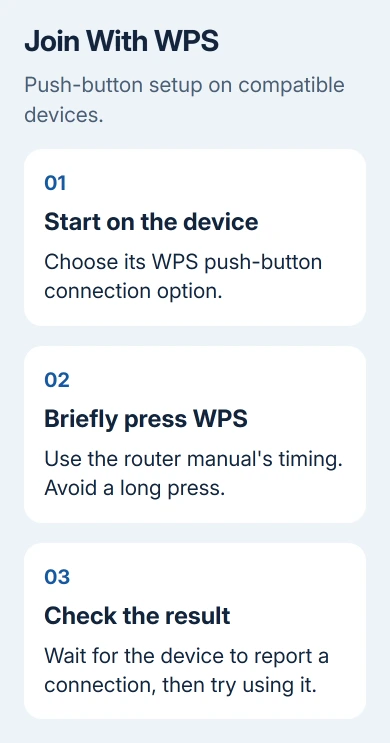
Choose the device's WPS push-button option. On equipment without a screen, follow the maker's instructions for its wireless buttons. There isn't one button sequence that applies to every printer and adapter.
Within the allowed window, briefly press the router's WPS button. In this TP-Link procedure, the router's WPS light blinks while pairing. Give the devices time to finish rather than pressing both buttons repeatedly.
Look for a connected message or the device's usual Wi-Fi connection light. The router's blinking setup light means it's trying to connect. Check the device itself to see whether it joined.
When the device reports a connection, try the thing you connected it for. Open a page on a laptop, or send a small print job after the printer has been added to the computer. That confirms you can actually use the connection.
If the timer expires, return to the device's WPS setup option and start a fresh attempt. If that attempt also fails, check compatibility and the router's WPS setting before repeating the same sequence again.
3. Use the Windows connection prompt when it offers WPS
In Windows 11, open the network, sound, and battery area on the taskbar. Open the list beside Wi-Fi, select your router's network, and choose Connect.
In Windows 10, select the taskbar network icon, choose the wireless network, and select Connect. The network name matters, especially when neighboring routers have similar names.
At the password prompt, Windows can offer to connect by pressing the router button when the connection supports it. Use that offer when it appears, then briefly press WPS as the router's manual directs.
If Windows only asks for a network security key, enter the Wi-Fi password. Don't search for a hidden WPS setting or type a PIN just because the router has WPS printed on it.
The Windows Wi-Fi connection steps also cover the ordinary password route. A saved network can reconnect without repeating either setup method.
Check the status after connecting. Connected, secured describes the wireless connection. A No Internet warning needs a separate check of the router and internet service, even if WPS completed successfully.
4. Check the router setting when pairing never starts
If neither attempt starts pairing, check whether WPS is enabled on the router. Sign into the router's administration app or local management page with the router's administrator login.
On the TP-Link interface in that guide, Advanced > Wireless > WPS contains connection options. Its WPS enable switch is described under System Tools > System Parameters > WPS. Other firmware can put these controls elsewhere.
Use the interface and manual for your exact router model. Don't change unrelated wireless settings to make a menu resemble an example. In particular, don't weaken the network's security just to make an older WPS client join.
If WPS is unavailable with the router's current security mode, use the supported password setup or the device maker's app. If the device can't use your network's security mode, check its supported connection methods before pairing again.
Extenders have their own setup and placement requirements. For that device, the TP-Link extender setup procedure covers the connection and the move to its final location.
When the button method still won't connect
Open the device's normal wireless setup and enter the network password. If that works, the device and router can communicate; WPS setup was the part that failed.
If the password method also fails, note the exact router model, device model, security mode, and message. Ask the device maker's support team whether that model supports the router's wireless security and WPS method.
If several devices join Wi-Fi but none can open a page, give the internet provider the router's internet-status message. Repeating WPS won't restore a broadband connection that's down.
The Short Version
Start the device's push-button setup, briefly press the router's WPS button within its pairing window, and confirm the device actually connects. Use the Wi-Fi password when WPS isn't offered, and keep PIN setup separate.
Checked November 10, 2026.