
The Wi-Fi SSID is the network name shown in your device's Wi-Fi settings. To find the one you're using now, look for the network marked Connected or selected with a checkmark. The nearby network list includes other people's networks too.
For a device that hasn't joined yet, check another connected phone or computer, or read the router's Wi-Fi label. The network name and the password are separate details, and finding the SSID leaves both unchanged.
Find the network your iPhone is using
Open Settings > Wi-Fi. The selected network has a checkmark beside its name. Copy the full name, including any spaces, numbers or suffixes, when another device asks which network to join.
Apple says the checkmark identifies the Wi-Fi connection. A lock beside another name means it requires a password; that lock doesn't mean your phone has joined it.
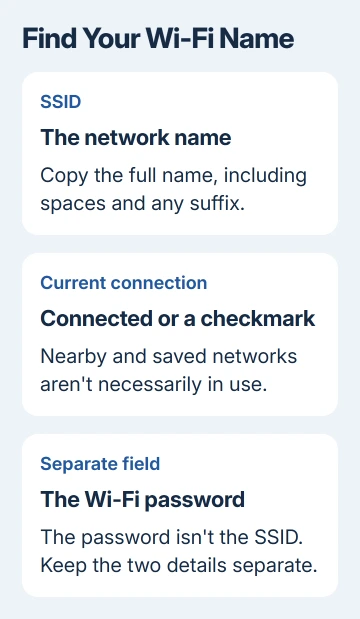
Stay on this screen while copying the name. The Wi-Fi symbol at the top of the phone shows a wireless connection, but doesn't spell out which network is in use. The selected name is the useful detail for setup.
On an iPad, use the same Settings > Wi-Fi route. If Wi-Fi is switched off or nothing is selected, the nearby names show what's available. They don't mean your device has joined any of them.
Read the connected name on Android
On a Pixel, open Settings > Network & internet > Internet. Look for Connected beneath a Wi-Fi name. That's the network your phone has joined. The first name with a strong signal could belong to someone else.
Some Android versions place the list under Network & internet > Wi-Fi. Samsung Galaxy phones use Settings > Connections > Wi-Fi. Look in the current connection area for the selected network name.
Write the name exactly as displayed. A home router can advertise more than one name, and a suffix such as Guest or 5G can be part of the name you've been given. Don't remove it when entering the SSID on another device.
A saved network is one the phone remembers. It isn't necessarily connected now. When checking a printer or another device against your phone, use the active connection rather than a name from the saved-network list.
Check Windows 11 or Windows 10
On Windows 11, click the taskbar area containing the network, sound and battery controls. Open Manage Wi-Fi connections, the control beside the Wi-Fi button, and read the name marked Connected.
The Wi-Fi button itself turns the radio on or off. Open the connection list beside it to see the names. Turning the radio off just to look for the SSID disconnects the computer unnecessarily.
On Windows 10, select the taskbar's Network icon and check the Wi-Fi list. The network with a connected status is the one in use. Other visible entries are available networks, not additional active connections.
If the computer is connected only by Ethernet, it doesn't have an active Wi-Fi SSID for that wired link. Check a phone using the router's Wi-Fi, or read the router label, to find the wireless name instead.
A VPN label is different from the wireless network name. For an SSID requested during device setup, check Wi-Fi rather than copying the VPN connection's name or the computer's device name.
Find the selected Wi-Fi network on a Mac
Open Control Center in the menu bar, choose Wi-Fi, and check the current network. You can also open the Wi-Fi menu directly when its icon is shown in the menu bar.
For the settings view, use Apple menu > System Settings > Wi-Fi in macOS Ventura (13) and later releases. Check the connected network there. Older macOS uses System Preferences > Network, with Wi-Fi selected.
Use the wireless network's name, rather than the Mac's name in sharing settings. AirDrop, Bluetooth and Wi-Fi can all display nearby device names, but a Bluetooth accessory name isn't the SSID for joining the router.
I'd compare the names on two devices side by side when setting up a printer. It avoids copying a neighboring network that happens to have a similar label, especially in an apartment building with many nearby routers.
Use the router label when nothing is connected
Look for a sticker on the router or gateway labeled Wi-Fi Network Name, Wireless Network Name or SSID. Routers often print the default Wi-Fi password nearby, so identify the name field separately.
That label describes the factory settings. If someone renamed the Wi-Fi afterward, the connected device's current name is a better reference. A router's model number or serial number isn't a substitute for a changed SSID.
Ask whoever manages that network to confirm its current name when the label doesn't match. In a workplace, hotel or shared building, that may be an administrator rather than the person who owns your phone.
Don't reset the router to recover its name. A reset can remove the network's configuration. Our guide to changing a Wi-Fi name and password covers the separate task of editing those details.
For a phone hotspot, read the hotspot's own settings on the sharing phone. It is a different wireless network from the home's router. Our hotspot connection guide covers joining that kind of connection.
What if two names look similar, or the name is hidden?
Some routers use separate names for different Wi-Fi bands or for guests. Others use one shared name. Read the exact name shown on the connected device rather than assuming every router must have a separate 2.4 GHz and 5 GHz entry.
An SSID alone doesn't tell you whether two devices can communicate. A guest network can restrict access, and a device may require a particular band. Check your printer or smart accessory's setup instructions to see which network it needs.
For a hidden network, ask its owner for the name and security details you need to join. A missing broadcast name isn't a reason to guess. On iPhone, Other in Wi-Fi settings lets you enter a known hidden network's information.
If the intended name never appears nearby, ask the router owner to confirm that Wi-Fi is enabled and what name it broadcasts. Give the provider or administrator the router model and whether any connected device still sees the name.
The Short Version
Open Wi-Fi settings and read the name with a connected status or checkmark. Without a connected device, check the router's SSID label or ask its administrator. Copy the network name exactly, keeping it separate from the password.
Checked November 10, 2026.

Isaac Smith is the founder and editor of PC Glance, a website that covers computers, laptops, and technology. He is a tech enthusiast and a computer geek who loves to share his insights and help his readers make smart choices when buying tech gadgets or laptops. He is always curious and updated about the latest tech trends.