
Large, replaceable downloads are the quickest place to free up iPhone storage. Open Settings > General > iPhone Storage and start with downloaded videos or an unused app, rather than deleting small items at random.
The storage list shows what's actually using the phone's space. Extra iCloud storage won't increase the iPhone's capacity, and offloading an app won't remove all the documents it stores.
Read the storage list before deleting anything
Open Settings > General > iPhone Storage and let the graph and app list load. Check the used capacity and the largest entries. Tap an app to see its size and, where shown, its Documents & Data.
Apple says its storage controls distinguish offloading an app from deleting it. Offloading frees the space taken by the app itself. Its data stays on your phone. Deleting the app removes it and its related data.
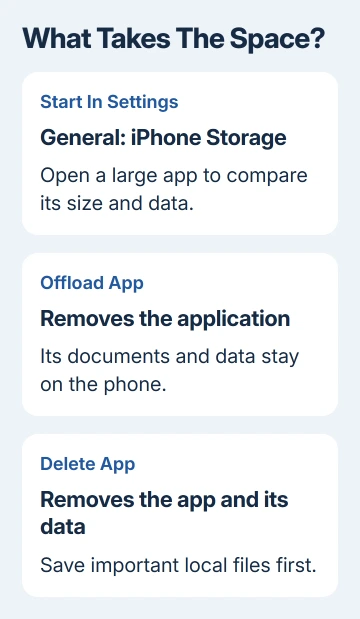
If the app is small but its documents occupy most of the entry, offloading won't free much space. Open that app and review its downloads or stored content instead. That targets the part taking up the space.
I'd start with a film or episode you can stream again. It gives you a clear choice about what disappears, and it doesn't require sorting through years of personal photos just to install an update.
Review the recommendations and large downloads
The iPhone Storage screen can show recommendations. Read what each one changes before tapping Enable, or open it to review the suggested content. Different phones show different recommendations, so a missing card isn't a fault.
For video, music, podcasts and other streaming apps, open the app's downloads or library section. Remove downloads you don't need offline anymore. Choose the option that removes the download but keeps the item in your library.
Check the wording on the confirmation. Removing a local download and deleting an item from a synced library can have different results. The app's own menu tells you which action you're about to take.
Return to iPhone Storage afterward and let it update. A smaller entry confirms that the local content was removed. If that app's size barely changes, check another large entry rather than repeating the same deletion.
For content marked Synced content, use the computer that synchronized it. In Finder, Apple Devices or iTunes, deselect that content and sync again. The phone can't remove this category through the usual on-device deletion controls.
Offload an app when its data needs to stay
Tap an unused app in iPhone Storage, then choose Offload App and confirm. This helps when the app itself is large and you want to keep its documents for a later reinstall.
Its icon remains available for reinstalling the app. You'll need a connection and an available download when you use it again, so keep essential travel, work and authentication apps installed when you depend on them offline.
Choose Delete App when you're ready to remove both the app and its stored data. Check whether important files have been exported or synchronized first. A sign-in account alone doesn't mean every local document is saved elsewhere.
Automatic offloading is another option. Choosing apps yourself lets you decide what goes during this first cleanup. Start with an app you recognize and compare the storage change before enabling broader recommendations.
Keep your photos while reducing their local size
When Photos is the largest category, choose between deleting unwanted pictures and keeping smaller phone copies of your library. With iCloud Photos, Optimize iPhone Storage keeps full-resolution originals in iCloud.
Open Settings > your name > iCloud > Photos. Turn on Sync this iPhone if you intend to use iCloud Photos, then select Optimize iPhone Storage. There must be enough iCloud space for the library to sync.
Optimization manages local copies as space is needed. It isn't a button that instantly empties the Photos category. Give the library time to upload, and check its sync status before expecting a large change.
Deleting a photo while iCloud Photos is active deletes it from the synced library on your other devices too. Don't delete the originals as a second step after enabling optimization; smaller local copies are the space-saving method.
For unwanted photos and videos, review them in Photos and delete only what you no longer need. Deleted items remain in Recently Deleted for up to 30 days unless you permanently remove them sooner.
Empty that collection only after checking its contents. Permanent removal ends that recovery route. If you want the pictures but the phone is crowded, our explanation of iPhone storage and iCloud space covers the difference.
Check files and message attachments you recognize
In Files > Browse, review On My iPhone and your downloads. Large documents, archives or videos can sit there after you've finished using them. Open unfamiliar items before deciding whether they can go.
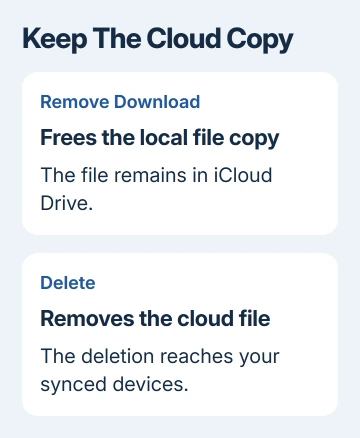
For an iCloud Drive file you intend to keep online, press and hold its name. Select Remove Download if that command is offered. This removes the local copy. Delete erases that iCloud Drive file on every device sharing the library.
Messages can also occupy substantial space through photos and videos. Review message attachments offered in the storage recommendations, or open the conversation and review its shared content. Save anything important before deleting it.
With Messages in iCloud, changes sync to your other devices using that feature too. Stick to content you're ready to lose. Don't change how long Messages keeps conversations just to make the graph shrink.
When the storage total still looks wrong
The phone can clear some temporary and cached files when it needs room. There isn't a general button that safely erases every System Data file. Don't install a cleaner expecting it to remove protected system content.
If System Data dominates the graph, follow the more specific iPhone System Data storage checks. Those checks address a large system category, rather than a movie download or an unused game.
A computer may group cached media, such as temporary video files, differently, so its graph can disagree with Settings. Check the apps you're cleaning on the phone's storage screen. A different total doesn't always mean missing space.
If the list never loads or deleted content returns, ask Apple Support about storage calculation or the affected app. Give the model, iOS version, capacity, largest category and the result after removing one known item.
The Short Version
Use iPhone Storage to choose a large, replaceable item first. Remove downloads, offload unused apps and optimize Photos when appropriate. Check cloud deletion prompts carefully, then return to the storage screen to see the change.
Checked November 10, 2026.

Isaac Smith is the founder and editor of PC Glance, a website that covers computers, laptops, and technology. He is a tech enthusiast and a computer geek who loves to share his insights and help his readers make smart choices when buying tech gadgets or laptops. He is always curious and updated about the latest tech trends.