
A Chrome autofill menu that flashes and disappears can come from an extension or altered settings. Disable extensions and retry the form first. If that doesn't help, reset settings; that fixed the popup and unclickable fields for one owner.
This is different from Chrome having no saved information. When suggestions appear briefly, the browser has something to offer. The problem is keeping the form usable long enough to choose it or type normally.
1. Turn off extensions, then retry the same field
Open Chrome's three-dot menu and choose Extensions > Manage Extensions. Turn off the extensions using their switches. Leave this tab open so you can restore them later, then return to the failing page and reload it.
Click the same field again. Check whether the suggestion stays visible and whether you can keep typing in the field without having to click it again. A disappearing dropdown can also leave the field unresponsive.
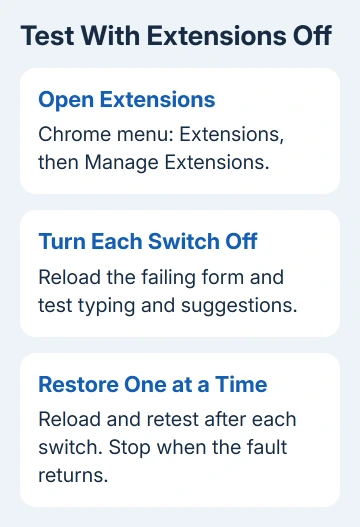
If the form works now, enable one extension, reload and try again. Enable each one separately and check when the problem returns. Start with the last extension you enabled, so you don't have to leave all your useful extensions off.
Password managers, form tools and shopping extensions are sensible places to check. Let the test on your PC show which one is involved. Several extensions may interfere with one page even though none causes trouble on every form.
Update the extension or contact its developer with the affected site and Chrome version. If disabling it restores the form, keep it off for that site while you wait for help. Don't send the developer your password or payment details.
2. Compare a private window without changing saved data
Open the three-dot menu and select New Incognito window. On Windows, Ctrl + Shift + N opens one; on a Mac, use Command + Shift + N. Open the same website and check whether you can click and type in its sign-in fields.
Most extensions don't run there unless you've allowed them in Incognito. Incognito also opens a separate website session. If the form works there, check your normal browsing setup next; that result won't pinpoint the cause.
Don't judge this comparison only by whether the same saved address suggestions appear. Private browsing doesn't behave like your usual signed-in session. Check whether clicking leaves the field ready for typing.
In the owner's report, normal windows failed while Incognito worked. Reinstalling Chrome twice and clearing cache and history hadn't helped; a settings reset did.
That's why a reset is the next step to try for this particular problem. It doesn't mean a private window is a permanent replacement for the normal profile or that you need to delete all your saved passwords.
3. Reset Chrome settings without deleting saved passwords
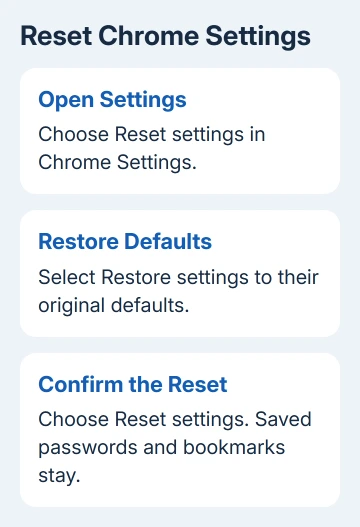
Open Settings > Reset settings, then Restore settings to their original defaults. Read the confirmation, then choose Reset settings. This is the reset inside Chrome, not removing the Chrome profile or uninstalling the application.
Google's reset instructions say the reset keeps your saved passwords and bookmarks. The reset changes browser settings and affects extensions, themes, site permissions and site data, among other settings.
Have your sign-in details ready first, since changes to site data can leave websites asking for a fresh sign-in. Chrome can keep a saved password even when the website has signed you out.
After resetting, reopen the affected site and test the form before restoring extensions or customizing settings. If it works, bring back only what you need, checking between changes. That avoids recreating the broken setup.
I'd use this route before another uninstall when the failure is limited to the usual profile. An uninstall can leave profile settings behind, while this reset directly changes the settings involved in the confirmed case.
The reset isn't a full profile wipe. If the same fault remains with extensions disabled, continue to the narrower checks rather than repeatedly pressing Reset or deleting your account from Chrome.
4. Separate an unusable form from missing autofill data
If you can type normally but Chrome doesn't offer an address, open Settings > Autofill and passwords > Addresses and more. Check the saved entry and Save and fill addresses. A missing address is different from a popup that vanishes.
For a login, check Google Password Manager for the site's saved entry. For payment details, use Payment methods. These are separate categories, so switching on address filling doesn't repair a missing password entry.
If Chrome doesn't ask to save a login at all, the password-saving checks cover declined sites and the saving option. Don't change those controls just because a visible suggestion disappears too quickly.
For a password list that has become empty, use the missing saved-password checks. Stop removing browser data while you're trying to recover that list. The flashing-popup steps are for information Chrome still has, but won't let you select.
If the form fills and then clears only when you submit it, record the site's error message. The site may have signed you out or rejected something you entered. That's different from a suggestion that disappears before you can choose it.
5. Check whether one site or the whole profile is affected
Try another familiar website without submitting sensitive information. If only one site fails, tell its support team which field loses focus and whether manual typing works. The site's code can matter even when other forms work.
Check Help > About Google Chrome in the three-dot menu and let any available update finish. Use Relaunch if offered. Record the version afterward so the site or extension developer knows which browser you're using.
For a failure across several sites after reset, try a separate Chrome profile through the profile menu's Add option. Keep the existing profile in place. Try clicking a field and typing before signing in or adding extensions.
If the fresh profile works, you can use it temporarily and compare the two. Don't delete the original until you know your bookmarks and saved information are safe. Copying every setting over right away makes that comparison harder.
Report the remaining failure with the right details
Use Help > Report an issue in Chrome if the fault survives an update and a fresh profile. Include the version, operating system, affected website, whether manual typing works and the results with extensions off and in Incognito.
If a control is locked in a work-managed browser, ask your administrator about required extensions and settings. Only they can change a setting locked by a work policy; resetting Chrome again won't unlock it.
The Short Version
Disable extensions and retry the form, then reset settings if needed. Reset fixed the reported flashing-popup case without deleting saved passwords. Missing saved data, one-site errors and a managed browser need different checks.
Checked November 10, 2026.

Isaac Smith is the founder and editor of PC Glance, a website that covers computers, laptops, and technology. He is a tech enthusiast and a computer geek who loves to share his insights and help his readers make smart choices when buying tech gadgets or laptops. He is always curious and updated about the latest tech trends.