
To change an iPhone chat's background, open the conversation in Messages, tap the contact or group at the top, then tap Backgrounds. Pick a color, an animated scene, or a photo and apply it to that conversation.
The feature needs iMessage on iOS 26 or later. Other people in the chat can see and change the background too, so choose a photo you're happy to share with that group.
Start in the conversation you want to change
Open Messages and select the conversation itself. Tap the contact's picture or the group's icon at the top. On the conversation details screen, choose Backgrounds.
Apple says backgrounds belong to iMessage conversations in its Messages background guide. This isn't the iPhone wallpaper picker, and changing the Home Screen won't change your chats.
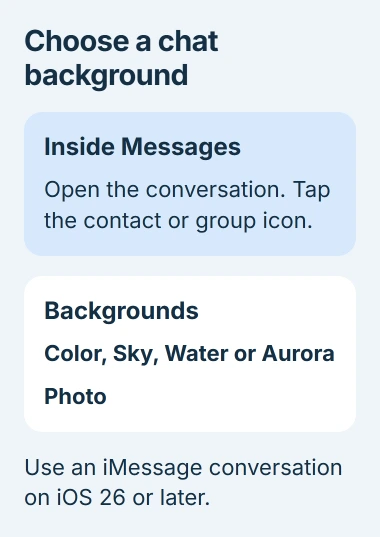
Status: Apple's background instructions for iOS 26 and 27 checked November 3, 2026. Backgrounds require iMessage; the shared background and your personal display switch work differently.
If you need to start a conversation with several people, follow the iPhone group-chat steps first. Once the people you want to include have joined, return to the group's details.
Check the group name and who's in the chat before choosing a personal photo. Otherwise, a family picture you meant to share with one person could become the background for a larger group.
This changes only the chat you've opened. To use a background in other conversations, you'll need to choose one for each chat separately.
Pick a color or an animated background
Inside Backgrounds, choose Color, Sky, Water, or Aurora. Swipe through the choices until you like the preview. For Color, tap the color samples in the bottom corners to adjust the colors.
Confirm your choice, then return to the conversation. The image or color should appear behind your messages. It doesn't replace the contact photo or change any message text.
I'd start with a quiet color if the chat contains long messages. Check that you can read a full exchange comfortably. A preview with only a few bubbles won't show how a long chat feels.
Scroll through older messages after applying it. If a scene makes links, timestamps or smaller text harder to follow, open Backgrounds again and choose a simpler option.
Changing the background doesn't let you pick a color for the message bubbles. Those stay blue or green to show which messaging service you're using; Apple's background choices change the area around them.
Use a picture from Photos
Select Photo in the background picker, then choose an image from your photo library. Pinch the preview to change the crop before applying it.
Position the photo so message bubbles don't cover the subject. You may need to crop a wide photo more tightly to fit the phone screen, so check the preview to see how much of the original is visible.
Apple documents several styles for photo backgrounds. Swipe to Black & White to remove the color, or choose Duotone or Color Wash and tap the color sample to adjust the colors.
Apply your choice and reopen the chat to check it. If the crop cuts off someone's face, go back to the picker and adjust it. You can change the background without deleting the conversation.
A photo already shared in the chat has a shortcut. Touch and hold that photo, then choose Set as Background when offered. This saves you from looking through the photo library for the same image.
On versions that show Start with Photos Visible, Apple places that option in Settings > Apps > Messages. It changes how the background appears when you return to a conversation.
Know what the other people will see
Apple states that people in the chat can see the background on supported devices and change it for the group. Someone else's choice can replace the one you picked.
That may explain why your background changed when you hadn't touched the setting. Ask the other people in the chat before assuming something's broken or choosing the same picture again.
Backgrounds work on iOS 26, iPadOS 26, macOS 26, watchOS 26 and visionOS 26 or later. Someone using older software may not see the chat the way it looks on your updated iPhone.
To hide backgrounds on your own screen, use the Settings switch in the next section. It won't make a photo private once you've chosen it as the chat's shared background.
Remove it for the group or hide it just for yourself
To remove the shared background, go back to that conversation's Backgrounds picker and select None. Apple says this removes it for all the people in the chat.
To keep the group's background but show a plain chat on your phone, open Settings > Apps > Messages. Turn Conversation Backgrounds off. Other participants continue to see the background chosen for that chat.
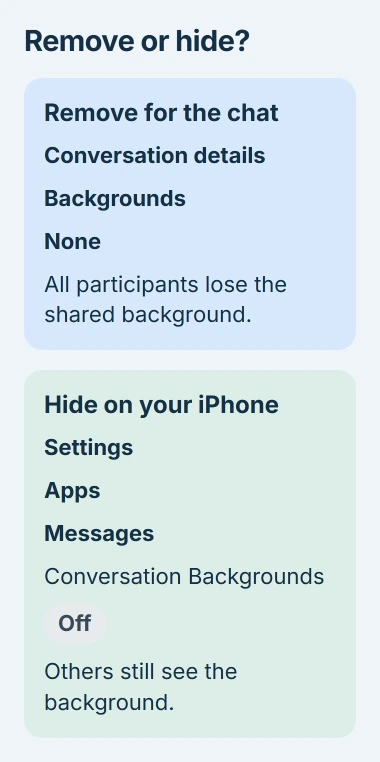
Choose None when the group wants the picture removed. Use the Settings switch if you just want a plainer chat on your own phone. Both can make your screen look similar, but only one changes what the others see.
Both options leave your messages and attachments intact. To remove the chat history too, follow the message-deletion options, which also explain how long you have to recover deleted messages.
When Backgrounds is missing
Check Settings > General > About for the iOS version, then look for an update in Software Update if needed. Apple's update instructions cover the backup and installation steps.
Next, check what kind of chat you're using. Apple's message-service comparison explains iMessage, RCS and SMS/MMS. Green-bubble chats can't use backgrounds, even though they open in Messages.
Color and photo backgrounds don't need Image Playground. The Playground choice uses Apple Intelligence, which has extra device, language and region requirements. You can still use the other backgrounds without it.
If Backgrounds is still missing from an iMessage chat on supported software, give Apple Support your model and iOS version. Tell them whether it appears in another chat. That comparison helps more than erasing your phone.
The Short Version
Open an iMessage chat's details and choose Backgrounds to add a scene or photo. Other people in the chat share that choice. None removes it for the chat; turning Conversation Backgrounds off hides it only on your device.

Isaac Smith is the founder and editor of PC Glance, a website that covers computers, laptops, and technology. He is a tech enthusiast and a computer geek who loves to share his insights and help his readers make smart choices when buying tech gadgets or laptops. He is always curious and updated about the latest tech trends.