
Windows 11 can build its Most used list only when it can track the apps you open and Show most used apps is on. Turn on tracking in Privacy & security, then check Personalization > Start for the display setting.
After a reset, the list can be empty even with its switch on. Check these settings first, then your Start layout. A policy, or rule set for your PC, can also stop Windows from recording which apps you use.
1. Let Windows track the apps you open
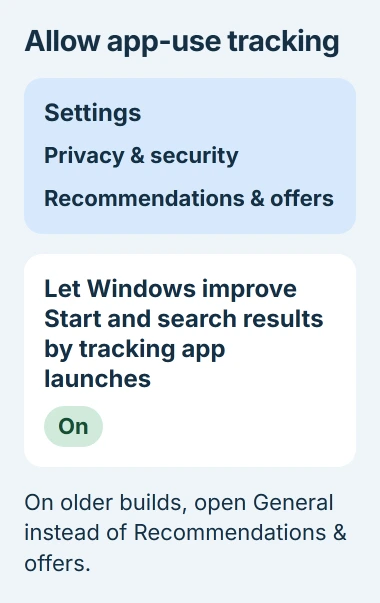
Press Windows+I to open Settings. Select Privacy & security, then open Recommendations & offers. Find Let Windows improve Start and search results by tracking app launches and turn it on.
On older Windows 11 versions, the same control is under Privacy & security > General. Microsoft says Recommendations & offers is replacing General, so your PC may no longer have a General page.
Status: Microsoft's Start, privacy and policy documentation checked November 3, 2026. The tracking control can sit in General or Recommendations & offers, depending on the Windows build.
Microsoft documents the setting in its Recommendations and offers guide. Windows uses the programs you launch to personalize Start and search results.
With this on, Windows records which apps you use. If you'd rather keep tracking off, pin shortcuts to Start instead. Windows needs your app-use history to work out which programs you open most often.
The nearby advertising and suggested-content switches do different jobs. Don't switch every privacy option on just to restore the list. The one needed here specifically mentions app launches.
2. Enable the list in Start settings
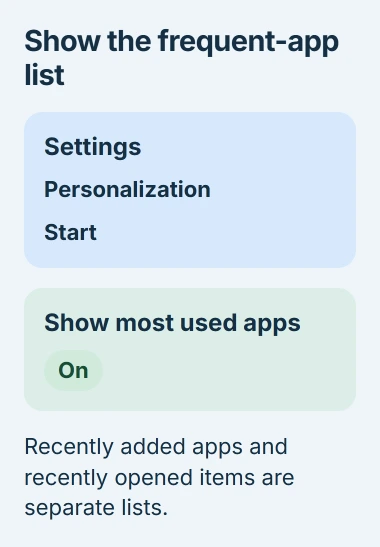
Go back to Settings, select Personalization > Start, and turn Show most used apps on. If the Start menu is open, close and reopen it, then check the app area.
Microsoft's focus and distraction settings include this switch. Tracking records which apps you use; this Start option controls whether you see the list.
If the switch was locked before you turned tracking on, try it again now. If you still can't change it, check the policy before you try reinstalling the affected programs.
Show recently added apps lists programs you've just installed. Recently opened items shows documents and other recent content. These are separate from the list of programs you use most often.
For example, a new editor can appear under recently added before you've used it much. Your everyday browser won't become recently added again just because you open it often. Check which list you're trying to restore.
3. Check where your version of Start shows frequent apps
Start looks different across Windows 11 versions. Older layouts have a separate All apps button. Newer ones have an All area and a recommendations area that can show programs you use often.
Microsoft states in its Start customization guide that current layouts let you view installed apps by Category, Grid, or List.
Open All or All apps, whichever your menu shows, and check the list. On the newer menu, check recommendations too. A changed location can make the feature seem missing even when both switches are on.
The Windows Start layout guide covers the broader arrangement of pins and recommendations. To restore this list, keep the option for frequently used apps on instead of hiding all recommendations.
An app missing from the Most used list may still be installed. Search Start for its exact name and try opening it. If it opens normally, the app works; it's just missing from that list.
4. Use the account normally after enabling tracking
Windows needs a history of the apps you open to put them in order. If you've made a new account, reset Windows, or kept tracking off for a while, turning it on won't immediately bring back the old order.
Keep using your usual apps so Windows can build the list from that use. Microsoft doesn't give an exact wait or number of times you need to open them. Opening the same app over and over isn't a reliable way to rebuild the list.
I'd pin the programs you need while the automatic list fills up. Search for an app in Start, right-click the result, and choose Pin to Start. You'll have a shortcut you can use right away.
Pins also help if you want your apps in a set order each day. The Most used list changes as you use different programs; pins keep the shortcuts you've chosen within reach.
For shortcuts outside Start, the Windows taskbar guide covers taskbar pins and layout. Those shortcuts are separate from Start's automatic list of frequently used apps.
If the list vanished after you used a cleanup or privacy tool, check what that tool changed. Look for app-history or tracking options and follow its instructions for undoing the change before trying other Windows repairs.
5. Check a managed or locked setting with the administrator
A switch that's grayed out or changes back after sign-in may be controlled by a policy. For a PC managed through work or school, send the administrator a picture of the setting and the exact Windows version shown by winver.
Microsoft's Start policy reference describes Turn off user tracking, also called NoInstrumentation. Turning it on stops Windows from tracking app use and showing frequently used programs.
Ask the administrator to check that policy and the organization's Start settings. Changing the switch won't help if your PC applies the same rule again when you sign in or it connects to your organization's management system.
On your own PC, check any policy or privacy tool you've used. Follow its instructions to restore the default app-tracking setting. Don't import an unrelated registry file just because its name mentions Start.
If the switches work but the list remains missing
Restart Windows after saving your work, then confirm that both settings stayed on. Install available Windows updates and check whether the list is missing in the normal Windows Start menu or only in a replacement menu app.
If Start itself stops responding, that's a different fault from an empty frequent-app list.
If the list still doesn't appear, report it through Feedback Hub with your Windows build number, Start layout, and whether each switch is on. Keep the apps you need pinned while Microsoft or your administrator checks the problem.
The Short Version
Turn on app-launch tracking and Show most used apps. Check where your Start layout puts the list, then use your apps normally so Windows can put them in order. Check policy if a switch is locked, and pin the apps you need now.

Isaac Smith is the founder and editor of PC Glance, a website that covers computers, laptops, and technology. He is a tech enthusiast and a computer geek who loves to share his insights and help his readers make smart choices when buying tech gadgets or laptops. He is always curious and updated about the latest tech trends.