
The Check Signal Cable message means your Samsung monitor isn't receiving the video signal it expects. Choose the source that matches the connected port, wake your computer, and unplug and reconnect both cable ends before buying a new one.
The same warning can be normal during the monitor's own test with the video cable disconnected. With your computer attached, it means you need to check the connection. During that self-test, it can mean the monitor is working as expected.
1. Match the monitor's source to the connected port
Press the monitor's menu button or use its joystick. Find Source or the control for choosing an input, then select the connector you're using. The buttons you'll need depend on your Samsung model.
Read the label beside the socket on the monitor. For a connection through HDMI 1, choose HDMI 1 in the menu. DisplayPort won't show that picture. Check the number too when there are multiple HDMI sockets.
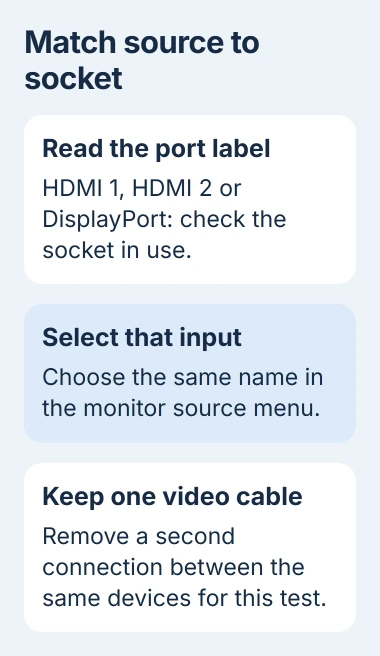
Samsung recommends checking power, connections, and the selected source. Use one video cable between the monitor and computer during this check.
If two video cables connect the same devices, unplug one for now. The monitor may be checking one input while your computer sends the picture through the other.
If the monitor's own menu opens normally, continue with the signal checks. If no menu appears and the power light is off, check the power connection and outlet first; changing Windows display settings can't power the monitor.
2. Wake the computer and reconnect the video cable
Move the mouse or press a keyboard key to wake the computer. If you're using a laptop, open its lid and check whether its built-in display responds. The connected computer needs to be awake and sending video.
Unplug the video cable from each device, check the connectors for damage, and push each plug fully back into its socket. A connector can look attached while sitting slightly loose.
Connect your computer straight to the monitor if their ports allow it. Leave the dock or adapter out of this test and check whether the picture returns without it.
If the direct cable works but the dock doesn't, check the dock's power and what video connections it supports. Use the working connection while you check the dock itself.
On Windows, press Windows+P and choose Duplicate or Extend. PC screen only can leave the laptop's internal screen working while the external monitor has no desktop to display.
The external-monitor checks walk through cables, accessories, and display modes. If Windows still can't see your screen, try a cable you know works.
3. Change one part of the connection at a time
Borrow a video cable that works with another display, if you can. Use the same ports and keep the same source selected. If the picture returns, that points to trouble with your original cable or its connection.
If the message remains, connect another compatible computer or console to the Samsung monitor using that working cable. Select the matching input and confirm the second device is awake.
I'd borrow a cable for this check before ordering one. Buying several adapters at once can hide which part actually caused the missing picture.
Note the result before changing anything else. If the second device works, go back to checking your first computer. If neither works, try the monitor's own test next.
For USB-C, check that your computer's port, the cable, and any adapter can all carry video. The connector's shape alone doesn't tell you what it supports.
For a laptop that works with one screen but not a second, the second-monitor detection guide covers the Windows side in more detail.
4. Run the self-test described for your monitor
Use your model's manual for the right buttons. Older Samsung monitors can test the screen with the video cable disconnected. Newer models may have Self Diagnosis and Picture Test in their menus.
For models covered by the disconnected-cable test, turn off the monitor and computer. Disconnect the signal cable from the computer, then turn the monitor on by itself.
You may see a moving Check Signal Cable box while the power light stays on. Some models switch between Analog and Digital boxes. That's expected during this test because you've disconnected the cable.
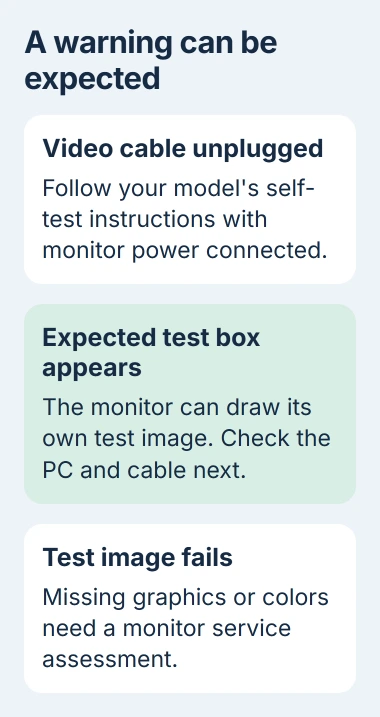
If the test message looks right, your monitor can show that image without the PC. Reconnect the cable and check the computer and connections. This test can't check every cable or input, or catch every problem that comes and goes.
If the manual shows a test image but yours is missing or has missing colors, tell Samsung Support. If your model has Picture Test, follow the manual to open it and report anything that looks wrong in that image.
5. Check display settings if startup appears but Windows doesn't
A startup logo followed by a blank screen is different from never getting a picture. Note when the warning starts, especially if you recently changed the resolution or refresh rate.
Using the laptop screen or another working display, open Settings > System > Display. Select the Samsung screen and choose its recommended resolution. Under Advanced display, select a refresh rate supported by the monitor and connection.
Check which resolutions and refresh rates your monitor supports. Refresh rate means how often the image updates. Your cable or adapter also needs to carry the picture at the settings you choose.
If this started after a graphics-driver change, the Windows driver guide explains which driver to get and when to switch back to an earlier one. Make the change using your working screen.
If the monitor stays blank with working cables and different sources, or its test image fails, ask support whether it needs repair. Give them your exact model, connection type, and test results as well as the warning text.
The Short Version
Match the source to the socket, wake your PC, reconnect the cable, then try another cable or source. The cable warning can be normal during a disconnected self-test. Ask support to check a missing or damaged test image.
Checked November 4, 2026.

Isaac Smith is the founder and editor of PC Glance, a website that covers computers, laptops, and technology. He is a tech enthusiast and a computer geek who loves to share his insights and help his readers make smart choices when buying tech gadgets or laptops. He is always curious and updated about the latest tech trends.