
Yes, a faulty extension can crash your browser or make the computer unresponsive. A corruption warning alone doesn't explain a Windows restart, though. Disable the suspect Chrome extension, then use Repair if offered.
A tab closing, the browser disappearing and the entire PC restarting need different checks. Start by checking which one happens on your computer. These steps cover desktop Chrome's corruption warning and Repair control.
1. Check what actually stopped working
When the problem happens, try switching to another open app. If that app works and the Windows desktop responds, the problem is within Chrome. Check its extensions before changing Windows settings.
If every app is stuck, press Ctrl+Alt+Delete. If the security screen opens, Windows is still responding to that command. Open Task Manager from there if you need to close a frozen Chrome window.
If Chrome still responds, try closing it normally first. Forcing a stuck browser to close can lose unsaved forms and other work in its tabs.
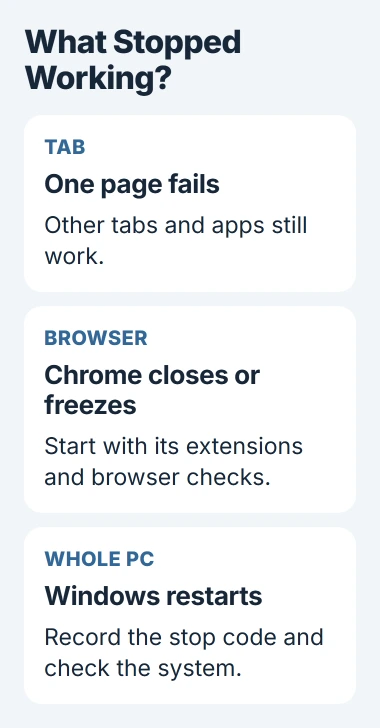
A blue screen, an automatic reboot or a return to the manufacturer's startup logo needs a wider system check. Note the stop code if one appears and follow the unexpected PC restart checks.
A missing icon doesn't mean an extension is corrupted. It could be unpinned or the add-on could be disabled, rather than damaged. Check the message Chrome shows for that extension.
2. Turn off the suspect add-on and repeat the task
Open Chrome's menu, then Extensions > Manage extensions. Find the extension you recently added, updated or saw named in a warning, and switch it off. Leave it installed for this first comparison.
Close Chrome normally, reopen it, then repeat the action that made it crash. Keep the website and tasks similar; doing less in the browser could hide the problem.
If the crash disappears, leave that extension off while you check its repair options. If it continues, disable the other extensions too and compare again. Re-enable them individually only after Chrome works without them.
Google's browser crash steps identify extensions as a possible cause and recommend adding them back separately after removal. Switching an extension off first helps you check it without removing it.
Incognito doesn't turn off every extension: add-ons you've allowed there can still run. Use the extension switches to control which ones are running while you check for crashes.
If the problem continues with every extension off, try the wider Chrome freezing checks. Repairing an unrelated add-on again won't fix a profile or graphics problem.
3. Use Repair when Chrome identifies corruption
Go back to Manage extensions and find the affected extension. If Chrome marks it as corrupted and shows Repair, select that button, then choose Repair extension to confirm.
The extension management instructions describe that repair route. A missing Repair button isn't another fault; Chrome doesn't offer it for every disabled extension.
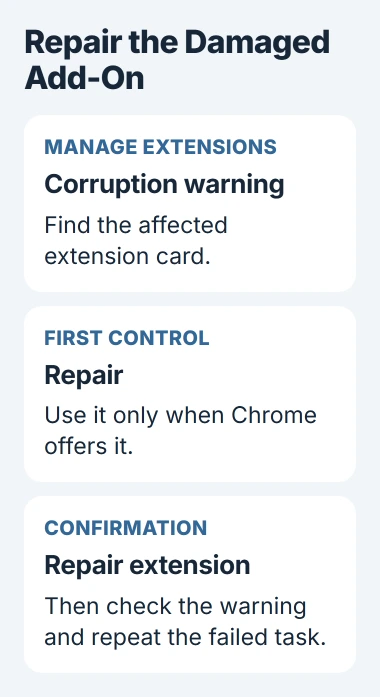
Check that the warning has cleared, then enable the extension and repeat the action on the same site. You're checking two things: whether Repair cleared the warning and whether Chrome has stopped crashing.
Before removing an add-on instead, save any important data using its own export or account features if available. Some extensions hold settings or content locally, so treat removal as more than hiding a toolbar icon.
If the message says the extension is unsupported, use the unsupported-extension replacement route. Repairing its files can't make Chrome support an older type of extension again.
An extension installed by your organization may have controls you can't change. Send IT its name and the warning so they can check the installation and the rules they've set for Chrome.
4. Check for software that keeps changing the files
If corruption returns after repair, check what is changing the files. Google says a suspicious program may be altering the extension's files. Its next step is an antivirus or anti-malware scan.
On Windows, open Windows Security > Virus & threat protection and run Quick scan. Follow the app's instructions for anything it finds. If another security product protects your PC, run its scan instead.
After dealing with anything the scan finds, repair the extension again. Note whether the warning returns immediately, after restarting Chrome or after restarting Windows. That timing helps when you ask for support.
Keep your security protection on while checking. If an add-on works only when you bypass those checks, ask its developer or your IT team to review it instead of making a permanent exception to clear the warning.
If the scan finds nothing and corruption keeps returning, take the extension name, version and warning text to Chrome support. Mention whether one add-on or several are affected. That distinction helps focus the next checks.
5. Separate heavy memory use from damaged files
An extension can use a lot of memory without being corrupted. Open the browser menu and choose More tools > Task Manager. Check the Memory footprint column while Chrome is slow.
Look for the extension's entry alongside the tabs. Save work before ending a task there, and compare how Chrome behaves with that extension disabled. High memory use on its own doesn't mean the extension's files are damaged.
For Windows as a whole, Ctrl+Shift+Esc opens its separate Task Manager. Read the memory usage with your normal apps open. If memory use stays high after Chrome closes, other apps or processes are using it too.
The high-memory checks explain that wider case. Adding RAM or clearing browsing history isn't a replacement for repairing a card that Chrome specifically flags as corrupted.
If an extension still crashes after repair, send its developer the steps that trigger it. If your PC restarts with Chrome closed, give Windows support or the computer maker the stop code and details of when it restarts.
The Short Version
Disable the suspect extension, use Repair for a corruption warning, and scan for unwanted software if it returns. Check heavy memory use separately. An extension can crash Chrome, but a full PC restart needs wider checks.
Checked November 4, 2026.

Isaac Smith is the founder and editor of PC Glance, a website that covers computers, laptops, and technology. He is a tech enthusiast and a computer geek who loves to share his insights and help his readers make smart choices when buying tech gadgets or laptops. He is always curious and updated about the latest tech trends.