

STATUS_STACK_BUFFER_OVERRUN means Chrome's page process has crashed, but the code alone doesn't identify the broken extension, graphics setting, or software involved.
Update Chrome first, then retry the failing page with extensions out of the way. For crashes during video playback, the graphics acceleration check is especially useful.
In this guide
1. Update Chrome and retry the page that crashes
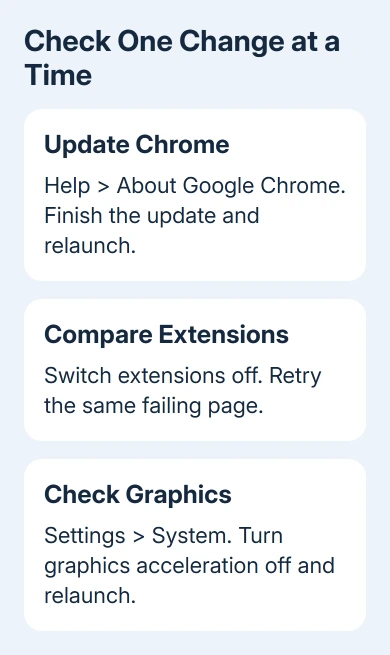
Open Chrome's three-dot menu, choose Help > About Google Chrome, and let the update check finish. Select Relaunch if an update is ready. Save any unfinished tab work before the browser restarts.
The update hasn't taken effect while Chrome is waiting for you to select Relaunch. Once it restarts, reopen the same page and repeat whatever made the tab crash.
Keep the exact error code with your notes. STATUS_ACCESS_VIOLATION, STATUS_BREAKPOINT, and Out of Memory are different messages, even though they can appear on the same Aw, Snap screen.
The broader Chrome crash-code guide covers those other codes. Don't apply an old registry change for a different error just because the crash page looks familiar.
One Google help-forum report of this exact code says updating and clearing browsing data didn't stop it. That's a reason to continue with targeted checks rather than repeatedly deleting your history.
2. Compare one troublesome site with other pages
Load another ordinary website, then revisit the failing page. Also try that page in a different browser. These comparisons tell you whether the failure follows a particular site or happens throughout Chrome.
If one site crashes in several browsers, check with that site's support team. Give them the page address plus the exact trigger for the failure, such as starting a video or opening a particular document.
If the site works elsewhere but fails in Chrome, continue with the browser checks. A working second browser also gives you a way to finish the immediate task without changing several settings in a hurry.
When every tab crashes, close unused programs and all Chrome tabs except the one you're checking. Google recommends freeing memory before deeper browser repairs.
Reload after closing those programs and tabs. If the page now stays open, your computer may have been struggling with everything it had running. If the same code returns with only one page open, move to extensions.
3. Check extensions without deleting their settings
Press Ctrl+Shift+N on Windows to open an Incognito window. Load the troublesome page there, then recreate the failed task. Incognito also changes cookies and sign-in state, so success there isn't enough to blame an add-on.
Open chrome://extensions in a normal window. Switch off your extensions, then close and reopen the failing tab. Extensions allowed in Incognito can run there too, which makes the normal-window check useful.
If the page works with extensions disabled, turn them back on individually. Repeat the same task after each change.
When the crash returns, keep that last extension disabled. Install its update if offered, or report the crash to its developer.
Use the same page while checking each extension. Switching pages between checks muddles the comparison between extensions. I'd use the same video or document each time, because the result is much easier to compare.
If extensions made no difference, you can restore the ones you need and continue. For an extension that Chrome itself marks as damaged, the corrupted-extension checks explain the separate Repair control.
4. Turn off graphics acceleration for video crashes
Open Settings > System in Chrome, or enter chrome://settings/system. Find Use graphics acceleration when available, switch it off, and select Relaunch. Some help pages use the older wording, hardware acceleration.
This changes how Chrome draws page content and plays video. It is a useful comparison when scrolling video feeds or starting playback brings on the crash while simple pages remain stable.
Replay the same content after Chrome restarts. If it stays open, leave acceleration off while you update the computer's graphics driver through its manufacturer or normal managed update process.
If turning it off doesn't help, restore the original setting and relaunch before the next check. Keeping a change that didn't help makes the next result harder to interpret.
Avoid changing several experimental flags at once. The forum report has no confirmed success with changing how Chrome handles graphics, so I'd leave those experimental settings alone.
5. Try another Chrome profile before removing yours
Select the profile picture, choose Add, and create a separate profile without signing into your account. Depending on the Chrome version, the local setup choice can read Continue without an account.
Open the problem page in that profile before installing extensions or importing settings.
If the crash disappears, check the original profile's settings and stored data. You don't need to delete that profile just because the separate one works.
Keep your original profile available for bookmarks, passwords, and unsaved local information. Compare its extensions and settings with the working profile rather than removing it as the first repair.
If the new profile crashes too, restart Windows and repeat the check.
Restarting Windows closes running programs that stay open when you restart only Chrome. Record whether the error occurs before or after opening your usual applications.
6. Send a crash report with a useful comparison
Enter chrome://crashes and look for a report matching the failure. Reports appear only when crash reporting is enabled, so an empty list won't tell you what went wrong. Include an available crash ID when asking for help.
Use Help > Report an issue from Chrome's menu. Include the full code, browser version from About Google Chrome, Windows version, affected site, and the results with extensions disabled and acceleration off.
On a company computer, send those details to IT before changing security software.
Ask them to compare the crash time with any alerts from the computer's security software. A timestamp makes that request much more useful than a screenshot alone.
The Short Version
Finish Chrome's update, compare the failing site, and test extensions and graphics acceleration separately.
Keep your existing profile while checking another one. Persistent crashes need the exact code and a crash report, rather than repeated history clearing.
Checked November 12, 2026.
 If you have any business, I can build it online






