
CleanMyMac X from the Mac App Store doesn't include Shredder, so reinstalling it won't bring that button back. Newer CleanMyMac releases have a different tool layout too. Check the app's version before following instructions for X.
For everyday file cleanup, use Finder or the current app's My Clutter tools. To protect your data before giving the Mac away, follow the steps to erase the whole computer. Restoring an old sidebar button won't do that job.
Check the app name before looking for the missing module
Open the app's menu and look for its About information. Note the full name and version: CleanMyMac X, CleanMyMac 3 and the current CleanMyMac have different layouts and their own instructions.
Then check where your copy came from: the Mac App Store, MacPaw or Setapp. Your purchase history or subscription account can settle that if the app was installed a long time ago.
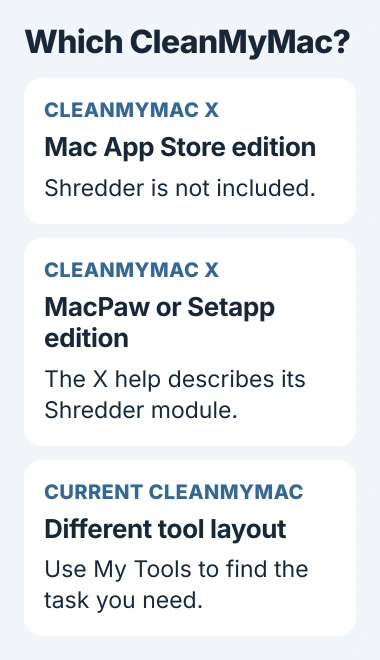
MacPaw lists Shredder among the modules omitted from the App Store edition of X. That's a difference between editions, not a damaged installation or a permission you forgot to grant.
That support page also describes the MacPaw and Setapp editions of X. It covers X specifically, so you can't use it to check whether a newer release from either store has the old sidebar.
I'd check the edition before changing permissions or paying for another copy. A screenshot from a different version can send you looking for a button your app doesn't have.
In the current app, choose the tool for the file
For current CleanMyMac, open My Tools and look for the task you actually need. The current tool list includes Downloads, Large and Old Files, Trash Bins and Uninstaller.
Each tool has its own job. Downloads lets you review downloads, and Large and Old Files helps you find bigger files. Trash Bins empties trash, while Uninstaller removes apps and the files that belong to them.
Use My Clutter when you're trying to find large personal files to remove. Choose the location to scan, run Scan, then select Review All Files or the review control for Large & Old Files.
Review the results before selecting files. Group them by type, size or the date you last accessed them. Right-click a file for Reveal in Finder, Get Info or Quick Look if you need to check what it is.
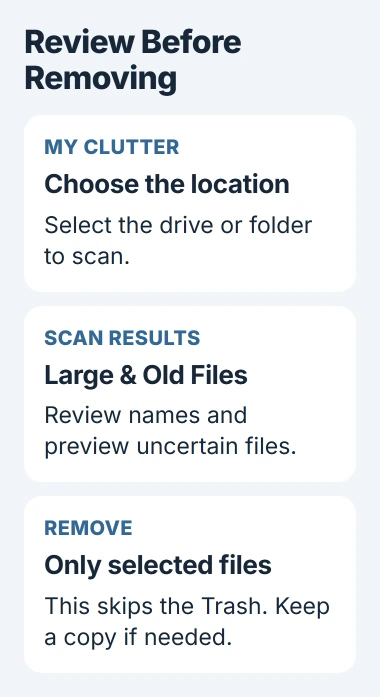
This large-file scan lists items of at least 50 MB. If the small document you want isn't there, use Finder to locate it rather than assuming the scan failed.
Select the files you want to delete, then click Remove. This skips the Trash, so keep a separate copy first if you're unsure whether you'll need a file again.
Remove deletes files only from the category you're viewing, even if you've selected files elsewhere. Check each category separately, then read the results summary or View Log to see what was removed.
Use Finder when you already know the file's location
You don't need a cleanup scan when you already know which document or folder you want to remove. In Finder, select it and press Command+Delete, or drag it to the Trash in the Dock.
Open the Trash to review the files you've moved. If you change your mind before emptying it, select a file and choose File > Put Back to restore it.
To remove just one item from the Trash, Control-click it and choose Delete Immediately, then confirm. To remove everything there, use Empty and read the confirmation before continuing.
Apple's file deletion instructions explain these choices. After you empty the Trash, you can't use its usual recovery option to get those files back.
If Finder says a file is locked, select it and open File > Get Info. Clear Locked if it's selected, you own the file and you want to change it. You may need an administrator to approve a permission request.
If the error mentions the file's pathname, follow the Mac Trash pathname checks to deal with that blocked file. The missing Shredder button isn't the cause of that message.
If your edition of CleanMyMac X has Shredder
If your edition of X includes it, open Shredder and choose Select Files. Add the files or folders you want to remove, check the list and choose the removal mode. Then select Shred.
The X Shredder instructions explain the choice between immediate removal and secure removal. Those controls belong to the older tool; you won't find them under those names in My Clutter.
Don't test the button on a file you need. If your edition should have Shredder but it's missing, send support your version and where you bought it before reinstalling or moving licenses.
Cleaning up a few files and erasing the whole Mac are different jobs. If you're preparing it for someone else, choose the process that removes your personal data across the computer.
Erasing a Mac for sale needs the device-wide procedure
Deleting a few documents leaves other personal information, accounts and app data on your Mac. Before you sell it or give it away, work through the sale preparation checklist.
On a supported Mac, Erase All Content and Settings handles this cleanup across the computer. Whether it's available depends on your hardware and macOS version. Follow the supported erase route for your model.
Make a backup of anything you're keeping before erasing the Mac. For a work computer, follow your organization's disposal process and let IT handle the company settings and data.
If Shredder is still missing, tell support your app version, macOS version and where you got the app. Explain what you're trying to do: clean up files, delete a stuck file or prepare the Mac for someone else.
The Short Version
App Store CleanMyMac X omits Shredder, while current CleanMyMac has tools such as My Clutter. Finder handles ordinary deletion. Selling the Mac calls for a complete device erasure.
Checked November 4, 2026.

Isaac Smith is the founder and editor of PC Glance, a website that covers computers, laptops, and technology. He is a tech enthusiast and a computer geek who loves to share his insights and help his readers make smart choices when buying tech gadgets or laptops. He is always curious and updated about the latest tech trends.