
The iOS Setup Assistant opens at Hello on a new or erased iPhone. Follow the prompts to activate your phone, choose whether to move your data over, and sign in. It isn't a separate app you need to download.
If your iPhone already shows the Home Screen, you've finished that first setup. Look in Settings for anything you skipped. Running the whole setup again means erasing the phone first.
Start from Hello with the information you'll need
Have your Wi-Fi password and Apple Account details ready. Keep the old phone nearby and charging, and unlock it when asked. Don't erase it until you've checked that the new phone has the information you need.
Press and hold the iPhone's power button, letting go once Apple's logo appears. At Hello, choose your language and region. Later screens depend on your model, software, and how you're moving your data.
On the Appearance screen, compare the text and icon sizes, then tap Continue. The preview helps you choose what's comfortable to read; the largest size won't suit every screen.
Apple says accessibility features are available from Hello. Press the side or top button three times for VoiceOver, or double-tap with three fingers for Zoom. Its iPhone setup instructions describe these starting controls.
If an account lock for someone else stops setup, contact the owner or seller. Restarting setup won't remove a lock tied to their account.
Choose Quick Start or setup without another device
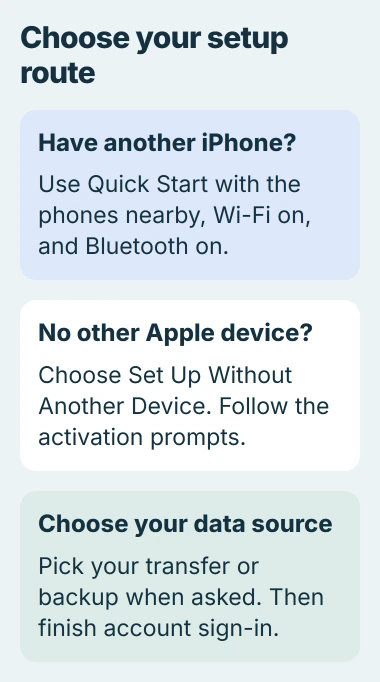
To use Quick Start, place your current iPhone or iPad next to the new iPhone. Turn on Wi-Fi and Bluetooth on the older device, unlock it to the Home Screen, and follow the setup prompt.
If that prompt disappears, restart both devices and try again. Keep them close while setup continues; don't put the older one away after the first confirmation.
Choose Set Up Without Another Device if you don't have an Apple device you can use. Choose it when moving from Android too. You'll pick how to transfer your data later.
Quick Start helps set up the phone, but you still choose how to move your data. When offered, pick between transferring directly from the old device and downloading from iCloud.
A direct transfer keeps both phones busy until it's done. With iCloud, apps and data can keep downloading in the background. The Quick Start procedure explains how the two options differ.
I'd choose a time when you can leave both phones charging without needing either for a call. Rushing to disconnect them makes it harder to tell whether setup finished or the transfer is still working.
Connect and activate the new iPhone
Connect to reliable Wi-Fi using its password. If you see Continue Without Wi-Fi, that option uses your cellular connection. Setup may also ask you to activate an eSIM or insert a physical SIM that the phone supports.
The phone needs to finish activation before you can continue setting it up. That's separate from copying your photos and other files, so it still applies if you're starting fresh.
If the message says the activation server is unavailable, try Wi-Fi instead of cellular data. Restart the iPhone, wait a few minutes, and retry. Write down the exact message if it fails again.
An invalid or unsupported SIM message needs your carrier's help. For other repeated failures, use the activation troubleshooting steps or contact Apple Support with the message and phone model.
If setup asks whether the phone is for you or a child, choose who will use it. A child's setup includes account and family choices that need the child's details, rather than an adult's identity used just to pass that screen.
Create the passcode, then choose your data source
Set up Face ID or Touch ID when asked, then choose a passcode you'll remember. You'll still need the code sometimes, even when you use your face or fingerprint to unlock the phone. The standard setup offers a six-digit passcode.
On the transfer screen, select where your data is: an iCloud backup, a computer backup, another iPhone, or an Android phone. Pick the option that matches the backup or device you have.
To use a saved backup, follow the iPhone backup restoration guide. Check the backup's date before you select it. An older copy can be missing recent changes.
For an Android phone, select From Android. To use Move to iOS, choose Transfer with App, then enter the code from the iPhone in the Android app. Select the content you want to move.
Keep Move to iOS open until the iPhone's progress bar finishes, even if Android already reports completion. The Android transfer instructions also describe an app-free option for supported newer Android devices.
To start fresh, choose Don't Transfer Anything when asked. Setup will continue without copying data from another device or a backup.
Sign in and finish the remaining choices
Type the email or phone number for your Apple Account, then its password. Keep your old device handy until sign-in finishes, since the verification code may arrive on a trusted device.
Use the account-help option if you've forgotten your password, need to create an account, or want to sign in later. Purchases tied to your original account won't come back if you create a different one.
Continue through choices such as automatic updates, Siri, Screen Time, and Apple Pay. The options vary by phone, so follow the screens you see; your model may not offer every feature.
Once you reach the Home Screen, check the apps and information you need. If you restored from iCloud, some content may still be downloading. Leave the phone connected to Wi-Fi and power while it finishes.
Check calling, messages, and the account shown in Settings before putting the old phone away. If only account verification fails, the Apple ID verification checks address that stage separately.
Return to setup only when you need to start over
Before erasing an iPhone you've already set up, save any new files and confirm your backup. To restart setup, open Settings > General > Transfer or Reset iPhone > Erase All Content and Settings.
Read what the erase screen says about removing your content and handling your cellular plan. Erasing returns the phone to Hello. You can change wallpaper, add an account, or turn on a skipped feature without erasing it.
If a transfer won't finish, tell Apple which step stopped, the error message, and which device you're moving from. Keep the original phone or backup intact while you get help.
The Short Version
From Hello, use Quick Start or manual setup, activate your phone, and choose where to copy data from. Sign in and check your content when you reach Home. To run the full assistant again, you'd need to erase the iPhone.
Checked November 4, 2026.

Isaac Smith is the founder and editor of PC Glance, a website that covers computers, laptops, and technology. He is a tech enthusiast and a computer geek who loves to share his insights and help his readers make smart choices when buying tech gadgets or laptops. He is always curious and updated about the latest tech trends.