
Restoring an iPhone from a backup returns saved information to the phone. A saved iCloud copy returns through setup. For a backup stored on a computer, use macOS Finder or the Windows Apple Devices app.
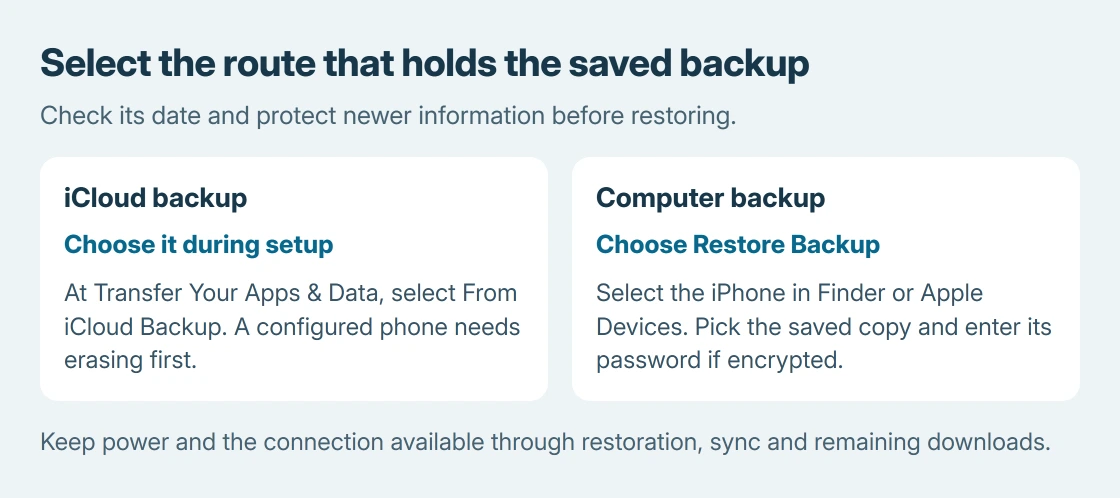
First identify where the required backup is stored and check its date. An iPhone already set up must be erased before an iCloud setup restore. Do not erase it until newer information that matters has another copy.
Choose the saved copy before changing the phone
For a computer backup, use the computer that holds it. Open Finder on macOS Catalina or later, or Apple Devices on Windows. Older Macs running Mojave or earlier use iTunes.
Attach the phone by USB and approve any required connection or Trust prompt. Apple's backup restoration instructions distinguish this process from making a new copy.
Status: Apple's backup restoration, Windows app and newer-iOS instructions checked October 26, 2026. Restoring replaces phone data. No iPhone was backed up, erased or restored.
If current information still needs saving, use the computer backup procedure or check the completed iCloud backup date first. Preserve the older copy needed for recovery too.
A new backup of the wrong state can replace information you intended to recover. Apple specifically cautions that setting up as new can create iCloud backups that replace saved ones, so do not leave the intended restore indefinitely.
Restore the iCloud copy during iPhone setup
Start from the Hello screen and follow setup to Transfer Your Apps & Data. Choose From iCloud Backup. Use the Apple Account associated with that copy when setup asks for sign-in.
Compare the backup dates and sizes and select the appropriate copy. Follow any offered iOS update before restoration. Stay on Wi-Fi and power while the restore progresses.
If purchases came from several Apple Accounts, setup can request each account's password. Apple says Skip this Step allows that sign-in to be completed later when the password is unavailable.
Finish the remaining setup prompts after the initial restore. Reaching the Home Screen does not mean all apps, photos and music have finished downloading. Leave the phone charging on Wi-Fi for that remaining content.
When the iPhone already shows its Home Screen
Apple's iCloud route requires returning to setup. After protecting current information and confirming the required backup, open Settings > General > Transfer or Reset iPhone > Erase All Content and Settings.
Read the displayed prompts before confirming the erase. The phone's current contents are being removed to start setup again. Once Hello appears, follow the iCloud setup route described in this section.
Restore a computer backup with the correct button
In the computer app, click the connected device and open General if required. Choose Restore Backup and inspect the available copies. Select the date needed for recovery.
Use that backup button rather than confusing it with Restore iPhone, which performs a factory restoration. Apple documents backup selection in General in its Windows app guide.
For a clean reinstall, use the factory restore procedure and review its erase and cellular-plan choices first.
For an encrypted backup, enter its encryption password when prompted, then start the restore. That is the password created for the backup, which may differ from the Apple Account password or iPhone passcode.
Apple states that the phone should stay connected while it restarts and syncs. Disconnect after synchronization finishes. Then keep Wi-Fi and power available for cloud content that still needs downloading.
An encrypted copy cannot be used without its required password. Stop at that prompt and check the password record rather than resetting the phone repeatedly; the erase cannot supply the missing backup password.
Handle a request for newer iOS before trying again
A backup made with newer software may require updating the destination iPhone. For an iCloud restore, follow the offered update. For a computer restore that refuses, Apple supplies a separate update-before-restore procedure.
Set up temporarily using Don't Transfer Apps & Data, finish setup, and update iOS through Settings > General > Software Update. Wait for the update and restart to finish.
After protecting any new information, return to Transfer or Reset iPhone > Erase All Content and Settings. When setup begins again, restore the saved backup.
Follow Apple's sequence rather than altering the backup files to bypass the version requirement.
Check the restored information and keep the error if it fails
Open the apps and data that prompted the restore. Check their contents after the remaining downloads finish. A completed restore can recover only information contained in that copy or still available through the associated cloud services.
If restoration stops, record the exact message, backup date, phone software version and computer app used. Contact Apple with those details.
Keep the saved backup intact while support determines whether the failure concerns compatibility, the password or the copy itself.
The Short Version
Identify the saved copy and protect newer information. Use setup for iCloud or Restore Backup for a computer copy. Supply the backup password and update iOS if required, then wait for sync and downloads to finish.

Isaac Smith is the founder and editor of PC Glance, a website that covers computers, laptops, and technology. He is a tech enthusiast and a computer geek who loves to share his insights and help his readers make smart choices when buying tech gadgets or laptops. He is always curious and updated about the latest tech trends.