
An iCloud restore showing Time Remaining: Estimating needs a working Wi-Fi connection and power before it can finish. Leave your iPhone charging on reliable Wi-Fi first; that estimate alone doesn't tell you the restore has failed.
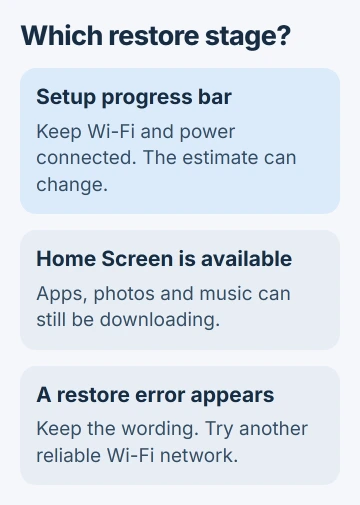
Check whether you're still looking at the setup progress bar, apps downloading on the Home Screen, or an error. Each needs a different response, so check which stage you're at before starting over.
1. Keep the restore connected and check its stage
Plug the iPhone into a charger and keep it within good range of your Wi-Fi router. An iCloud backup restore needs Wi-Fi; switching to cellular data won't keep that transfer going.
If setup still shows the restore progress bar, let it continue. The backup's size and your connection's speed affect the wait. The estimate isn't a deadline, and a missing estimate doesn't mean you should erase the phone.
Apple recommends power and Wi-Fi for restoration. That message alone doesn't mean your backup is damaged, even after a long wait.
I'd check the connection before restarting the whole process. Starting again makes you repeat setup without telling you whether the original connection was the problem.
Once the Home Screen appears, move to the download checks in section 3. If an error appears instead, keep its wording and use the network comparison next.
2. Try another Wi-Fi network when the restore reports an error
An error during restoration needs attention even when the time estimate hasn't settled. Note the exact message, then try restoring through another reliable Wi-Fi network as the troubleshooting page recommends.
Use a network you know you can access, with its password ready. If setup offers a Wi-Fi choice, select it there. If you can already open Settings, use Settings > Wi-Fi to choose the other network.
Check that another device can actually load a new webpage through that connection. Joining the router and reaching the internet are separate things. A phone beside the router can show Wi-Fi while the provider's connection is down.
This checks your connection without changing the backup. If the other network lets restoration continue, stay on it until the transfer finishes. If the same error returns, check the software and backup choice.
Avoid deleting the saved backup while working through this. It may be the only copy of information that hasn't returned to the new phone yet.
3. Let app and photo downloads finish after setup
Reaching the Home Screen means you can use the phone, but some content can still be arriving. The backup restoration instructions explain that photos, music and apps keep downloading after setup.
Leave the phone on Wi-Fi and power while those downloads continue. Look at the things you're waiting for: are more apps becoming available, or are more photos appearing? That tells you more than watching one time estimate.
Open Settings > your name > iCloud > iCloud Backup if setup is complete. The backup help page describes a message there when the device is still being restored.
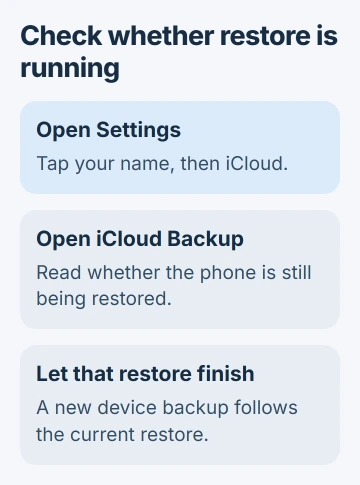
If Back Up Now is unavailable during that stage, you don't need to buy more storage just because of that. Let the current restore finish before expecting the phone to create its next device backup.
If only the photo library remains incomplete, use the iCloud Photos syncing checks. Photos can sync separately from the device backup, so check the library's own status.
An empty Home Screen just after signing in doesn't mean your backup was empty. Check the missing apps or information again as the remaining downloads progress.
4. Answer purchase prompts and any required iOS update
Repeated password prompts can interrupt what looks like one continuous restore. Purchases made with different Apple Accounts can ask for each account's password, even though you chose the backup using your main account.
Read the account shown in the prompt. Enter that account's password if it's yours. If you don't know it, use the offered Skip this Step or Cancel option and handle those purchases later.
Skipping a purchase prompt doesn't change which backup you selected. Those purchases still need access to their own account, separate from the device information already restoring. Keep track of which account or app needs attention.
If setup says the backup needs newer iOS, follow the offered update. A version requirement is different from a slow download, and waiting won't make older software meet it.
The newer-software restoration procedure explains why the update is needed. If the offered update fails, note that error for support instead of repeatedly choosing the same backup.
5. Check a different backup only after those checks
If restoration still fails on another network, see whether setup offers Show All Backups. Compare the available dates and devices carefully. A different backup is useful only if it holds the information you're trying to recover.
Choosing an older copy can leave out recent changes. Keep the original backup while checking the alternative, and decide what information matters before accepting a different restore date.
The normal iPhone backup restore procedure covers selecting and applying a saved copy. Use it if support recommends restarting setup; an estimating label alone isn't enough reason.
If every available copy fails, give Apple Support the model, iOS version, backup date, error and results on both networks. Explain whether setup is blocked or background content is missing.
Those details help support work out which part is stuck. No single shortcut works for every estimating message, and erasing the phone won't fix its connection or supply a missing account password.
The Short Version
Keep the phone charging on Wi-Fi and identify its restore stage. Try another network for a displayed restore error, let background downloads finish, and address password or software prompts before considering another backup.
Checked November 5, 2026.

Isaac Smith is the founder and editor of PC Glance, a website that covers computers, laptops, and technology. He is a tech enthusiast and a computer geek who loves to share his insights and help his readers make smart choices when buying tech gadgets or laptops. He is always curious and updated about the latest tech trends.