
A slow iCloud backup often needs a better upload connection or time to send a large amount of data. Keep the iPhone or iPad on power and Wi-Fi, then check its next backup size before restarting the job.
A storage-full warning means you need more space. If the backup is still sending data, check the connection and backup size. A disabled Back Up Now button, a failed backup message, and a Photos syncing notice need different settings.
1. Read the backup screen before changing anything
Open Settings > your name > iCloud > iCloud Backup. Look for the last successful backup date, the current progress, or an error message. A recent successful date matters more than a remaining-time estimate that keeps changing.
Tap Back Up Now if a backup isn't already running. Stay connected to Wi-Fi while it completes. If the screen shows active progress, leave it running so it has a chance to finish, rather than repeatedly canceling it.
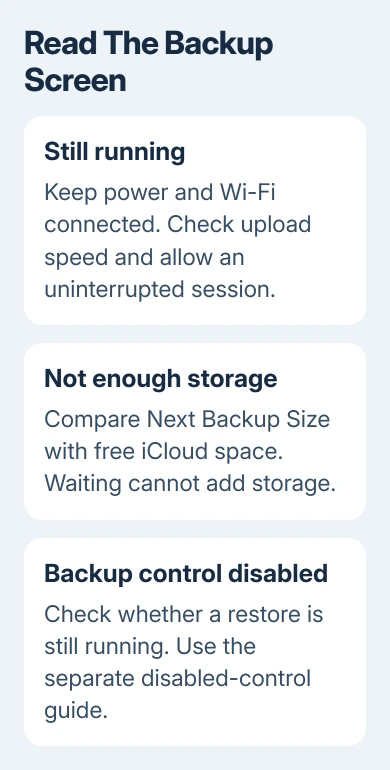
Apple says to check upload speed and give a slow backup 24 hours on power and Wi-Fi in its backup troubleshooting steps. That's a troubleshooting window, not a promised completion time.
A phone still restoring its setup needs to finish that restore before making a new backup. If you haven't turned on iCloud Backup yet, follow the iCloud backup setup steps.
A Photos message about syncing or pausing describes the photo library's separate transfer. Return to the iCloud Backup screen to check the device backup rather than treating every cloud progress bar as the same job.
2. Compare upload speed with the amount being sent
A connection that streams movies quickly can still upload slowly. Streaming mostly downloads data to your phone; a backup uploads data from it. Your internet service can provide very different speeds in those directions.
Check the upload result from a speed test you already use, or ask your internet provider for the connection's expected upload speed. A good download result alone doesn't explain why a large backup takes hours.
Bring the phone nearer the router to improve a weak Wi-Fi signal. Pause other large uploads, such as another computer's cloud backup, while the phone runs its backup. Both devices can be competing for the same outgoing connection.
For scale, sending 10 GB at a steady 10 megabits per second takes roughly 2 hours and 13 minutes in simple arithmetic. Real backups can take longer because the speed varies and backing up involves more than just transferring files.
That example isn't an estimate for your phone. It explains why a large first backup over a slow upload connection isn't comparable to a small daily backup on a faster line.
I'd leave one uninterrupted session running before deciding it's stuck. Note when it started and any progress shown. That gives you something to compare later, instead of relying on an estimate that keeps changing.
3. Check the next backup size and available space
Open Settings > your name > iCloud > Storage. Some versions call the control Manage Account Storage. Select Backups, then the current iPhone or iPad to see Next Backup Size.
Allow a few minutes for that figure to calculate. Check that you're reading the current device's entry, especially if the list includes an old phone with a similar name.
Compare the required space with the free space in iCloud. Free storage on the phone and free storage in iCloud are separate. Deleting a downloaded app from the phone doesn't necessarily solve a cloud-storage warning.
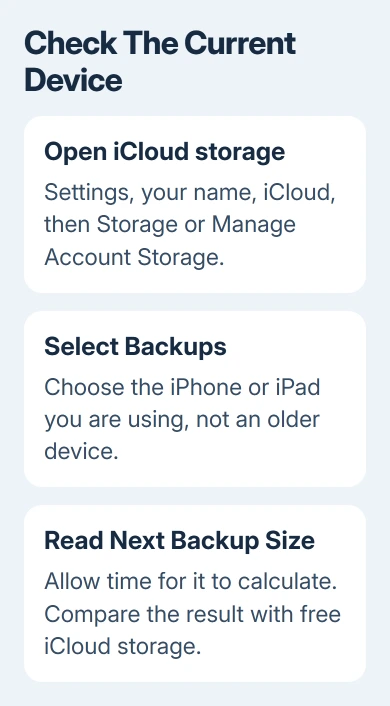
If the backup needs more cloud space than is available, reduce what you're backing up or get more iCloud storage. Waiting overnight won't remove a confirmed storage shortage.
Read any deletion confirmation carefully. Removing a backup can remove your saved recovery copy and turn backup off for that device. Don't delete the only useful backup as a routine way to make the next upload faster.
4. Reduce a large backup without losing needed app data
In the current device's Backups entry, review the apps included in the backup. Turn off an app only when you don't need its data restored from this backup or you've saved that information another way.
The iCloud storage instructions explain that turning an app's backup off removes its backed-up information from iCloud. You lose the app's recovery copy; its upload isn't just paused.
A large photo library can be part of the backup when iCloud Photos isn't enabled. With iCloud Photos enabled, photos sync separately and don't need a second copy inside the daily backup.
The same distinction applies to Messages in iCloud. Information already syncing through that service isn't copied into the daily iCloud Backup in the same way as messages kept only on the device.
Check what iCloud Backup includes before assuming every gigabyte on the phone must upload as part of this job. The device's used storage and its backup size don't have to match.
Don't switch a whole library to another syncing setup just to rush one backup. First understand where its full copies will live and how deletion works. Reducing an unneeded app's backup is a smaller, easier decision.
5. Try another Wi-Fi connection if the job fails
If the backup ends with a failure message, open Settings > General > Software Update and install an available update when practical. Then retry on another trusted Wi-Fi connection with enough time to finish.
Use a connection where the phone can browse normally. A network requiring a sign-in or one with a poor upload path can behave differently from home broadband even when the Wi-Fi signal appears strong.
If the same backup finishes on the second network, report the first network's upload behavior to its provider. If it fails on both, keep the exact message and the next backup size for the support conversation.
Changing networks won't fix a confirmed lack of iCloud storage. Handle the warning from section 3 first so the next attempt tests the connection rather than repeating the same space error.
6. Keep another copy if iCloud still won't finish
After the uninterrupted 24-hour attempt, save important data another way before repeating troubleshooting. A Mac can back up the device in Finder; a Windows PC can use the Apple Devices app.
Connect the device, trust the computer when prompted, select it in Finder or Apple Devices, and choose Back Up Now. Choose an encrypted local backup if you need it to include supported sensitive data. Keep its password somewhere safe.
A computer backup gives you a copy of the information it includes while you're sorting out the cloud problem. The restore-from-backup guide explains how to recognize and use the saved copy later.
Contact Apple Support about iCloud Backup not completing. Give the device model, software version, last successful backup date, next backup size, exact error, and whether another Wi-Fi network changed the outcome.
The Short Version
Give a large backup power, Wi-Fi, and uninterrupted time. Check upload speed and Next Backup Size, handle storage warnings separately, then compare another network. Keep a computer copy and ask for iCloud Backup support if it still fails.
Checked November 9, 2026.

Isaac Smith is the founder and editor of PC Glance, a website that covers computers, laptops, and technology. He is a tech enthusiast and a computer geek who loves to share his insights and help his readers make smart choices when buying tech gadgets or laptops. He is always curious and updated about the latest tech trends.