
Restoring an iPhone to factory settings erases its personal information. A working phone can do this in Settings. A computer restore also reinstalls iOS. A Mac uses Finder; Windows uses Apple Devices for that procedure.
Start by checking a completed backup and your Apple Account password. Choose the method for the job before confirming an erase, especially if the phone has an eSIM you still need.
Protect the information that must survive
Check that important photos, messages and files exist in a usable backup or another saved copy. Our iPhone computer backup steps cover making that copy before the phone is erased.
Apple says a factory restore removes the device's information and settings. Knowing the account password matters too: the ordinary computer procedure requires turning off Find My before restoration.
Status: Apple's erase and computer-restore procedures checked October 26, 2026. Both erase personal information. No iPhone was reset during research.
Restoring a saved copy is a separate operation. Use the iPhone backup restoration guide after the erase if the goal is to bring back saved data.
Erase a working iPhone through Settings
Apple documents the on-phone route in its factory reset instructions. Use this when the phone unlocks and Settings works.
- Open Settings > General > Transfer or Reset iPhone.
- Select Erase All Content and Settings. Read the summary, then tap Continue.
- Review the eSIM choice. Keep it when the same phone will continue using that plan. If deleting it, arrange any required reactivation with the carrier.
- Supply the requested device passcode and Apple Account password. Allow any backup in progress to finish, then complete the displayed confirmations.
- Wait for the reset to finish. The Hello screen marks the return to initial setup.
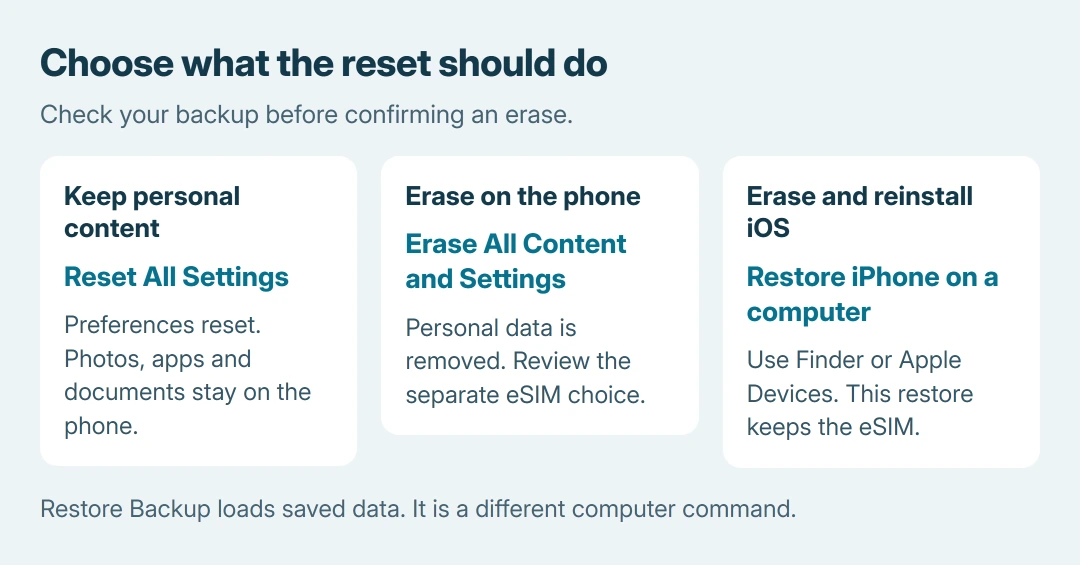
Do not use Reset All Settings as a substitute for erasing a phone for another person. That command leaves personal content on the device.
Reinstall iOS with Finder or Apple Devices
On the phone, open Settings > your name > Find My > Find My iPhone. Turn off Find My iPhone and enter the Apple Account password when requested.
Update the computer and connect the iPhone by USB. Open Finder on macOS Catalina or later, or Apple Devices on Windows. A Mac running Mojave or earlier uses iTunes.
Select the iPhone in the app. Approve any Allow or Trust prompts on the computer and phone, and enter the phone's passcode if requested.
Choose Restore iPhone, then follow the confirmation and software agreement prompts. Restore Backup is a different button; it loads a saved copy rather than starting this factory restoration.
Apple states that the computer restore erases the phone and installs the latest software. Keep the connection intact until it finishes and the phone returns to Hello.
This method does not delete the iPhone's eSIM. Handle that separately if the phone is being transferred to someone else; erasing phone data and removing the cellular plan are separate decisions.
Choose a settings reset only when keeping your content
For a settings problem, Settings > General > Transfer or Reset iPhone > Reset > Reset All Settings keeps photos, apps and documents. It resets preferences and removes items such as Wi-Fi passwords and Bluetooth pairings.
Apple's Reset All Settings explanation describes those effects. This can require setting up connections again, even though the personal files remain.
If the phone cannot unlock, refuses to appear on the computer or stops with an error, use Apple's linked help for that exact condition. Record the error and contact Apple before repeating an erase or discarding the backup.
The Short Version
Check the backup first. Settings erases a working iPhone; Restore iPhone on a computer also reinstalls iOS. Reset All Settings preserves personal content. Review the eSIM separately and wait for Hello before starting setup again.

Isaac Smith is the founder and editor of PC Glance, a website that covers computers, laptops, and technology. He is a tech enthusiast and a computer geek who loves to share his insights and help his readers make smart choices when buying tech gadgets or laptops. He is always curious and updated about the latest tech trends.