
Deleted iPhone calls don't have a Recently Deleted folder in the Phone app. Check the full call list first; if the entry was deleted, your carrier's records may provide the number without restoring the phone.
An older encrypted computer backup may help. Phone and FaceTime data isn't included in current iCloud device backups, so don't erase your iPhone assuming one holds the missing call.
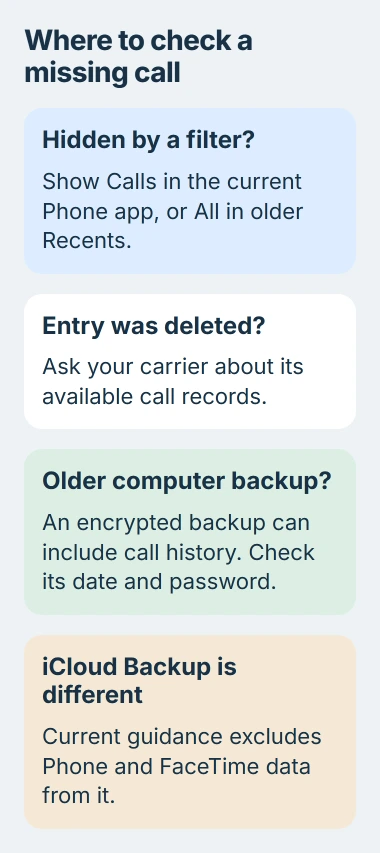
1. Check that the call isn't hidden by a filter
Open Phone and check the call list you're viewing. On the current layout, tap the filter button and choose Calls rather than leaving the list on Missed, Unknown Callers or Spam.
In the older layout, open Recents and select All rather than Missed. If the call appears in the full history, you don't need to recover it or use a backup.
To check an entry in the current Unified layout, tap the call or contact. In Classic layout, use the information button beside it. Check its number, date and whether it was incoming or outgoing to see if it's the call you need.
If a familiar number appears without its saved name, check your missing iPhone contacts separately. Losing the address-book name and deleting the call entry are different problems.
Also check the app used for the conversation. A WhatsApp call or another internet call may have details in that app's own history, separate from the cellular records your carrier holds.
2. Ask your carrier for the call details you need
Apple's call-history guide says your carrier may have more information about deleted calls and older history. Ask about the number or date range you need before changing the phone.
Open your carrier's account app or contact its support team. Ask which records you can access for your account and how long they're kept. That depends on the carrier, your plan and your account permissions.
Say whether you need an incoming or outgoing number, the date or how long the call lasted. A usage record may give you that detail without putting the call back in your iPhone's Phone app.
Carrier records don't contain a recording of what was said. They also won't normally show a call made entirely through a separate internet-calling app. Check with that app about its history instead.
I'd ask the carrier about a missing number before touching backups. Looking through its account records avoids changing the contents of your phone.
3. Understand why iCloud Backup isn't the same as history sync
The current Phone and FaceTime iCloud guide says call history can sync across devices, but Phone and FaceTime data isn't part of iCloud Backup.
So an older device backup and your synced call list are separate. The date on a backup doesn't mean it holds an earlier version of that list.
Check Settings > your name > iCloud > See All > Phone & FaceTime to see the sync setting. On older versions the list may use Show All, and the item can be Phone if FaceTime isn't installed.
That switch turns syncing on. Repeatedly changing this setting won't bring back a particular deleted call.
The iCloud sync setup explains how signing back in restores access after you lose or replace a device. That isn't the same as bringing back a deleted call.
Don't erase your phone just to try an iCloud backup. If support suggests a restore, ask which backup holds the missing call, since Phone and FaceTime data isn't included in current iCloud backups.
4. Look for an encrypted computer backup from before deletion
An encrypted computer backup can include call history. It's protected with a password and can hold information that's left out of an unencrypted backup.
You'll need a backup from before the deletion that contains the call history you're looking for. A new backup protects what's on your phone now, but it can't save a call that was already deleted.
Connect the iPhone to the computer you normally use. Open Finder on a current Mac or Apple Devices on a current Windows PC, select the device, then open General > Manage Backups.
Check the backups and their dates. A lock symbol marks an encrypted backup. To restore it, you'll need its backup password, which may be different from your Apple Account password.
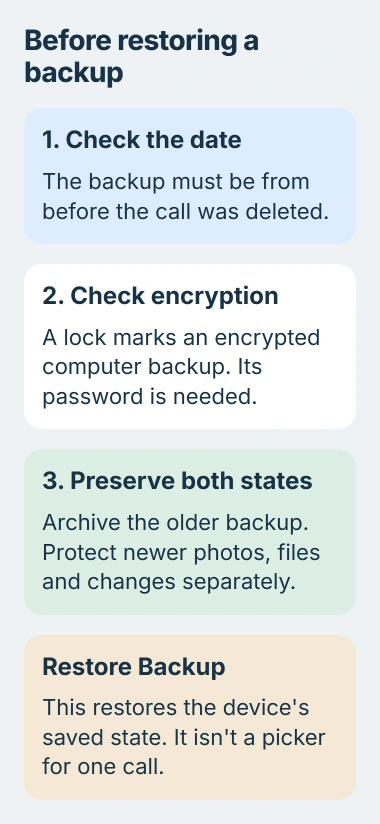
Keep the older backup safe before making another one. In Manage Backups, right-click it and choose Archive. The backup-management instructions explain how this stops later backups from replacing it.
Tell support if your only backup was made after the deletion, or if you don't have an encrypted one. Restoring the same backup again won't help if it doesn't contain the missing call.
5. Consider a restore only after protecting newer information
Restoring from your computer puts the chosen backup onto your iPhone. The built-in restore can't bring back just one call while leaving everything else as it was.
Before continuing, protect photos, files and other changes made since that backup. Keep the older archived copy intact. The iPhone backup restoration guide explains the restore choices and their effect on current data.
Once you've found a suitable computer backup, select Restore Backup on the connected device's page. Choose the copy with the date you want, enter its backup password when asked, and keep the phone connected through the restore and sync.
Follow the computer restore procedure for the app you're using. When it finishes, check the full Phone call list to see whether the entry came back.
When there is no usable backup or carrier record
Tell support when you deleted the call, your iOS version, which backups you have and whether Phone and FaceTime were syncing. That's more useful than hoping another recovery app finds a hidden folder.
If neither the carrier, the calling app nor a suitable older backup holds the details, there may be no record left to recover. A successful account sign-in or a newly created backup won't undo the earlier deletion.
The Short Version
Check the full call list and carrier records first. Phone and FaceTime sync is separate from iCloud Backup. An older encrypted computer backup may help, but preserve it and newer information before considering a whole-device restore.
Checked November 5, 2026.

Isaac Smith is the founder and editor of PC Glance, a website that covers computers, laptops, and technology. He is a tech enthusiast and a computer geek who loves to share his insights and help his readers make smart choices when buying tech gadgets or laptops. He is always curious and updated about the latest tech trends.