
Chrome's Profile error occurred message means it has trouble opening your saved settings and browsing data. Keep that profile and try a new one alongside it. Removing the original first can erase bookmarks and passwords stored only there.
If only the original profile fails, focus on its data and settings. If the new one shows the same error, the problem needs a wider Chrome or computer check. This comparison leaves your old profile in place.
1. Preserve the original profile before removing anything
If closing the error message lets Chrome open, take the chance to save what matters. Check the profile name at the top right so you're looking at the bookmarks and passwords in the profile that has the error.
Google warns that removing a Chrome profile erases the browsing data stored in it, including bookmarks and saved logins. Being signed in doesn't mean everything on this PC is also saved online.
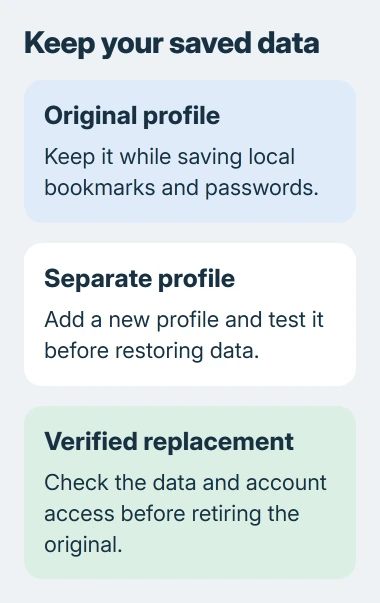
Open the bookmark manager and check a few important folders. For bookmarks stored only here, use More > Bookmarks and lists > Bookmark manager, then the manager's own More > Export bookmarks command.
Save the resulting HTML file somewhere you can find again. Open it to check that it contains the expected links. The Chrome bookmark export guide covers that backup in more detail.
If Chrome closes before you can save data held only on this PC, leave its profile folders alone. Ask IT or a repair professional to keep them safe. The browser may not open, but its saved data can still matter.
2. Update Chrome and reopen the affected profile
Save work in open websites, then choose More > Help > About Google Chrome. This page checks for browser updates. If Relaunch appears after an update, use it to finish applying the update.
When Chrome reopens, choose the profile that had the error and check whether the message returns. Choosing a working profile would test a different set of settings and data.
The browser update steps explain that a pending update finishes when Chrome restarts. Keep any update error code if the update check itself fails.
If the message is gone, reopen Chrome once more and check your important data. If it remains, continue with a separate profile instead of repeatedly uninstalling and reinstalling the same browser.
3. Create another profile without importing the problem
Select the Profile control near the top right, then choose Add Chrome profile. Give it a name you can recognize, such as Profile Check, so you can tell its window from the original.
Continue without signing in when that option is offered. Leave extensions and imported settings out for now. You're checking whether a new profile can open normally on the same computer.
Close its window, reopen Chrome and select Profile Check again. Try an ordinary page, then close and reopen that profile. Check whether the startup error returns, even if the page loads.
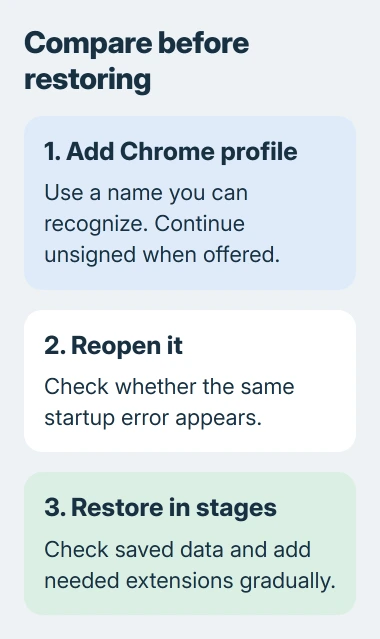
If the new profile works, you can browse while keeping the old data. The problem points back to something in the original profile, though this check won't tell you which file or setting is damaged.
I'd try this before deleting files named Web Data or Local State. Those instructions target a particular failure. They can remove useful data without telling you why your profile stopped loading.
If Add Chrome profile is missing on a work computer, ask the administrator. Your organization can limit account and profile controls. Changing your own browser settings won't lift that restriction.
4. Bring bookmarks and passwords back carefully
Once the new profile opens reliably, choose the account holding your saved Chrome information if you want to sign in. Check the email address first, especially when your personal and work accounts look similar.
After signing in, check your bookmark folders and saved passwords. The new profile starts empty until its data arrives. Seeing its window open doesn't mean everything from the old profile has returned.
To use your bookmark export, open More > Bookmarks and lists > Import bookmarks and settings, choose the HTML file and finish the import. Check the folders it creates before exporting or importing that file again.
If your passwords are only in the old profile and it still opens, go to More > Passwords and autofill > Google Password Manager > Settings. Beside Export Passwords, choose Download file and follow the verification prompt.
A password export contains readable passwords. Keep it private, don't send it through email or chat, and remove it after you've transferred the entries and checked they work. Bookmarks and passwords use different export formats.
Add back the extensions you need gradually, checking Chrome between additions. Note which extension or account change came just before the error returned. Adding everything at once makes that harder to track.
5. Treat a returning error as an unresolved fault
One owner on the Chrome help forum could use other profiles and repeatedly recreated the affected one, but the fault returned. They also reported that clearing browsing data hadn't stopped it.
If rebuilding helps only briefly, repeating it won't fix the recurring fault. Note when the error first appeared and what changed before it came back.
A Chrome settings reset changes browser settings and disables extensions. Creating a separate profile goes further. Choose the reset for a settings problem rather than assuming it replaces damaged profile data.
If the new profile fails before you sign in, note what happens: Chrome closes, a page fails, or the profile error keeps appearing. Give Chrome Support or your workplace IT those details, the exact message and your Chrome version.
Include whether updating worked, whether the new profile opened before sign-in, and what happened after you restored data. Keep the original until you've checked your important bookmarks and can access your accounts in the new profile.
The Short Version
Preserve local bookmarks and passwords, update Chrome, then compare a separate profile without restoring everything immediately. Move saved data only after the new profile works. A returning error needs support with the comparison results.
Checked November 5, 2026.

Isaac Smith is the founder and editor of PC Glance, a website that covers computers, laptops, and technology. He is a tech enthusiast and a computer geek who loves to share his insights and help his readers make smart choices when buying tech gadgets or laptops. He is always curious and updated about the latest tech trends.