
A frozen Task Manager can often be closed and opened again without restarting your other apps. Try closing its window first; if that fails, end Taskmgr.exe through Command Prompt, then use Ctrl+Shift+Esc.
If it freezes every time you open it, restart and update Windows, then check its system files. A frozen window needs different checks from a shortcut that doesn't work or a message saying an administrator disabled the tool.
1. Close the frozen Task Manager process
Select Task Manager and press Alt+F4 once. If it won't close but the rest of the desktop works, press Windows+R, type cmd and press Enter to open Command Prompt.
Enter this command:
taskkill /IM Taskmgr.exe /FThe command closes Task Manager by its process name. The /F option forces it to close. Keep the name exactly as written so you don't close an unrelated app.
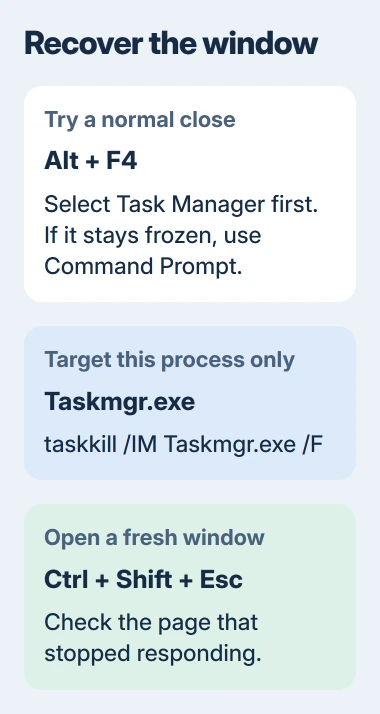
Microsoft explains these options in the taskkill command reference. A success response means Task Manager closed; a process-not-found response means it wasn't running under that name.
Press Ctrl+Shift+Esc and check whether the new window responds. Switch between Processes and Performance, then try the page that froze. If it works normally, carry on with what you were doing and watch for another freeze.
If access is denied, close that Command Prompt. Search Start for Command Prompt, choose Run as administrator and approve the request if this is your own PC. For a managed computer, ask IT to handle that error.
2. Check whether the failure is really a freeze
A responsive window with numbers that don't change isn't the same as a window that ignores clicks. Note whether its menus still open, whether one page fails and whether another app also stops responding.
For a shortcut that does nothing, use the other Task Manager opening routes. An administrator-disabled message calls for checking your account or management policy, rather than forcing the app to open again.
On Windows 10, a window that immediately closes when you select More details has a separate known pattern. The Claude startup-entry crash guide covers that exact case.
Don't apply its registry change to every Task Manager failure. Tell support whether the window stays marked Not responding, closes immediately or shows a disabled-tool message. Each needs different checks.
If Windows as a whole is stuck, press Ctrl+Alt+Delete and see whether the security screen opens. If it does, use its power menu to restart after saving any work you can still reach.
3. Restart Windows and install the offered updates
Save documents in the apps that still work, then choose Start > Power > Restart. This ends the current session before Windows starts again. Once you're signed in, open Task Manager before launching your usual apps.
If it works at first but freezes after a particular app opens, note that app's name and what you did before the freeze. Give support that sequence so they know when Task Manager stops working.
On Windows 11, open Settings > Windows Update > Check for updates. On Windows 10, go to Settings > Update & Security > Windows Update. Install any applicable updates, then restart if Windows asks.
There have been specific Task Manager bugs repaired through updates. For example, the November 2024 repair notes describe a Users-page keyboard freeze in Windows 11 24H2.
Use the updates offered for your current Windows version rather than installing that old preview package today. The older fix shows why updating can help. If the same freeze continues, check the system files next.
4. Repair damaged Windows system files
Search Start for Command Prompt, right-click the result and select Run as administrator. The repair commands need this administrator window. They work on Windows files, so Task Manager can stay closed.
Run this first:
DISM.exe /Online /Cleanup-image /RestorehealthAllow it to finish. After it reports successful completion, run:
sfc /scannowDISM repairs the Windows files used by System File Checker. The second command checks protected system files and replaces damaged copies when it can. Follow that order in the system-file repair instructions.
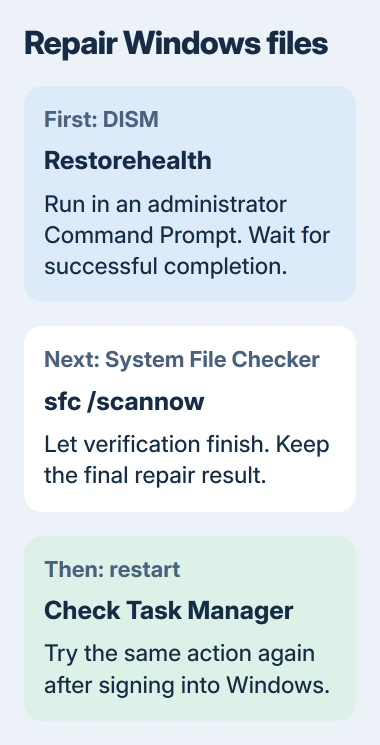
Save the final message. Tell support whether the scan found no problems, repaired files or couldn't repair them. That helps them choose the next step. If DISM reports an error, note it before trying other repairs.
Restart after the checks and open Task Manager again. I'd try these built-in repairs before downloading a replacement task manager or changing several registry settings that may not help this freeze.
5. Compare the same action in Safe Mode
Safe Mode loads fewer Windows files and drivers. Repeat the Task Manager action there to see whether it still freezes. If device encryption is on, keep its BitLocker recovery key available as you enter recovery.
From Start's power menu, hold Shift while selecting Restart. In recovery, choose Troubleshoot > Advanced options > Startup Settings > Restart. On the next screen, press 4 or F4 for Safe Mode.
The Startup Settings instructions explain how Safe Mode works. Open Task Manager there and repeat the action that freezes it, then restart to leave Safe Mode.
If the freeze disappears, think back to any app, driver or utility you installed or changed before it began. Follow that software maker's steps to update or remove it. Check whether that helped before making another change.
If Task Manager works in Safe Mode, that narrows the search, but you still need to work out which app or driver is involved. If it freezes there too, tell support or use the Windows repair option next.
6. Use Windows repair when the smaller checks fail
On Windows 11, open Settings > System > Recovery. If available, find Fix problems using Windows Update. Select Reinstall now to download a repair copy for the version you're running, keeping your apps, files and settings.
Keep a backup of important work and leave the PC connected to power and the internet. The Windows reinstall procedure explains the repair download and final restart.
You may not see this option on an older installation or a computer managed by an organization. It isn't Reset this PC. If you're on Windows 10 or the repair control is missing, ask IT or support which repair to use.
Send support your Windows version, the page or action that freezes, the file-check results and what happened in Safe Mode. Those details help them choose the next repair instead of asking you to keep reopening the same frozen window.
The Short Version
Close Taskmgr.exe and reopen it. For recurring freezes, restart and update Windows, repair its system files and compare Safe Mode. Use the supported Windows repair route when the failure survives those checks.
Checked November 4, 2026.

Isaac Smith is the founder and editor of PC Glance, a website that covers computers, laptops, and technology. He is a tech enthusiast and a computer geek who loves to share his insights and help his readers make smart choices when buying tech gadgets or laptops. He is always curious and updated about the latest tech trends.