

A middle mouse button that scrolls but won't click may have been assigned a different action, or its switch may be failing. Try the click in another app, then check what your mouse software tells the button to do in the affected program.
Scrolling and pressing the wheel send different signals. Even if scrolling works, your computer might not detect the click. If the button does the wrong thing when pressed, check its assigned action first.
1. Separate a wheel click from scrolling
Press the wheel straight down once, using normal pressure. Don't roll or tilt it for this check. Some mice also have a separate button that changes the wheel's scrolling mode, so confirm which control your model uses for middle-click.
Try two programs that use middle-click. For example, press the wheel on a Chrome tab you can close, then try the usual middle-button action in the design app or game where you noticed the problem.
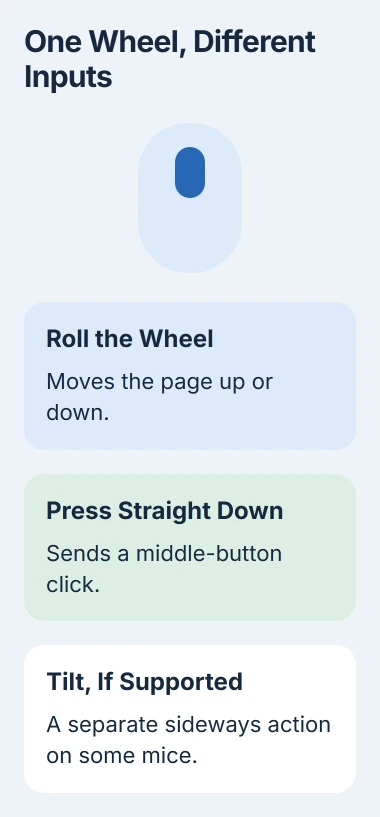
Choose a tab with no unsaved form or document. If it closes, Chrome receives the click. If only your other program ignores it, check that program's button assignment or mouse profile next.
If pressing the wheel starts a gesture, changes the volume or runs another command, your computer detects the press. Check what the button is set to do before assuming it's broken.
If the pointer and other buttons also fail, use the broader Logitech connection checks when that is your brand. A dead connection needs attention before a single-button setting can help.
2. Restore the intended action in the mouse app
Open your mouse's software and select the model you're using. Check what the wheel button is set to do: it may have been changed to a gesture, shortcut or command for a particular app.
For a Pebble Mouse 2 M350s in Logi Options+, select the mouse, open its settings and choose BUTTONS > Middle button. Select the application whose behavior you want to change, then assign the intended action.
Logitech's Pebble customization guide explains how profiles, the settings saved for each app, can change the middle button's action. Pressing the same button can do different things in two programs.
Look for Middle click or your model's name for the standard wheel-button action. If it's set to a gesture instead, pressing while moving the mouse may be doing exactly what you've set it to do.
Check the affected app's profile as well as the general setting. Switching into your game or editor may activate a separate profile that changes what the button does.
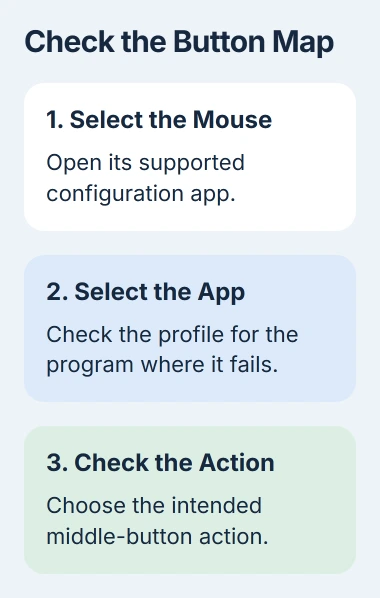
For a gaming mouse, use the current app that supports your model, such as G HUB for supported Logitech gaming mice. Follow your model's button layout; other mice won't necessarily use the Pebble menu names.
If another program controls the same button, check it too. The X-Mouse Button Control guide explains its app profiles. I'd check whether the two programs assign different actions before reinstalling a driver.
3. On a Mac, check the customization app's permissions
Use this step when Logi Options+ sees your mouse but its saved button actions don't work, especially after a macOS change. Open System Settings > Privacy & Security and check the app's permissions.
On macOS Monterey it's System Preferences > Security & Privacy > Privacy, and you click the lock at the bottom left first.
On macOS 27, the relevant control is Device Control and Data Access. Earlier versions call it Accessibility. Enable Logi Options+ there if you're using its button customization features.
Next, open Input Monitoring in the same privacy settings and turn on Logi Options+. Choose Quit & Reopen when prompted so the app restarts with that permission.
These permissions are separate from Bluetooth access and screen recording, as the current permission instructions explain. Turn on the access needed for the mouse feature you're fixing.
If you chose Later earlier, switch the Logi Options+ permission off and on, then accept the prompt to reopen it. Try the same middle-button action once the app is running again.
If Options+ stays stuck loading or your saved button actions stop working after login, check System Settings > General > Login Items & Extensions (just Login Items on Ventura and Sonoma).
Turn on its Logi background item if it's off; the app needs it to detect devices properly.
If the click still fails with the intended assignment and required permissions, move to the connection check. Repeatedly changing unrelated privacy settings won't tell you whether the physical button works.
4. Try a direct connection and a second computer
Bypass the USB hub when reconnecting a wired mouse. For a wireless mouse with a USB receiver, move the receiver out of the dock or hub and into a computer port. Try another direct port if available.
Microsoft's mouse troubleshooting steps include plugging directly into the computer and trying another computer. Use these checks if changing the button's action hasn't helped.
For Bluetooth, switch the mouse off and back on, then reconnect through its normal pairing instructions if necessary. Make sure you can still use the touchpad or a spare mouse before removing that pairing.
Connect the mouse to another computer using a connection it supports, then try the wheel press. If it works, go back to the first computer's app profiles, permissions and mouse software.
Tell the manufacturer if the wheel press fails in several apps on both computers, but movement and other clicks work. That suggests the wheel button itself is faulty, rather than one app's settings.
5. Clear debris and check supported updates
Turn off or disconnect the mouse before cleaning around the wheel. Follow its maker's directions; the button troubleshooting guidance recommends compressed air for a sticking control.
Don't soak the wheel or force it down. If you have to press unusually hard to get a click, tell support that instead of pushing harder.
Reconnect the mouse and try the click again. If its supported app offers a firmware update, which updates the mouse's own software, follow the prompts. Keep the mouse powered and connected until it finishes.
Contact the maker if the click still won't work. Tell them your mouse model, how it connects, which apps you tried and how the second computer responded. Mention whether the wheel still scrolls or pressing it runs a different command.
A working spare mouse can keep you going while repair or warranty options are checked. Changing Windows' scroll speed won't repair a wheel switch that no longer registers presses.
The Short Version
Try the wheel press in two apps, then check its assigned action and any required Mac permissions. Test without a hub and on a second computer to help decide whether the mouse needs service.
Checked November 4, 2026.

Isaac Smith is the founder and editor of PC Glance, a website that covers computers, laptops, and technology. He is a tech enthusiast and a computer geek who loves to share his insights and help his readers make smart choices when buying tech gadgets or laptops. He is always curious and updated about the latest tech trends.