
A home computer needs current software, working antivirus protection, a firewall and a separate copy of important files. Start in Windows Security and deal with any warnings there before installing another security app.
Passwords and download habits matter too. A scanner can't stop someone signing into your account with a stolen password. A backup gives you a copy when a drive fails or you accidentally delete a file.
Start with the protection already on your PC
Open Start, type Windows Security, and open the app. On its Home page, open any section that needs attention. Deal with the message it shows, such as an expired antivirus subscription. A warning doesn't always mean malware.
Microsoft says in its home computer security advice to keep software current, use antivirus, protect passwords and choose downloads carefully. Each tackles a different risk, so buying one app doesn't finish the job.
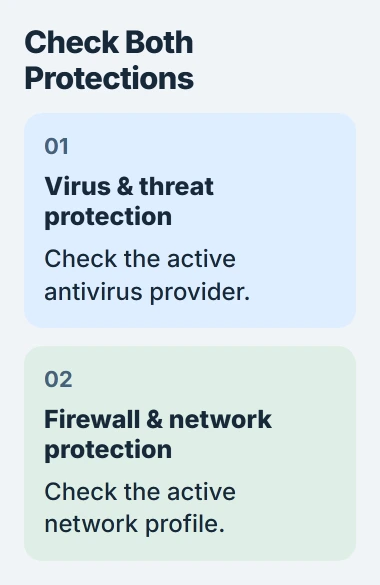
Select Virus & threat protection. If Microsoft Defender Antivirus is protecting your PC, open Manage settings and check that Real-time protection is on. That checks files as you open or download them.
If another antivirus is active, open it and check that its subscription and updates are current. The Defender turned-off explanation helps when another product has taken over.
I'd get the existing protection working before adding more software. Two antivirus products checking files in real time can cause trouble. Deal with an expired trial instead of installing another one on top of it.
Finish updates and restart when asked
On Windows 11, open Settings > Windows Update. Select Check for updates. Install the offered security updates, then save your work and restart if Windows asks. Until you finish that restart, the update isn't complete.
Windows 10 uses Settings > Update & Security > Windows Update. Its standard free support ended on October 14, 2025. If you're staying on it, check that your PC can still receive supported security updates, or move to a supported system.
Update your browser and everyday apps too. Use each app's own update control, or its entry in Microsoft Store if that's where it came from. A current copy of Windows can't repair an old browser's security gaps.
When an update fails, write down its error code and fix that specific problem. Pausing updates to dismiss the reminder leaves the same unfinished update waiting for another day.
Check the firewall without changing its rules
Return to Windows Security and select Firewall & network protection. Open the network profile marked active and check that Microsoft Defender Firewall is on. You'll see separate entries for public, private and domain networks.
The firewall controls manage connections to your computer. Antivirus checks files and programs, so a healthy antivirus doesn't replace this check.
Leave the firewall enabled when an app has a connection problem. Use the app's documented exception if it needs one. Turning off protection for the entire network gives every other app the same opening.
At home, use a secured Wi-Fi network with a strong router password. A public network profile is the sensible choice on an unfamiliar network where you don't want nearby strangers discovering your computer.
Give accounts their own passwords and sign-in checks
Use a different password for your main email account, financial accounts and other important services. A password manager can store them, so one stolen password doesn't become a key to everything else.
Turn on each account's available second sign-in check, such as an authenticator or a security key. Keep its recovery options somewhere you can reach if you lose the phone you use to verify sign-ins.
Your online accounts need protection too. Reinstalling Windows won't remove an intruder from an account if they still know its password or control its recovery email.
On a shared PC, give each person a separate Windows account through Settings > Accounts > Other users > Add account. Use standard accounts for ordinary daily work and limit administrator access to people who need to manage the computer.
Before changing account types, make sure you still have a working administrator account. It lets you approve software installations when needed while other household members use standard accounts.
Press Windows+L when you leave the computer unattended. That locks your session without closing your documents. A strong password can't protect an account you've left unlocked.
Make a backup you can actually open
Choose the folders you couldn't replace, including personal documents and photos. Save those folders with a backup service or on an external drive. Open a selection of the saved photos and documents to check the copies work.
The Windows Backup app can back up selected folders through OneDrive and remember supported settings. Check which folders you've selected and how much cloud storage you have.
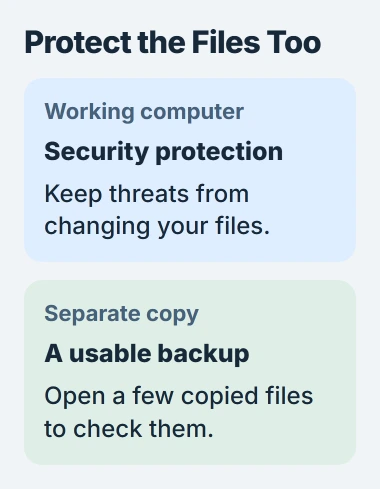
Another copy on the same internal drive can be lost with the first if that drive fails. For an external backup, disconnect the drive after copying so everyday changes on your PC can't affect it.
Check how your service lets you recover files; a synced folder isn't always a permanent archive. The Windows Backup coverage guide explains why saved settings aren't a complete copy of your installed programs.
Pause before a download or an urgent warning
Get software from its developer or Microsoft Store. Avoid installers offered by pop-ups, unexpected email attachments and messages claiming that a video needs a special update before it can play.
Close a webpage that demands a phone call or payment to remove a virus. Open Windows Security yourself to check the PC. Don't give a caller remote access because a browser alert told you to.
If protection won't turn on, an unknown app keeps returning, or someone has taken over an account, contact the software maker or account provider with the exact warning. The basic setup won't fix those problems on its own.
The Short Version
Check Windows Security, install updates and keep the firewall on. Protect accounts with separate passwords and extra sign-in checks. Keep a backup you can open, and check who a download comes from before accepting an urgent prompt.
Checked November 4, 2026.

Isaac Smith is the founder and editor of PC Glance, a website that covers computers, laptops, and technology. He is a tech enthusiast and a computer geek who loves to share his insights and help his readers make smart choices when buying tech gadgets or laptops. He is always curious and updated about the latest tech trends.