
A Fire tablet that won't charge needs a working power adapter and cable before you try a reset. Connect it to a compatible wall charger, check the battery indicator, and restart it if the screen stays frozen.
A liquid warning changes that order: unplug the charging cable and let the port dry. If you're using a wireless dock or mat, check that your Fire model supports it.
1. Check the charger, cable and connection
Use the charger supplied with your tablet, or a compatible replacement approved for its model. Connect it to a working wall outlet. Check both cable connections, including where the USB plug enters the power adapter.
Older Fire tablets can use Micro-USB, while newer models use USB-C. Match the connector to the tablet. The plug should fit normally; a case can sometimes stop it reaching the port all the way.
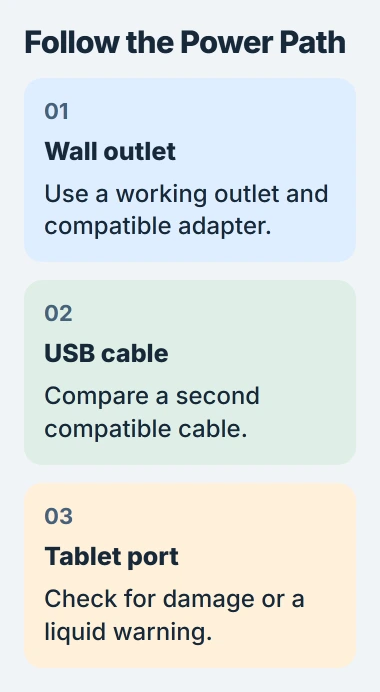
Try another compatible cable with the same adapter, then another compatible adapter if needed. Change one part at a time. If the tablet charges after you swap only the cable, you've found the accessory that needs replacing.
Check the port visually. A loose socket, bent pin or damaged plug needs repair. Don't push anything inside or keep using a tablet with a swollen case or unusual heat; ask Amazon to check it.
A computer's USB port may not supply power the way a wall adapter does. Use the compatible wall charger first so a sleeping computer, an unpowered hub or a weak USB connection doesn't affect your check.
If the tablet charges at the wall but not from a Windows PC, check the PC's USB-C power or connection warning. Focus on that connection rather than the tablet's battery.
2. Restart a tablet whose battery display is stuck
A frozen screen can keep showing an old battery reading while your tablet is connected to power. Try the long restart documented by the vendor to clear a temporary charging problem.
Disconnect the charging equipment. Hold the power button for 40 seconds, or release it when the tablet restarts. Afterward, connect the charger again and check for a charging symbol or a rising battery percentage.
If it switches off without restarting, press power again to turn it on. Wait for startup to finish, then check the battery reading and whether the Home screen responds or stays frozen.
I'd restart before erasing the tablet. A restart keeps your setup and files. Erasing it means setting up your account again, and it won't tell you whether the cable can deliver power.
If it stays blank, leave it connected to the charger you checked and follow your model's startup instructions. Tell support whether the screen ever lights up. A black screen alone doesn't tell them the battery has failed.
For a Kindle e-reader with an e-ink screen, use the Kindle charging checks instead. Kindle readers and Fire tablets don't share every charging feature or screen behavior.
3. Follow the liquid warning instead of reconnecting
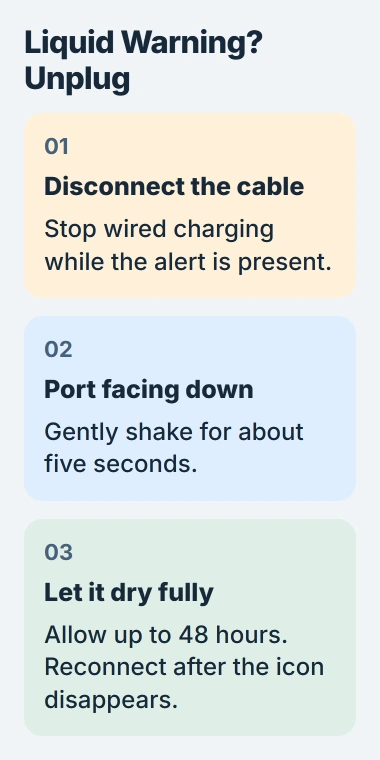
A Fire tablet with a USB-C port can stop wired charging when it detects liquid. It may sound an alert and show a liquid icon. Unplug the cable first; reconnecting it repeatedly won't dry the port.
Follow the liquid-detection procedure: hold the port facing down and gently shake the tablet for about five seconds, until you can't see any liquid.
Rest it on a flat surface to dry completely. Drying may take the full 48 hours. Resume wired charging after the liquid icon disappears. The alert can come and go as moisture evaporates.
Don't use heat, drying products or tools inside the port. Follow your tablet's drying instructions rather than a quick method meant for a different device.
Some third-party cables can trigger this warning too. Once the port is dry, compare with the original cable or another compatible one. If the warning keeps returning, give support that detail along with your tablet model.
If the tablet still works on battery, check for system updates when you can. Keeping its software current is another liquid-alert check to try, but a wet port still needs time to dry.
4. Check wireless support and the dock separately
A charging pad works only with a Fire model that supports wireless charging. Check the full model and generation, rather than assuming that every Fire HD tablet works because a similar-looking Plus model does.
For a supported tablet, use a compatible Made for Amazon dock or Qi-certified charging mat. Check that the dock has power, then center the tablet on it. Check the dock's instructions to see what its charging light means.
Close the cover while charging, or remove it to compare. A folded cover between the tablet and pad can stop it sitting correctly. The wireless charging checks cover both position and cover removal.
The Qi label alone doesn't settle compatibility. Not every Qi-certified charger works with the Fire HD 10 Plus, 11th generation. Check that the dock supports your tablet before buying a replacement.
If cable charging works but the dock doesn't, check the dock's power, the tablet's position, its cover and compatibility. If neither works, tell support what happened with each. A second wireless pad isn't the first thing I'd buy.
5. Separate slow charging from no charging
If the percentage rises with the screen asleep but barely moves during a game or video, the tablet is using power while it charges. Compare with the screen off before deciding the charging connection has failed.
Charging time varies with the Fire generation and adapter. A time given for one model on a wireless dock won't tell you how long a different tablet needs on an older USB charger.
Once the tablet charges reliably, use the Fire account setup checks if it won't register. Fix charging first, then deal with account verification.
If charging still fails, contact Amazon with the model, cable and adapter comparisons, restart result and any liquid warning. Ask about service or replacement before opening the case or ordering a battery.
The Short Version
Test a compatible wall adapter and cable, then restart a frozen tablet. For a liquid warning, unplug and let the port dry. Check wireless model support and dock placement. If it still won't charge, contact support for a hardware check.
Checked November 4, 2026.

Isaac Smith is the founder and editor of PC Glance, a website that covers computers, laptops, and technology. He is a tech enthusiast and a computer geek who loves to share his insights and help his readers make smart choices when buying tech gadgets or laptops. He is always curious and updated about the latest tech trends.