
A Kindle Fire tablet that will not register needs a working internet connection and the correct Amazon account. Check those first, then verify its clock and software.
Amazon identifies incorrect time, outdated software and incorrect passwords as common setup causes.
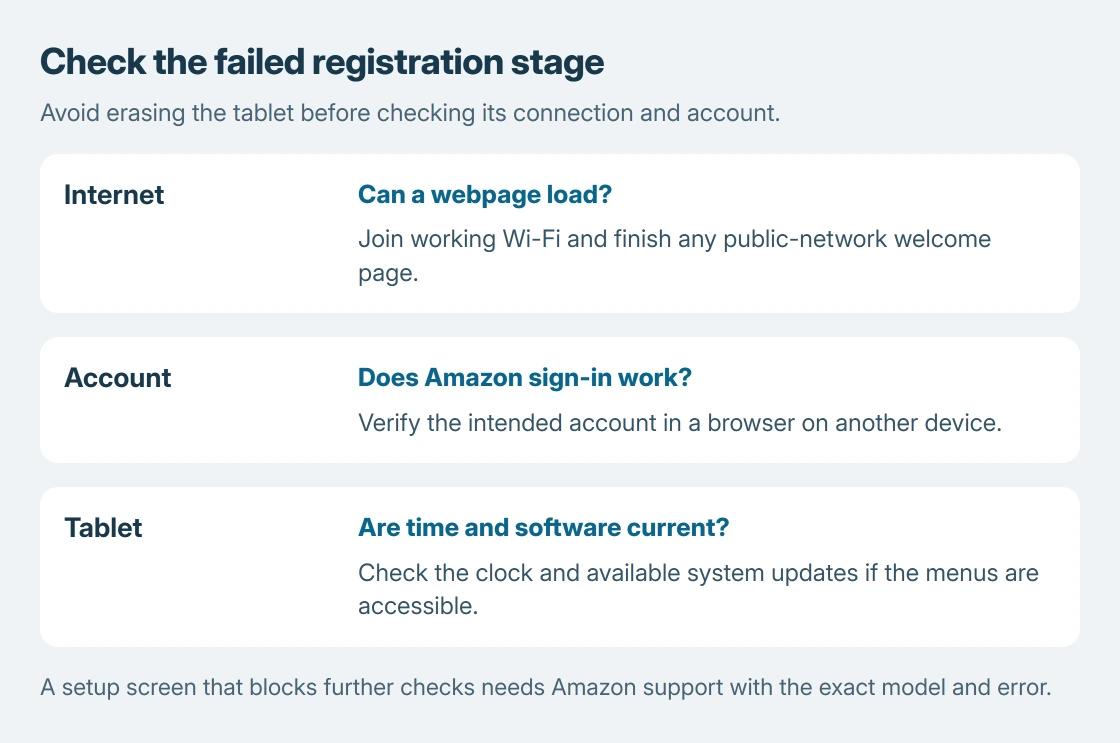
Do not factory-reset the tablet just because the account screen rejects a sign-in. A connection or credential check can identify the failed stage without erasing its contents.
Confirm internet access before retrying the account
Open the Fire tablet's Wi-Fi controls. Amazon's connection instructions say to swipe downward from the top and hold Wi-Fi. Older devices use Wi-Fi > More Settings instead.
Turn Wi-Fi on, select the intended network and enter that network's password. This is the wireless key, not the Amazon account password used for registration.
Status: Amazon Fire connection, registration and app instructions checked October 25, 2026, with Microsoft's hotspot option. No Fire tablet was operated.
Open a normal webpage in the tablet's browser if the current setup screen allows it. A page that loads establishes more than a Wi-Fi symbol alone. If setup prevents leaving that screen, test the same network on another device.
At a hotel or library, finish the network's welcome page first. Our public Wi-Fi access guide explains that extra sign-in stage. Amazon also warns that hotspots may require a voucher, PIN or one-time code.
For a temporary alternative, Microsoft says a connected Windows PC can share internet as a mobile hotspot. Join its displayed Wi-Fi network from the Fire tablet; any underlying mobile-data charges still apply.
Verify the Amazon account on another device
Open Amazon's website on a phone or computer and sign into the intended account. Amazon recommends this check when several accounts could be involved. Confirm the login before repeatedly entering it on the tablet.
Use Amazon's password-recovery route if that browser login fails. A password reset for Amazon does not change the home wireless key. The router-password guide explains that separate credential.
Passwordless accounts and verification
For an account with no ordinary password, follow the Create a Temporary Password link in Amazon's setup help. For a two-step verification problem, use its Alternate Sign In for Two-Step Verification instructions.
Those are account-specific routes. Do not disable verification or add digits to a password based on an unrelated device's instructions.
Correct the clock and check system software
The remaining checks are documented by the vendor in its Fire setup help. Confirm the time displayed at the top of the tablet, especially when an older device has been unused.
If the clock is wrong, open All Settings > Device Options > Date & time. Amazon's time correction steps say to turn Automatic time zone off, wait five seconds, then turn it on.
Check the displayed local time again. If it remains incorrect, Amazon recommends restarting and repeating the check, or choosing the time zone manually.
For an accessible Home screen, Amazon gives All Settings > Device Options > System Updates. Choose UPDATE if an update is offered, let it finish, then retry the registration.
The escalation order is ours: if setup blocks access to those controls, report that exact screen to Amazon rather than assuming the menu can be opened. Its support team can determine the appropriate model-specific recovery route.
Check the Library after registration succeeds
Amazon's app-download instructions use Games & Apps, or the Apps or Games app. Select an existing Library item or search the Store for the desired app.
A missing purchase after a successful sign-in can be an account question rather than a Wi-Fi failure. Check the account used for that purchase before buying the same content again.
If registration still fails, contact Amazon with the exact tablet model, displayed error, software version if accessible, and whether the same account works in a browser. Keep passwords and verification codes out of public posts.
The Short Version
Establish internet access, verify the intended Amazon login, then check time and software. Use Amazon's account-specific password or verification help when needed. Escalate a blocked setup screen before erasing the tablet.

Isaac Smith is the founder and editor of PC Glance, a website that covers computers, laptops, and technology. He is a tech enthusiast and a computer geek who loves to share his insights and help his readers make smart choices when buying tech gadgets or laptops. He is always curious and updated about the latest tech trends.