
KB5086672 fixes error 0x80073712 in the March 2026 preview update for Windows 11. If that old update is still failing on your PC, check for the latest cumulative update instead of repeatedly retrying the March preview.
The fix was released on March 31, 2026, for versions 24H2 and 25H2. It wasn't a new Windows version. Start by checking which update actually failed, because the same error number can appear in other situations.
1. Match the failed update to the March problem
Open Settings, choose Windows Update, then open Update history. Find the failed entry and note its KB number, error code and date. The date helps you tell an old failure apart from today's update attempt.
The March problem affected KB5079391, the preview released on March 26. Some PCs reported missing or damaged update files with code 0x80073712. KB5086672 replaced that preview and fixed the problem.
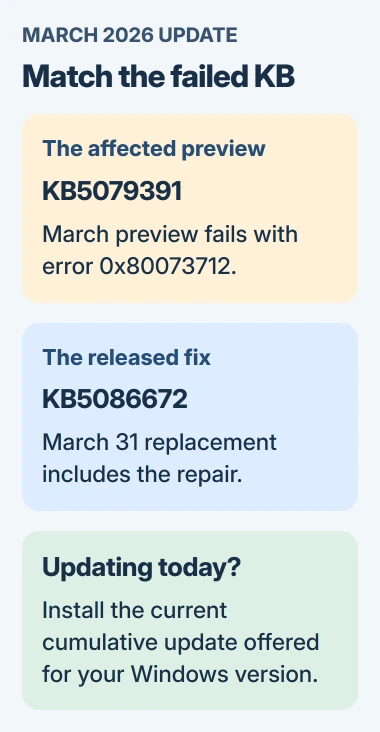
Microsoft's KB5086672 release note confirms this specific fix. It doesn't mean every failed update with that code needs the March package.
If Update history names a different KB, keep that number with the error. Use the Windows update error guide to check what applies to that failure, then use the repair steps here if Windows still can't update.
Next, press Windows+R, type winver, and press Enter. Note the version alongside its OS build. After KB5086672 installs, winver shows build 26100.8117 on 24H2 or 26200.8117 on 25H2.
Those build numbers tell you which update was installed back then. A newer build of the same Windows version can already include the fix. Don't remove newer updates just to make your number match.
2. Let Windows offer the current replacement
Return to the main Windows Update page and select Check for updates. If updates are paused, resume them first. Install the cumulative update offered for your Windows version and complete its requested restart.
A cumulative update includes earlier fixes along with newer changes. That's why a current package can solve the March installation problem without KB5086672 appearing as a separate new entry in Update history.
I'd use this route before looking for an old installer. Windows picks the package for your version and handles any required earlier updates. That saves you from choosing between similar downloads yourself.
When it came out, KB5086672 was offered to PCs with KB5079473 or a later update. The optional package also appeared under Advanced options > Optional updates, though you may no longer see it there.
The March preview was withdrawn, so it may have disappeared from the list. Its replacement includes the same improvements. If KB5079391 is missing from the available updates, that alone doesn't need a repair.
For Windows 11 24H2 Home or Pro, check the version's support deadline too. Its regular updates ended on October 13, 2026. Installing a March package doesn't extend that edition's support.
A work computer may receive updates on an administrator's schedule. If Settings says your organization manages updates, send IT the failed KB and build number so they can check the approved replacement.
3. Finish the restart, then run the update troubleshooter
If Settings says a restart is needed, save your files and choose Restart now there. Once the sign-in screen returns, sign in before checking the installation result.
Finishing the download doesn't mean the update has finished installing. After the restart, check the latest result in Update history instead of relying on the earlier failed attempt.
If the current cumulative update fails, open Settings > System > Troubleshoot. Select Other troubleshooters, find Windows Update, and choose Run. Follow the prompts, including any request to continue in Get Help.
Note what the troubleshooter reports. If it changes an update setting or repairs a problem, try the offered update again. If it couldn't fix anything, move to the Windows repair option instead of repeating the same check.
Follow any instructions on the update screen too. If Windows asks for more storage, free up space before retrying the download. Another attempt won't help until enough space is available.
4. Repair Windows while keeping your apps and files
Windows 11 has a repair that reinstalls the version already on the computer. Open Settings > System > Recovery and find Fix problems using Windows Update. Select Reinstall now beside that option.
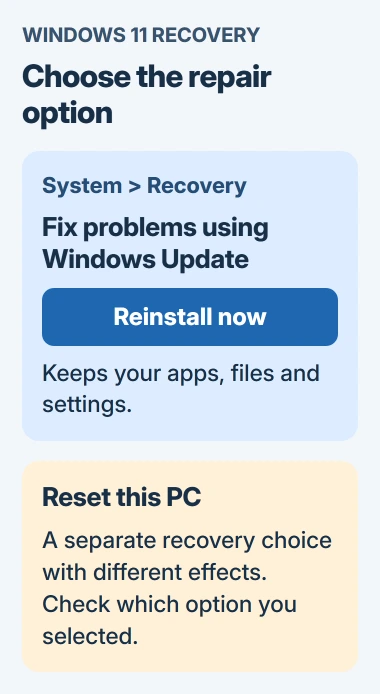
This Windows repair procedure replaces Windows' own files and components while keeping your apps, personal files and settings.
Keep the computer on its power supply with internet available until the repair ends. Save your work before you agree to install or restart.
The confirmation window offers an automatic restart after installation. Decide whether you want it to restart automatically, then select OK. Windows Update downloads and installs the repair version.
When the repair finishes, restart if it hasn't happened automatically. Then open Windows Update and try the current update again. A completed repair download doesn't tell you whether the update will install.
This option may be missing if IT manages updates or your Windows build doesn't support it. Reset this PC is a different operation. If Reinstall now is missing, give support your Windows version and the failure details.
When a separate installer needs closer checking
IT may need the original KB5086672 package to set up PCs offline or prepare Windows for other PCs. The files differ for x64 and Arm64, two types of processor. The release note lists the updates to install first and their order.
If the installer says the package isn't applicable, check your Windows version, whether the PC uses x64 or Arm64, and Update history. Renaming the file or forcing an unrelated package won't make it match the computer.
If the repair doesn't help, give Microsoft Support or your administrator the KB number, full error, winver result and troubleshooter outcome. Say which stage fails: downloading, installing or restarting.
The Short Version
KB5086672 repaired a March preview failure. Check the failed KB, then install the current cumulative update for your supported Windows version. Try the troubleshooter and Windows repair if today's update still fails.
Checked November 4, 2026.

Isaac Smith is the founder and editor of PC Glance, a website that covers computers, laptops, and technology. He is a tech enthusiast and a computer geek who loves to share his insights and help his readers make smart choices when buying tech gadgets or laptops. He is always curious and updated about the latest tech trends.