
Safari on an iPad allows cookies when Block All Cookies is off. Open Settings > Apps > Safari > Advanced and turn that switch off, then return to the website and try again.
The wording can catch you out: turning the switch on blocks cookies. Leave Prevent Cross-Site Tracking as it is while you check whether website sign-ins work. That's a separate setting.
Allow cookies through Safari's Advanced settings
Start in the iPad's Settings app. Tap Apps, choose Safari, then scroll to Advanced. Turn Block All Cookies off if it's enabled.
Apple's iPad cookie instructions show where to find the switch. A website uses cookies, small bits of saved data, to remember your sign-in or preferences.
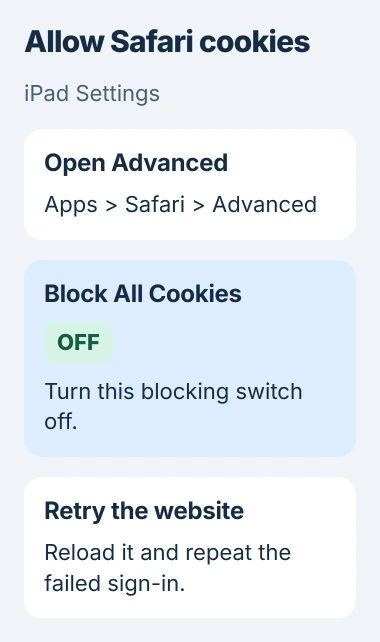
Look for Block All Cookies rather than a button named Enable Cookies. Because the switch blocks cookies, off is the position you want.
If your older iPad lists Safari directly in Settings, open it there. If the menus don't match, search Settings for Safari and check your iPadOS version in General > About.
Return to the same Safari page, reload it and try what failed again. If you can sign in or use the page now, the change fixed the problem.
Check that you're changing the browser in use
Check which app you're in when the page fails. A link from email or a shopping app can open inside that app instead of in your usual Safari window.
If the app offers Open in Safari, use it to try the same page there. If it works in Safari but fails inside the app, tell the app's support team about that difference.
Chrome on iPad already allows cookies. Its iPhone and iPad cookie guidance doesn't offer a switch to turn them on as you would on a desktop.
If Chrome says cookies are disabled, check Chrome or the website rather than searching Safari's settings again. Note which browser shows the message before clearing its data.
The same Safari change on a phone has its own iPhone cookie instructions. Check the setting on the iPad itself, even if you've already changed it on your iPhone.
Retry the sign-in after allowing new cookies
If Block All Cookies was on, you may already have been signed out of the website. Allowing new cookies won't bring back a sign-in that was removed when you turned blocking on.
Open the site's normal sign-in page and sign in again, using the browser you just checked. Switching between an app, Safari and Chrome makes it harder to tell where the sign-in works.
If a Google sign-in still fails, open another browser window and retry. Its cookie troubleshooting also suggests waiting five minutes before reopening Safari after changing the cookie setting.
Check whether you're in a Private Browsing tab group. To see whether Safari remembers a sign-in normally, try a regular tab outside Private. Private Browsing keeps its activity separate from your regular browsing.
A site's cookie consent banner asks about that site's own cookie choices. It doesn't replace Safari's Block All Cookies switch. Review the banner's options and reload the page if it asks you to.
Keep cross-site tracking separate from ordinary cookies
Open Settings > Apps > Safari and find Prevent Cross-Site Tracking. This limits third-party cookies and data, which come from other services included in the page you're visiting.
The Safari privacy controls treat this separately from blocking all cookies. Letting a site save its own sign-in data doesn't mean you have to turn off all tracking protection.
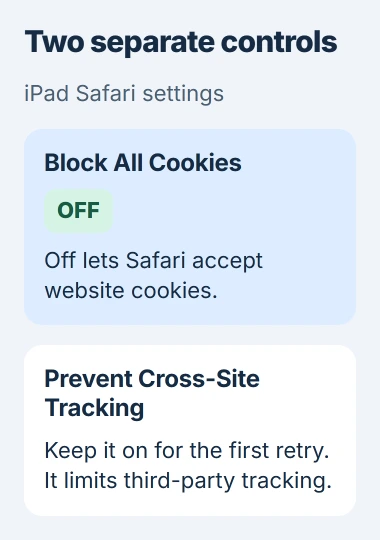
I'd leave that protection on while trying the site again. If a sign-in inside another page or service still reports a third-party-cookie problem, ask the site's support whether it has a direct sign-in page.
If support asks you to test a change to cross-site tracking, change only that setting and retry the affected website. Put it back afterward if it made no difference.
Safari can also block a pop-up window. If that's why a button does nothing, allowing cookies won't open the window. Tell support whether no window appeared or a page opened and showed a cookie error.
Check content blockers before clearing browsing data
A Safari content blocker can stop parts of a page from working. Open Settings > Apps > Safari > Extensions and check which blocker you're using before changing its settings.
Use the blocker's own controls to try the affected site with it paused. If the site works, check the extension's settings or ask its developer about that site. That's more useful than repeatedly changing cookie permission.
If the website asks you to clear its stored data, make sure you can sign in again first. Clearing cookies can sign you out of the very session you're trying to fix.
The cookie-cleanup guide explains how to remove them. Deleting a site's saved data is different from allowing it to save new data.
If one page fails, compare it with a working site in the same browser before clearing data in every browser. The failed site's exact message may point to a problem with its own sign-in process.
Get help when cookie permission is locked
An organization can lock cookie settings on the iPads it manages. Its managed-cookie policy can limit which privacy switches you can change.
If the switch is locked, send the administrator the website address and exact error. Don't remove the management profile to change it. The profile can also provide access you need for school or work.
If one site still fails, tell its support your browser, iPadOS version and whether Block All Cookies is off. Contact Apple Support if the Safari setting is missing or won't keep a change you're allowed to make.
The Short Version
Turn Block All Cookies off in Settings > Apps > Safari > Advanced, then retry the site in Safari. Chrome already allows cookies. Treat third-party tracking, content blockers, private tabs and a managed setting as separate checks.
Checked November 5, 2026.

Isaac Smith is the founder and editor of PC Glance, a website that covers computers, laptops, and technology. He is a tech enthusiast and a computer geek who loves to share his insights and help his readers make smart choices when buying tech gadgets or laptops. He is always curious and updated about the latest tech trends.