

Keep the drum when changing toner in a Brother printer and replace only the cartridge clipped into it. Check the warning first: Replace Toner needs a cartridge, while Replace Drum needs a different part.
These steps cover Brother's HL-L2400D, HL-L2405W, HL-L2420DW, HL-L2460DW, HL-L2460DWXL and HL-L2865DW family. Other Brother printers, especially color models, can have a different cover, cartridge layout and replacement order.
Match the message, model and replacement cartridge
Read the full model number on your printer's label. Match it and your region to the new toner's compatibility list. A cartridge for a similarly named printer isn't always the right one for yours.
In its toner replacement chapter for this family, Brother says to keep the new cartridge sealed until you're ready to fit it.
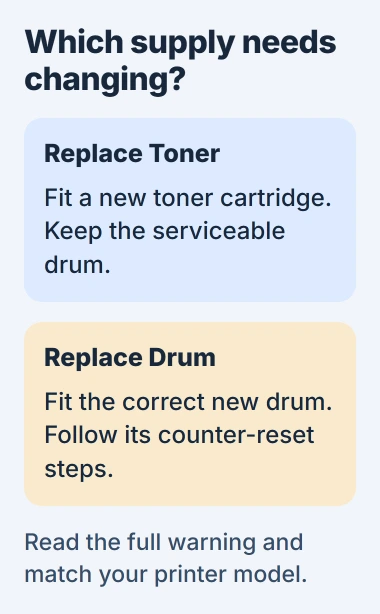
Toner Low gives you advance notice, and the printer can still print. Replace Toner or Toner Ended means it's time to replace the cartridge. No Toner can mean the cartridge or combined unit isn't fitted correctly.
A low-toner warning gives you time to get the right cartridge. If the printer can't detect one you've just fitted, check that it's in place properly before buying another.
The cartridge holds the printing powder. It clips into the drum, the separate part that forms the printed image. For Replace Drum, use the Brother drum replacement guide instead of changing toner again.
Remove the assembly and separate the old toner
Finish the current print job. On these models, leave the printer switched on, then open the front cover. Follow your model's handling precautions if it's just been printing.
Pull out the toner and drum together using the handle. Keep the unit level and set it on a disposable sheet of paper on a stable surface. The paper catches loose powder that could spoil your desk or documents.
Find the green lock lever on the unit. Press it down to release the toner, then lift the cartridge out of the drum. Keep the drum: your replacement cartridge fits into it.
Hold the unit by its grips and keep your fingers off the exposed drum surface. That protects the drum while you swap the cartridge.
Set the old cartridge aside until the replacement is working. If the new cartridge looks different, compare its model and protective packaging before fitting it.
If it won't fit, check the part number and packaging. Extra pressure on the drum won't help. Stop if the shape or locking points don't match your model's instructions.
Prepare the new cartridge and lock it into the drum
Unpack the replacement when the drum is ready. Remove its protective cover, hold the cartridge by its handle, and gently shake it from side to side several times. Follow the manual's illustration for this family.
Fit the cartridge into the drum you're keeping and push firmly until it locks. Check that it's secure before lifting the two together; an unlocked cartridge can come away from the drum.
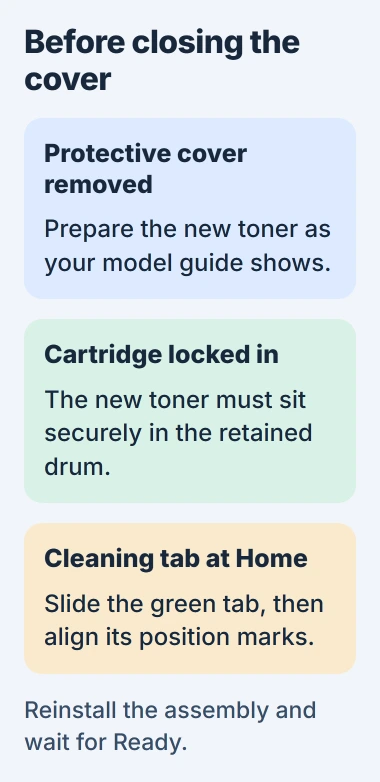
Remove only the packing parts shown in your cartridge's instructions, including its protective cover. Don't pull an unfamiliar seal or part just because another printer uses one.
For a color model, use its own manual. It shows the color positions and whether you remove cartridges one at a time or through a drum drawer, rather than following this black-and-white printer example.
The exact model matters more than the Brother name. I'd keep its manual open beside the printer until you've finished the first replacement, especially if the cartridge's packing is unfamiliar.
Slide the cleaning tab, then return it home
Find the green sliding tab on the drum. Gently slide it along its track and back several times. This cleans the corona wire, which helps charge the drum during printing.
Return the tab to the marked Home position. Line up its position mark with the matching mark on the drum. Leaving it elsewhere can cause a vertical stripe on printed pages.
The sliding tab and green locking lever do different jobs. The lever releases the cartridge; the tab cleans the wire. Check which one you're moving, since not every green part releases something.
Put the complete unit back in the printer and shut the front cover. Wait for Ready before opening that cover again or switching off the power.
If the cover won't close normally, take the unit out and check how it fits. The cartridge may not have locked into the drum. Forcing the cover can hide that problem.
Check readiness and a printed page
Check the printer's display or lights before returning to your computer. Ready means installation has finished. If a cartridge or cover error appears, deal with it at the printer first.
Print a small document and check it. On Windows 11, open Settings > Bluetooth & devices > Printers & scanners, select the printer, then open Printer properties. Use Print Test Page on the General tab.
The Windows printing checks use that test to tell a printer connection problem apart from a problem in one app.
If the printer is ready but Windows can't send the page, follow the Brother computer connection checks. New toner won't reconnect a printer that's dropped off Wi-Fi.
For No Toner or Cartridge Error, remove and refit the cartridge in the drum using your model's maintenance instructions. Check that the protective cover is off and the complete unit is fully in place.
If Replace Toner stays on after you've fitted the correct new cartridge, give Brother Support your model, cartridge part number and the warning you see. Keep the packaging and purchase record so support can check compatibility.
Don't reset the drum counter to clear a toner warning; it tracks a different part. Follow your model's toner instructions instead of trying button sequences from another Brother family.
The Short Version
Check the warning and model label, release the old toner, and lock the new cartridge into the drum you're keeping. Clean the wire with the sliding tab, return it home, then wait for Ready and check a printed page.
Checked November 5, 2026.

Isaac Smith is the founder and editor of PC Glance, a website that covers computers, laptops, and technology. He is a tech enthusiast and a computer geek who loves to share his insights and help his readers make smart choices when buying tech gadgets or laptops. He is always curious and updated about the latest tech trends.