
A working Galaxy Tab can reboot from its power menu: tap Restart and confirm if asked. For a frozen tablet, keep Volume down + Power (or Side) pressed for over seven seconds, until it reboots.
Neither method is a factory reset. Use the power menu when the screen responds and the buttons when tapping does nothing.
Restart from the power menu when touch still works
Save an open document or wait for a file transfer to finish. Open the Quick panel and tap its power icon, then choose Restart. Tap Restart again if a confirmation appears.
On newer layouts, swipe from the top-right to open that panel. Older software can need two downward swipes from the top. Look for the power icon; the tiles around it can be arranged differently.
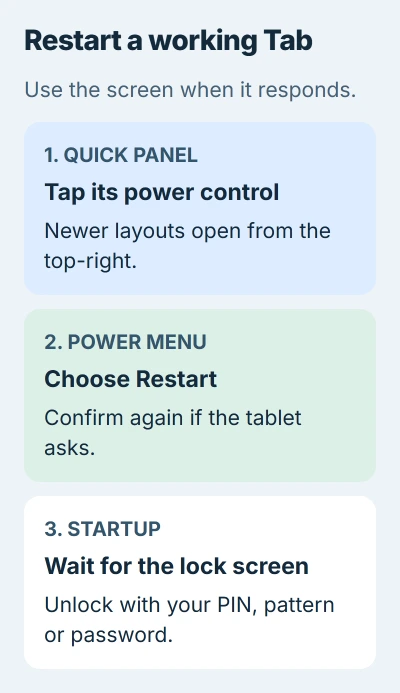
The screen goes dark during startup, then the Samsung logo appears before the lock screen returns. Let it finish. Repeated Power presses make startup difficult to follow.
A short Side + Volume down hold also opens the menu on many recent Tabs. Let go when the power choices appear, then tap Restart instead of keeping the buttons pressed.
An older Tab may have a dedicated Power button that opens the menu by itself. If holding the Side button launches an assistant, restart through the Quick panel and leave the assistant settings alone.
Enter your PIN, pattern or password after rebooting; a fingerprint won't work for that first unlock. Once the Home screen appears, open the app you were using and check whether it responds normally.
Force a frozen Tab to restart with its buttons
Find the Power or Side button and Volume down. Hold both for longer than seven seconds, then let go once the tablet starts rebooting.
Samsung gives this combination in its Galaxy Tab restart instructions. Keep holding for a frozen tablet.
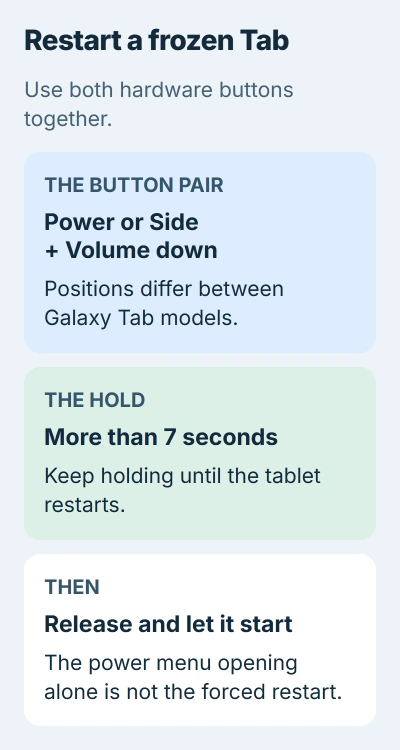
Keep both buttons pressed even if a power menu appears but won't respond to touch. Holding past the menu forces the restart. The buttons' positions depend on your Tab model and which way you're holding it.
If a case makes the buttons difficult to press, take it off and try with the tablet resting securely. Make sure you're pressing Volume down, not the other end of the volume control.
This restarts the tablet without using Factory data reset. An app can still lose work it hadn't saved before freezing, so use the ordinary menu when touch works.
I'd try the proper two-button hold before waiting for the battery to run flat. It gets a frozen Tab back much sooner when the buttons still respond.
If seven seconds passes and nothing changes
Check whether your screen froze or the battery ran out. Note whether an app was stuck onscreen or the tablet never showed a charging indicator or logo.
The Galaxy power-button guidance notes that this restart can take up to 60 seconds. Hold the correct pair steadily rather than repeatedly pressing and releasing them.
If a Maintenance Boot Mode screen appears, use the volume buttons to highlight Normal Boot. Select it using the Power or Side button available on your model. Choose Normal Boot rather than an erase or recovery option.
When neither button method works, try the slower option in the Tab instructions: let the battery run out, then charge for 30 minutes before turning the tablet on again. Expect a long wait if the battery was full.
If your tablet still won't respond, check its charging cable, adapter and port before arranging service. Repeating the restart won't help with an empty battery or visibly damaged buttons.
A frozen Samsung phone has its own phone restart walkthrough. Look up button locations using your Tab's model name; a phone drawing may not match your tablet.
Check the app if freezing returns after startup
A restart that reaches the lock screen has done its job. If the tablet freezes again in the same app, open Settings > Apps, select that app, and choose Force stop before reopening it.
Check for an app update in the store you used to install it. The Android app-update steps explain the Play Store route. An update to the app is separate from a tablet software update.
For the tablet itself, open Settings > Software update > Download and install, or the System update control shown on your model. Install offered updates, then try the action that caused the freeze again.
If one app keeps failing while Settings and other apps work, contact that app's developer. Describe what you tap immediately before it stops responding, along with the Tab model and Android version.
Google's Android restart guidance also recommends checking apps and updates when restarts become frequent. Getting it to reboot doesn't tell you why it keeps freezing.
Compare Safe mode before considering an erase
For repeated freezes, open the power menu, then touch and hold Power off until Safe mode appears. Select it. When it starts, look near the screen's bottom for the Safe mode label.
Downloaded apps are temporarily turned off in Safe mode. Try the tablet's built-in apps long enough to check for another freeze. If it works normally, check recently installed or updated apps before considering a reset.
To leave Safe mode, choose an ordinary Restart. Remove an app you suspect and try again. If it keeps freezing in either mode, tell Samsung which screens work and whether you saw a logo during the button hold.
Ask Samsung to check your particular model if it still won't reach the lock screen. Protect your files before considering a factory reset; you don't need one just to reboot a Tab.
The Short Version
Choose Restart when the touchscreen responds. For a frozen Tab, press Volume down and Power (or Side) for over seven seconds, until it reboots. Recurring freezes need app, update and Safe mode checks, or service.
Checked November 5, 2026.

Isaac Smith is the founder and editor of PC Glance, a website that covers computers, laptops, and technology. He is a tech enthusiast and a computer geek who loves to share his insights and help his readers make smart choices when buying tech gadgets or laptops. He is always curious and updated about the latest tech trends.