
Reset Wi-Fi by restarting the router when several devices have lost their connection, or by forgetting and reconnecting to the network when only one device is affected. A factory reset is a much bigger change that erases the router's setup.
On a Windows PC, Network reset reinstalls the network adapters, which handle its connections, and restores their default settings. Try the smaller connection checks first.
Decide which connection needs restarting
Try the network with another phone or computer before making changes. If you're using a phone, turn off its cellular data so it can't load the page through its mobile connection.
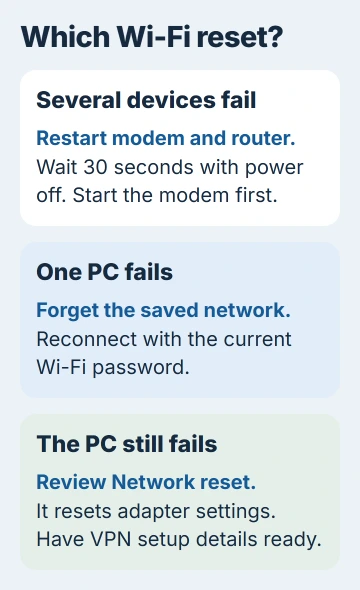
If both devices join Wi-Fi but can't open unrelated websites, restart the modem and router. If the second device works normally, start with the affected device's Wi-Fi connection instead.
A Wi-Fi connection and internet access aren't the same thing. The Wi-Fi versus internet guide explains why a device can stay connected to the router while the provider connection is down.
These steps cover a home router and Windows 11 or Windows 10. For an office, school or hotel network, ask the administrator about the outage instead of restarting equipment other people are using.
I'd start with the smallest reset that fits the problem. Forgetting one network leaves your router and other devices' settings alone. Restarting the router briefly disconnects every device using it.
Restart the modem and router in the right order
Save work that needs a connection, then unplug the router's power. If the modem is a separate box, unplug its power too. A combined modem/router needs only its own power disconnected.
Wait 30 seconds or longer before restoring power. A modem with a backup battery can stay on after unplugging; follow its manual or the provider's instructions if its lights remain lit.
Reconnect the modem first. Wait for its normal connection lights to settle, then reconnect the separate router. Let both finish starting before trying a website. The light names and startup time depend on the model.
Restarting leaves the router's settings in place. Microsoft says to restart the modem and router before resetting Windows adapters in this Wi-Fi connection procedure.
Leave the recessed Reset button alone. Holding it performs a factory reset on many routers. For this restart, you're unplugging the power instead.
When the normal lights return, reconnect the original device and open a page. Then check the second device. If both work, the connection is back. If only one still fails, check its saved-network settings next.
If neither works and the modem reports a connection fault, contact the internet provider. Repeating the restart won't restore an outage, and erasing the router can add a second setup problem.
Forget and rejoin one network on Windows
Have the Wi-Fi password ready first. Forgetting the network removes the saved connection details on this PC. It doesn't change the router's password or disconnect the other devices.
Open Settings > Network & internet > Wi-Fi > Manage known networks. Select the affected network and choose Forget. In Windows 10, the main category appears as Network & Internet.
Open the Wi-Fi network list from the taskbar, select the same network name, and choose Connect. Enter its current password. Check the name carefully when nearby networks or a previous extender have similar names.
If Windows rejects the password, check that it's correct for that network. Forgetting the network again won't fix a wrong password. Once the PC connects, open a website.
If the network is missing from the list, move close to the router and check another device's list. If that device can see the working router, check your PC's Wi-Fi controls or adapter rather than its saved password.
For a phone that needs a wider reset, iPhone Network Settings reset explains what changes and which menus to use. Follow those steps for an iPhone rather than the Windows steps here.
Use Windows Network reset after the smaller checks
Try restarting Windows before taking this step. Choose Restart from the power menu, then check the same network again. Continue only if the router works for another device and the PC still can't connect properly.
Have your Wi-Fi password and the setup details for any VPN or virtual networking software ready. Network reset changes the PC's adapters and settings, so you may need to reinstall or set up that software again.
On Windows 11, open Settings > Network & internet > Advanced network settings > Network reset. On Windows 10, open Settings > Network & Internet > Status > Network reset.
Choose Reset now, then confirm with Yes. Let the computer restart. Rejoin Wi-Fi afterward and check whether it can open the same page that worked on the second device.
The reset can also mark saved connections as public networks again. If internet works but you can't find your home printer or a shared folder, check the network profile instead of repeating the reset.
If Wi-Fi is missing from Settings after the restart, follow the missing Wi-Fi adapter checks. A reset won't replace missing Wi-Fi hardware, and some driver problems need a separate fix.
Factory reset only when the setup can be restored
A factory reset means setting up your router again. It can remove the Wi-Fi name, passwords and provider settings that made the connection work.
Read your model's factory-reset steps and collect its setup details before pressing Reset. A router supplied by your provider may need their help to set up again, especially if it also handles your phone service.
For a forgotten administrative login, try the router password recovery options first. That problem doesn't automatically require losing a working wireless network.
If the connection works everywhere except one PC, give the PC maker your adapter name and Windows version. If every device still fails, tell your provider which modem lights are on and when the outage began.
The Short Version
Compare two devices, then restart the modem and router or reconnect the affected PC. Try Windows Network reset if those steps fail. Use a router factory reset only when you're ready to set it up again and have the details you need.
Checked November 5, 2026.

Isaac Smith is the founder and editor of PC Glance, a website that covers computers, laptops, and technology. He is a tech enthusiast and a computer geek who loves to share his insights and help his readers make smart choices when buying tech gadgets or laptops. He is always curious and updated about the latest tech trends.