

Removing an email account from Outlook stops the app using that mailbox. It doesn't close your email address with the provider. Save anything stored only in Outlook, then use the app's account-removal settings.
In new Outlook for Windows, those controls are under Accounts > Your accounts. Classic Outlook uses File > Account Settings. Check the address carefully if several mailboxes have similar names.
Decide what should be removed before confirming
Removing an account from Outlook on one computer stops that copy of the app using it. Mail stored with your provider stays in the mailbox, so you can normally read it through webmail or another connected device.
The confirmation dialog may offer to remove the account more widely. In new Outlook, some non-Microsoft accounts let you choose this device or all devices where you've added the account to Outlook.
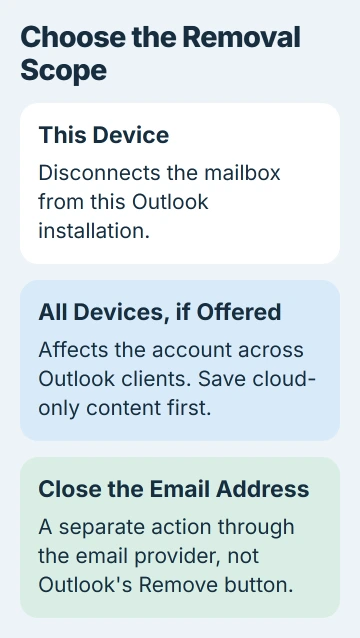
Microsoft's current account-management instructions explain those choices. Pick the one you need; Remove doesn't always apply to just this device.
If you're handing over a work computer, ask IT whether removing the account from Outlook is enough. Your organization may have other sign-out steps. An Outlook mailbox and a Windows work account are separate connections.
Closing an email address permanently is a task for the email provider. Don't use that account-closure process if you only want the address removed from one app.
Save local mail, calendars and contacts first
Check your Outbox, unfinished drafts and folders stored only on this computer. Make sure important recent mail is in your provider's mailbox too, so you know you can download another copy.
Classic Outlook can keep mail on your computer in an Outlook Data File, usually ending in .pst. POP accounts can use these files. If yours holds mail you want to keep, save the file and a separate backup.
An .ost file keeps an offline copy in sync with the mailbox for several other account types. It isn't a separate archive you can rely on as a backup. The Outlook data-file explanation covers the difference.
To back up in classic Outlook, use File > Open & Export > Import/Export > Export to a file > Outlook Data File (.pst). Choose the account or folder, include its subfolders and finish the export to a safe location.
Check that the backup has the dates and folders you need. A synced account may have downloaded only part of its history. Exporting those downloaded messages won't automatically fetch every older one first.
Supported versions of new Outlook also have Settings > Files > Export. PST support still has limits for calendar and contact items, so check the export instructions for your version before relying on that backup.
For a third-party account, save anything important stored only in Microsoft Cloud before removing it across devices. Those items may be permanently lost even if you add the account again.
Remove the account in new Outlook for Windows
Open View > View settings, or File > Account info if that's what your version shows. In the settings window, choose Accounts > Your accounts.
Under Email accounts, find the full address you want to remove and select Manage beside it. Under Account details, choose Remove, then read the confirmation dialog before you finish.
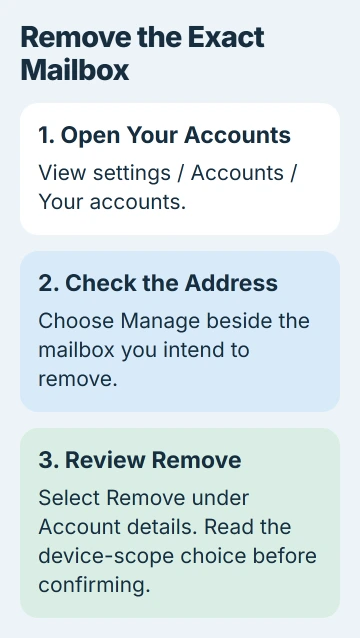
For Gmail, Yahoo, iCloud and other non-Microsoft providers, you may see Remove from this device or Remove from all devices. Choose the device-only option if you only want to remove the account from Outlook on this device.
Removing an account deletes its downloaded offline copies from that Outlook app. After confirming, return to the account list. Check that the right address has gone and the accounts you still need are there.
Changing your primary address in Outlook may not need account removal. Open Manage for the account you're keeping and use Set as primary account.
I'd check that the account you're keeping and its mail still look right before removing another one. It's easy to mix up similar-looking addresses when you work through them without checking each result.
Remove it through classic Outlook's File menu
In classic Outlook on Windows, choose File > Account Settings > Account Settings. Select the mailbox you want to remove, then choose Remove.
Read the warning about downloaded offline copies, then select Yes when you're ready. The classic Outlook removal steps confirm that removing it doesn't close your provider's mailbox.
If it's your last or only account, Outlook may ask for a new place to store its data first. Follow that prompt. Don't try to force removal by deleting the account's files in File Explorer.
To create that data file on your computer, return to the Inbox and choose New Items > More Items > Outlook Data File. Name the file and finish the dialog, then return to removing the account.
After removing the account, check your folder list and remaining account settings. An archive you opened separately may still appear. Removing the account doesn't close that archive.
Keep your backup until you've checked the mail you wanted to save. These account-removal steps don't involve deleting your local data files.
Check the result and handle an account that returns
Reopen Outlook and check the account list. The removed address should no longer be set up to send and receive mail there. Old messages in another mailbox or archive don't mean the address is still connected.
If an unwanted name only appears when you type a recipient, use the Outlook suggested-address guide. Removing that suggestion is different from removing a mailbox.
If the address is actually a Windows work or school connection, the Windows account-removal guide covers that setting. Don't remove an unrelated Windows connection just because an email address looks familiar.
If an account comes back automatically on a managed computer, your organization may control its setup. Tell IT the address, Outlook version and when it returns so they can check the policy that adds accounts.
If removal shows an error, save the full message and tell support whether you're using new or classic Outlook. Mention any other mailbox still in the app and any archive stored on your computer. Those details affect what to try next.
The Short Version
Save local-only content, then remove the account through new Outlook's Your accounts page or classic Outlook's Account Settings. Read the device-versus-all-devices choice carefully. Removing it from Outlook doesn't close the email address.
Checked November 5, 2026.

Isaac Smith is the founder and editor of PC Glance, a website that covers computers, laptops, and technology. He is a tech enthusiast and a computer geek who loves to share his insights and help his readers make smart choices when buying tech gadgets or laptops. He is always curious and updated about the latest tech trends.