
Starting your PC from a Windows 10 USB begins a clean install, which can erase files and programs on the drive you choose. To reinstall while keeping apps, open setup.exe on the USB while Windows is still running.
Choose which route you need before restarting. The same stick can do either job, but starting the PC from it doesn't give you the same options for keeping files and apps.
1. Save the files and identify the Windows license
Copy the files you need to separate storage and open a few copies to check them. Include Downloads, desktop files and any locally stored project or email data. Disconnect that backup before selecting an installation drive.
If Windows still opens, check Settings > Update & Security > Activation. Note whether it's activated and whether you have Home or Pro. Reinstall the edition that matches your license.
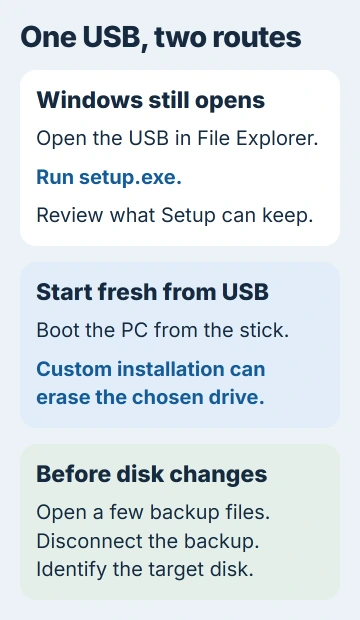
Microsoft explains both reinstallation entry methods: start inside Windows to choose what to keep, or boot from USB for a clean install.
A digital license already tied to your PC can activate the same edition again.
Regular support for Windows 10 ended on October 14, 2025. Reinstalling it doesn't restart that support period. For a computer that can move to a supported system, review the Windows 11 upgrade choices before rebuilding Windows 10.
For a recent Windows 11 upgrade, check rollback availability before preparing a replacement installation.
If Windows still works and you want to keep your programs, connect the USB, open it in File Explorer, and run setup.exe. Review Change what to keep and the final summary before starting the installation.
If keeping apps isn't offered, check that the USB matches your installed Windows language, 32-bit or 64-bit type, and edition. Don't start the PC from the stick expecting that to bring back the option to keep your apps and files.
2. Create the Windows 10 installation stick
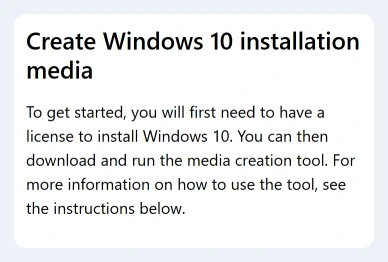
On a working Windows PC, open the Windows 10 download page. Find Create Windows 10 installation media and choose Download Now.
Use a blank USB stick that holds at least 8 GB. The tool deletes its contents, so move any files you need off it first. Check the stick's name and capacity if you've connected several removable drives.
Run your downloaded Media Creation Tool file and approve its administrator prompt. Accept its terms, then choose Create installation media (USB flash drive, DVD, or ISO file) for another PC and select Next.
Choose the language, edition and 32-bit or 64-bit type for the PC you're reinstalling. Check these even if the working PC has already filled them in. Select USB flash drive, choose your stick, and let the tool finish.
Wait for the completion message, then safely remove the USB. Simply copying an ISO, the Windows disc-image file, onto a flash drive won't prepare it to start the PC the way the tool does.
If the tool can't find the stick, follow the Media Creation Tool USB checks. Get the installer ready first; you'll choose the internal drive to erase later.
3. Start the target PC from the USB
Connect the finished USB to the PC you're reinstalling. Start it and open the manufacturer's one-time boot menu, which lets you choose a startup drive. Check your model's instructions for the key; it isn't always F12.
Choose the USB entry that matches the PC's startup system. On a modern UEFI computer, this is normally the UEFI entry. Once Setup loads, select the language, time and keyboard layout, then continue to the installation button.
Windows 10 Setup shows Install now. If your old desktop opens instead, the PC hasn't started from USB. Return to the boot menu; deleting files from the old installation isn't part of this step.
If the USB is missing or gets skipped, use the USB boot troubleshooting guide. Avoid changing several startup settings together just to make the USB appear.
Keep your laptop plugged into its charger during installation. When Setup asks for a key, choose I don't have a product key if this PC already has a license for the same edition. A new, unlicensed PC still needs a valid license.
4. Choose Custom and the intended internal drive
Accept the license terms and choose Custom: Install Windows only (advanced) for a clean install. The next screen lists drives and partitions, the separate storage areas on each drive.
This stage erases data. Match the drive's capacity to the hardware in your PC before deleting anything. A drive number alone isn't enough when several internal disks are installed.
I'd stop here if you aren't sure which drive is which. Unplugging unrelated external storage helps, but other internal drives can still appear in the list and need to be left alone.
For a complete wipe of the chosen system drive, delete its partitions until that drive shows Unallocated Space. Select that unallocated space and choose Next. Setup creates the partitions it needs.
Your partition list can look different from an example. Leave the partitions on any separate data disk as they are; you're rebuilding only the Windows drive you chose.
If the internal drive isn't listed, your model may need a storage-controller driver so Setup can access it. Check the model's installation steps or ask support. The visible USB drive isn't a substitute for the missing internal drive.
5. Finish setup, then restore drivers and files
Let Windows copy files and restart. If the PC asks again to boot from USB after a restart, don't start the installation over; allow the internal Windows installation to continue.
Complete the region, keyboard, network and account screens. Once the desktop opens, check Settings > Update & Security > Activation again. If the edition doesn't match your license, correct that before looking for a new key.
Install Windows 10 drivers from your PC maker, especially if Wi-Fi, sound or graphics aren't working. If the fresh installation has no internet, download the network driver on another computer and transfer it.
Restore your files once Windows and the drivers work, then reinstall your apps using their installers. Copying the old Program Files folder back won't reinstall the programs it contained.
If Setup repeatedly fails, note the exact error and the stage where it stops. Give those details, the PC model and the installer source to the manufacturer or a repair shop before attempting another wipe.
The Short Version
Back up files and record the licensed edition. Create the Windows 10 USB, boot it and identify the target disk before deleting partitions. Complete setup and activation, install the model's drivers, then restore your files.
Checked November 5, 2026.

Isaac Smith is the founder and editor of PC Glance, a website that covers computers, laptops, and technology. He is a tech enthusiast and a computer geek who loves to share his insights and help his readers make smart choices when buying tech gadgets or laptops. He is always curious and updated about the latest tech trends.