
Going back to Windows 10 is easiest while Go back is still in Windows 11's Recovery settings. You normally have ten days after the upgrade to use it. It keeps your personal files but undoes later app, driver and settings changes.
If Go back is missing, you'll need a suitable Windows 10 backup or a fresh installation. Check which option you have before resetting anything. Reset this PC won't turn Windows 11 into Windows 10.
Check whether the previous system was Windows 10
Open Start > Settings > System > Recovery and look for Go back. It returns your PC to the Windows version you had just before the upgrade. It doesn't let you pick any earlier version from a list.
For example, if you upgraded between Windows 11 releases, Go back returns to the earlier Windows 11 release. A laptop bought with Windows 11 won't have an old Windows 10 installation waiting behind that button either.
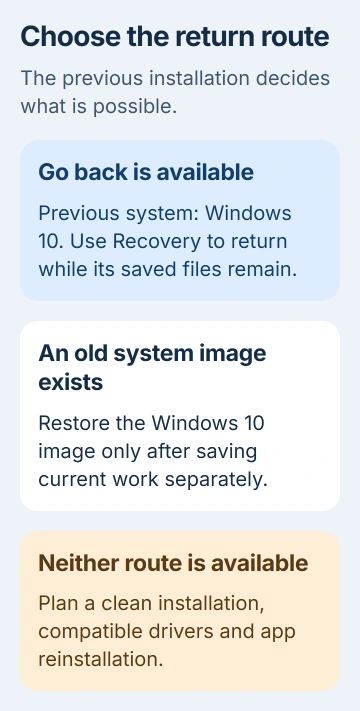
Microsoft says the rollback option usually lasts ten days. It also needs the upgrade's saved files, including Windows.old and $Windows.~BT.
Leave those folders alone while you decide. Deleting the earlier installation to free storage can also remove your way back. Creating an empty folder with the same name won't bring back the files Windows needs.
If the button is there and your previous system was Windows 10, save your files next. If it isn't available, skip to the section about a missing Go back option.
Save current work and prepare your sign-in details
Copy your important documents, photos and local project files to separate storage. Check that several copied files open correctly. Go back is meant to keep personal files, but that copy protects your work if recovery fails.
List the programs you've installed since the upgrade and keep their installers or account details handy. Those programs may need reinstalling afterward. Drivers updated since the upgrade may also change back.
Have the password you used for the earlier Windows installation ready. Your current PIN won't replace it if recovery asks for an account password. Leave the charger connected until your laptop finishes recovery.
Save the files from any user accounts you created after the upgrade, then remove those accounts as required for Go back. If you used a USB drive for the upgrade, keep it handy too.
For a work or school computer, plan the return with IT. They may need to set up management tools and encryption, and check which Windows versions are allowed. This matters especially if they installed the upgrade for you.
Run Go back and follow the recovery prompts
Select Go back on the Recovery page. Read what Windows will remove, then follow the prompts to return to the earlier version. Windows may offer to check for updates before asking you to confirm the return.
Choose the return option when you're ready, then let the computer finish without forcing it off. It may restart more than once before you see the old sign-in screen.

After signing in, open a document and a program you use regularly. Then test the device or app that made you want to go back. Check whether returning to Windows 10 has fixed that original problem too.
Open Settings > System > About and read Windows specifications to confirm your edition and version. The wallpaper and taskbar can be customized, so their appearance alone won't tell you which version is installed.
If recovery fails, write down the exact message. Return to the working system if Windows offers that choice, and check your backup before trying another method. Support can use the error details to help work out what went wrong.
When Go back is missing or unavailable
The time allowed for Go back may have run out, or the upgrade's recovery files may have been deleted. Neither Reset this PC nor System Restore can bring back a missing Windows 10 installation.
The recovery choices do different jobs. A Windows reset reinstalls your current system. A restore point reverses system changes within that same installation.
A complete system image, a backup of the PC made while it ran Windows 10, is another option. Check its date, contents and restore instructions. It will replace the newer setup, so save today's files separately first.
Without the rollback files or a usable image, follow the Windows 10 USB installation procedure. You'll need to plan for a clean installation and reinstall your apps when moving from Windows 11 to Windows 10 this way.
I'd check the PC maker's Windows 10 support for your exact model before choosing that route. A new laptop may have no suitable network, storage or touchpad drivers even if the installer starts successfully.
Check activation, drivers and security after returning
On Windows 10, open Settings > Update & Security > Activation. Check that the edition you expected is activated. Installing Pro when your license is for Home, for example, can cause an activation problem.
Check Wi-Fi, audio, graphics and any equipment you need for work. If a device needs a Windows 10 driver, get the manufacturer's package for your model. Test the devices before copying all your working files back.
Regular Windows 10 support ended on October 14, 2025. Returning to it doesn't restart free support. The current support-end information gives October 12, 2027 for consumer Extended Security Updates.
You'll need separate enrollment in Extended Security Updates (ESU), even after Windows 10 is installed. Check the Windows 10 ESU requirements and your status in Windows Update before using the restored PC every day.
If Go back fails or your model has no suitable drivers, ask the manufacturer about fixing the original problem in Windows 11 instead. Include your PC model, the failing app or device, and any recovery error you saw.
The Short Version
Check Go back and confirm the previous version was Windows 10. Save current work before returning. Without rollback, plan a backup restore or clean install, including drivers, activation and ESU enrollment.
Checked November 5, 2026.

Isaac Smith is the founder and editor of PC Glance, a website that covers computers, laptops, and technology. He is a tech enthusiast and a computer geek who loves to share his insights and help his readers make smart choices when buying tech gadgets or laptops. He is always curious and updated about the latest tech trends.