
To delete pages in Word mobile, select the unwanted content and remove it with your phone's keyboard. Switch to Print Layout first: it shows the page boundaries, while Mobile view reshapes the text for easier reading.
For a blank page, the next step depends on what's keeping it there. You can remove extra empty paragraphs on the phone, but a stubborn final paragraph or section break may need desktop Word's layout tools.
See the printed pages before choosing what to remove
Open the document in the Word app and switch from Mobile view to Print Layout using the view button near the top. The document should show separate sheets rather than text flowing to fit the phone screen.
Microsoft's phone view guide explains both iPhone and Android layouts. Switching views doesn't delete anything or change your document's paper size.
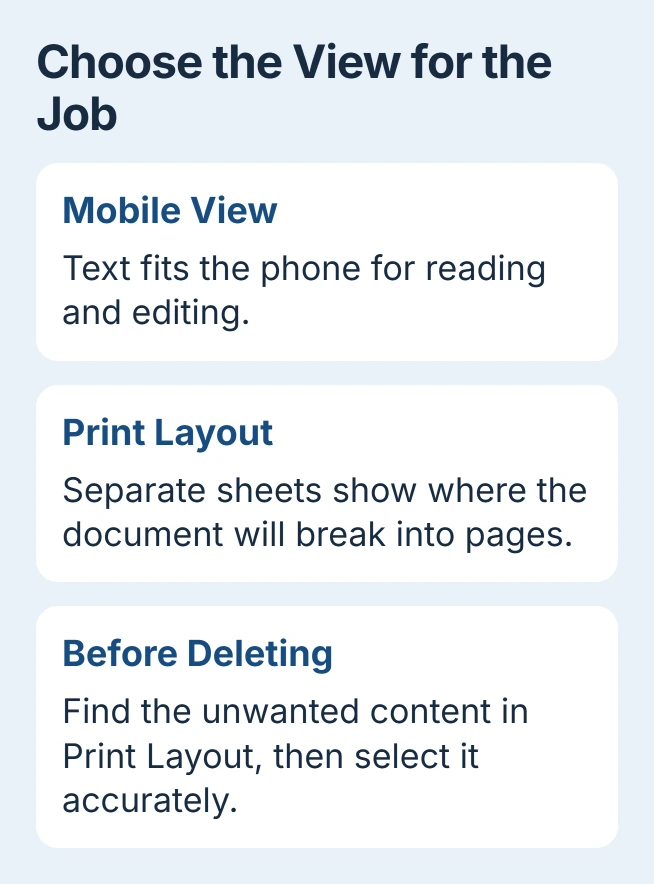
Zoom out to find the unwanted page, then zoom back in to edit it accurately. Note the first and last words you want removed. Deleting text moves the content that follows it, so page numbers alone won't tell you what to remove.
I'd keep a separate copy before removing several pages from a shared report. That gives you an intact version to compare if a table or heading moves unexpectedly.
Keep the document open while you work. A Delete command beside a filename removes the whole file; the Word document deletion choices explain that separate operation.
Select and remove a page containing text
If the document opens in reading mode, tap its editing control. Tap within the text so the onscreen keyboard appears. If Word says the file is read-only, get editing access from its owner before trying to change it.
On Android, double-tap the first word you want to remove. Drag the selection handles until you've highlighted the last unwanted word too. The Android touch gestures also include triple-tapping a paragraph.
On iPhone, select the first word and drag the handles to extend the highlight. Adjust each end separately so you select only the content you want to remove, without including a heading you want to keep.
With that text highlighted, press the keyboard's Backspace or Delete key. The selected text should disappear and the remaining text should move together. Check where the two parts meet before deleting anything else.
If you've removed more than you meant to, use Word's Undo right away. On iPhone, the text-editing gestures also let you select text and undo changes.
For a long page, delete shorter blocks while watching the selection. Text can flow from the next page into the space, so the old page number may remain after its original contents are gone.
Handle pictures and tables as content too
A page can hold a picture, table or other object as well as text. Deleting its paragraphs may leave those objects in place. Check what's still there in Print Layout before you finish.
If you want to remove a picture, tap it and use its deletion control. Select the picture separately from nearby text, especially when it sits beside a paragraph.
With a table, check which cells or rows you've selected. Deleting the text inside cells can leave the table taking up room. Keep the rest of the table when just one paragraph needs to go.
If you can't select the right content on your phone, save the file and finish that part in desktop Word. That gives you room to select what you need without including text you want to keep.
Clear extra blank returns without eating the next paragraph
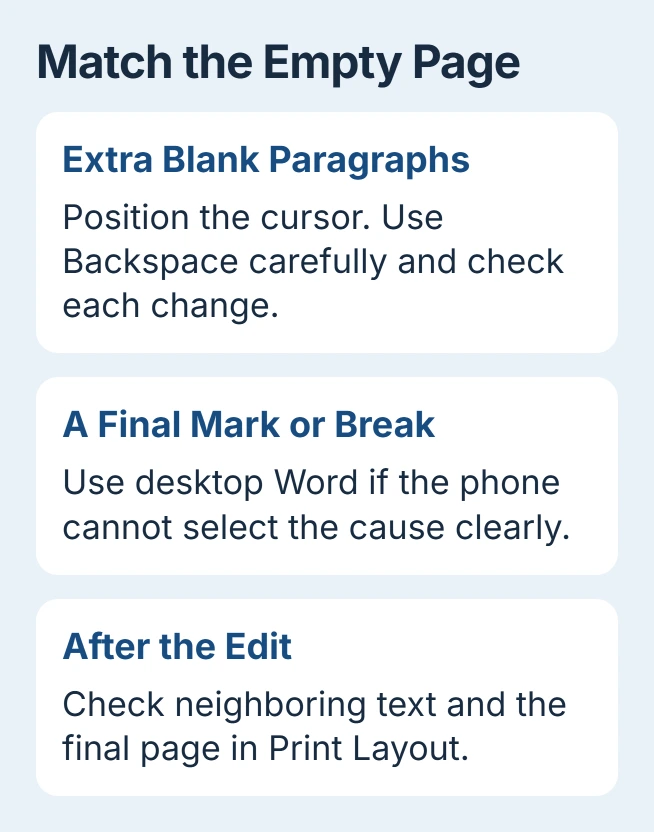
For a blank page, tap its empty text area and try placing the cursor there. If extra empty paragraphs are filling the page, you can move the cursor through them even though there aren't any words.
Press Backspace once, then look at the result. Continue only while you're removing empty space. Stop when the preceding text or table begins to change; holding the key down can erase useful material.
On Android, tap and hold the cursor handle to position it precisely. Hide the ribbon, the bar of editing commands, if it's in the way. To check the full page, close the keyboard with the phone's Back control.
A page that Word adds automatically disappears as the document gets shorter. A manual page break tells Word to start a new page at that spot, so deleting nearby words can leave the break in place.
Adding a page break starts another page, so work on removing the existing break instead. If you can't select it clearly in the mobile app, use the desktop route in the next section.
Move a stubborn final page to desktop Word
Word's required final paragraph can keep a final blank page, especially after a table. Repeatedly pressing Delete won't remove that paragraph because the document has to keep it.
Save the document, then open it in desktop Word on your PC or Mac. The final-page repair shows the paragraph-mark controls and the one-point font adjustment for that specific case.
In the desktop paragraph display, look for Page Break or Section Break labels. These breaks work differently: removing a section break can change headers, numbering and the surrounding layout.
The desktop Ctrl+G and \page selection method doesn't work as a phone touchscreen command. You won't find a mobile Go To dialog by following those desktop steps.
Check revisions and the saved result
If deleted text remains marked in the file, check Review for Track Changes. Track Changes records your deletion as an edit that may still need accepting; hiding markup only changes what you see.
Use the Word revision controls as part of your document's review process. In a shared draft, agree which changes to accept rather than accepting every reviewer's work just to shorten the file.
Return to Print Layout and inspect the pages before and after the edit. Check headings, table rows and the final page. Then save or let the app finish syncing before opening that same file on another device.
If the document is editable but your changes won't stay saved, contact Microsoft Support. Give your phone platform, Word version and file location, and explain whether deleted content returns or just the blank printed page remains.
The Short Version
Find the page in Print Layout and delete the unwanted content with your keyboard. Remove empty paragraphs carefully. For stubborn final paragraphs or section breaks, use desktop Word, then check that the file saved correctly.
Checked November 5, 2026.

Isaac Smith is the founder and editor of PC Glance, a website that covers computers, laptops, and technology. He is a tech enthusiast and a computer geek who loves to share his insights and help his readers make smart choices when buying tech gadgets or laptops. He is always curious and updated about the latest tech trends.