
An Android app can still work even when its Home screen icon won't open it. Try opening it from the full app list; if it launches, replace the Home screen icon before clearing app data.
A missing icon, an app that closes immediately and a patch of screen that ignores taps need different repairs. Start with that comparison so you don't erase a working app to fix its shortcut.
1. Open the app without its Home screen icon
Open the app list by swiping upward on the Home screen. Find the affected app by its name, then tap it. On phones with a different layout, use the launcher's app-list button or search field.
Try a second app from the same list. If both open normally, focus on the Home screen and its shortcuts. The next section shows how to replace a broken shortcut.
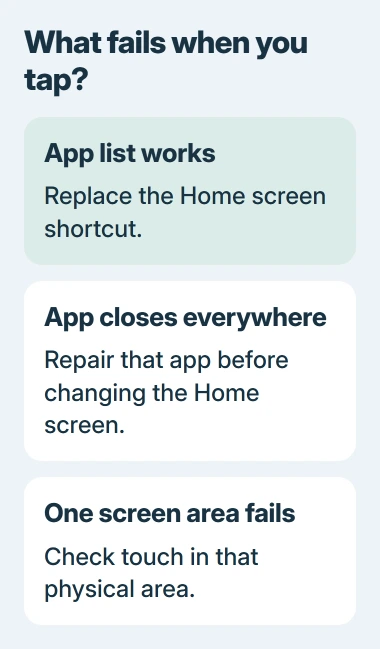
If the app opens and immediately closes from both places, use the Android app crash checks. The app itself is failing, so replacing its icon won't fix it.
Restart the phone from its power menu, then repeat the comparison. Use your model's power-menu shortcut if holding Power starts the assistant. A normal restart is enough when the screen still responds.
Note whether all Home screen icons fail or just one. One dead shortcut needs a smaller repair than a Home screen where none of the icons respond.
2. Remove the shortcut and add a fresh app icon
Touch and hold the broken Home screen icon. Choose Remove, or drag it to the Remove target if that's how your phone handles it. Keep the app installed so you can add its icon again.
Google says in its Home screen instructions that Remove takes away the Home screen item, while Uninstall removes the app from the phone.
Return to the full app list. Touch and hold the app itself, then drag it onto an open space on the Home screen. Lift your finger and tap the new icon. If the app opens, replacing the old shortcut fixed the problem.
Some apps also offer shortcuts to individual conversations, documents or actions. Add the main app icon first. If that works but a conversation shortcut doesn't, open the conversation inside the app before creating another shortcut to it.
A missing Home screen icon doesn't mean the app is gone. Check the app list before reinstalling it. If it's there, you can restore quick access by adding its icon again.
Look in Settings > Apps when the app appears in neither place. An Enable button means it's disabled. Enable it and look in the app list again. If it isn't installed, reinstall it from its trusted store.
3. Repair one app when every route to it fails
Open Settings > Apps and choose the affected app. Depending on your phone, you'll need to tap See all apps before choosing its name. Select Force stop, confirm, then reopen it from the app list.
If it still closes or stays stuck, open Storage & cache > Clear cache. Galaxy phones may call that page Storage. The cache holds temporary files; clearing it lets the app rebuild them, which can help it start.
Leave Clear storage or Clear data alone at this stage. Those controls can remove the app's local settings, sign-in and saved information. Clearing cache is the smaller first step.
Open the Play Store, tap your profile picture, then Manage apps & device. Install an available update for the affected app. If it came from another manufacturer's store, check that store too.
The installed-app troubleshooting guide covers these repairs. Try opening the app between changes to see which repair gets it running.
If every other app works and this one still fails, contact its developer from its store listing. Include the phone model, Android version and whether it fails from both the app list and Home screen.
4. Check the app that supplies your Home screen
The launcher is the app that draws your Home screen and app list. If the app list works but several Home screen icons don't, check the launcher rather than clearing data in every affected app.
On a Pixel, open Settings > Apps > Default apps > Home app to see which launcher you're using. Other manufacturers may call this Home screen app. That name tells you which app's settings to check.
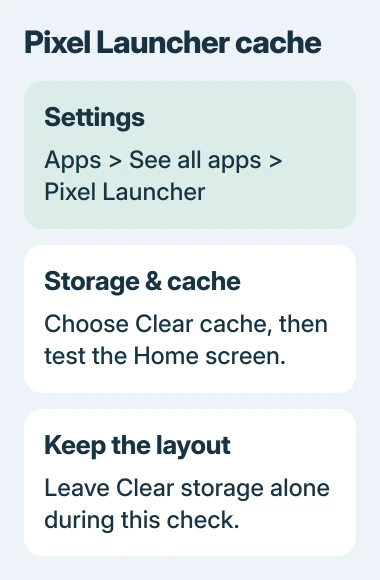
Open that launcher's app information page, then clear its cache if the control is available. For Pixel Launcher, use Settings > Apps > See all apps > Pixel Launcher > Storage & cache > Clear cache.
If you recently installed a replacement launcher, temporarily select the phone's original Home app. Press Home and try its icons. If they work there, check the replacement launcher's settings or compatibility with your phone.
I'd try that comparison before rebuilding your whole Home screen. Clearing launcher storage can remove folders, widgets and their layout, so save your layout before discussing that larger reset with the phone maker.
5. Check touch when icons fail in one place
Move an affected icon to another open area and tap it again. Then try a different icon in the original position. If neither icon responds in that spot, check the touchscreen rather than reinstalling more apps.
Clean the screen and remove gloves. Temporarily remove a case or screen protector that interferes with touch. Repeat the tap in the previously unresponsive area.
For a Pixel with delayed taps or reversed swipes, the Pixel touch troubleshooting guide covers the separate accessibility and touch settings involved.
Use your manufacturer's safe-mode instructions if several apps or the Home screen still misbehave. Safe mode temporarily disables apps you've installed. Try the built-in Home screen, then restart your phone normally to leave this mode.
If touch works in safe mode, remove recent apps that could interfere, one at a time, and test after each removal. If the same screen area fails there too, ask the phone maker to check it. Describe the spot and what happened in each test.
The Short Version
Open the app from the app list, replace a broken shortcut, and repair the app only if it fails there too. Check the selected launcher for widespread Home screen trouble. Taps that fail in one physical area need touch troubleshooting.
Checked November 5, 2026.

Isaac Smith is the founder and editor of PC Glance, a website that covers computers, laptops, and technology. He is a tech enthusiast and a computer geek who loves to share his insights and help his readers make smart choices when buying tech gadgets or laptops. He is always curious and updated about the latest tech trends.