

Changing ink in an HP printer depends on the model: some cartridges release with a downward press, while others sit under a latch. Leave the power on, open the cartridge door and wait for the holder to stop before removing anything.
These steps cover a DeskJet 2700 and an ENVY 4520. Match them to your model; refilling a Smart Tank or changing LaserJet toner involves different parts.
Match the replacement to the printer first
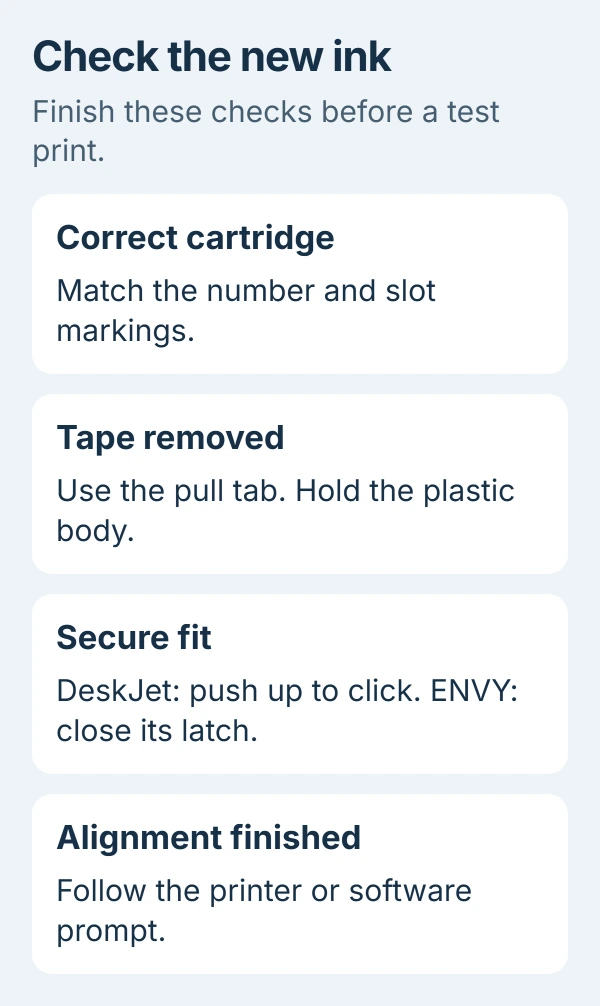
Read your printer's complete model name, then check the cartridge number inside its access door. Match that number and the printer model against the replacement package. A similar-looking cartridge isn't enough.
For a DeskJet 2700, select your printer in HP Smart and look for Supported Supplies or Supply Status. If the app lists several devices, make sure you're reading the entry for this printer.
Check whether the printer needs black ink, tri-color ink or both. A low-ink warning can give you time to get a spare while the pages still look acceptable. The ink-level guide explains those estimates.
HP says low-ink warnings give you time to plan; replacement can wait until print quality becomes unacceptable. An error just after installation calls for checking how the cartridge sits, even with a new supply.
Leave the replacement in its sealed package while you prepare the printer. Set out plain paper for alignment and make room to open the access door fully. Having everything within reach makes the change easier.
Replace a cartridge in the DeskJet 2700
The Manage cartridges chapter of the DeskJet 2700 manual walks through these steps. The carriage is the moving holder that carries the cartridges across the printer.
- Turn the printer on and open the cartridge access door.
- Wait for the carriage to reach the middle and stop moving.
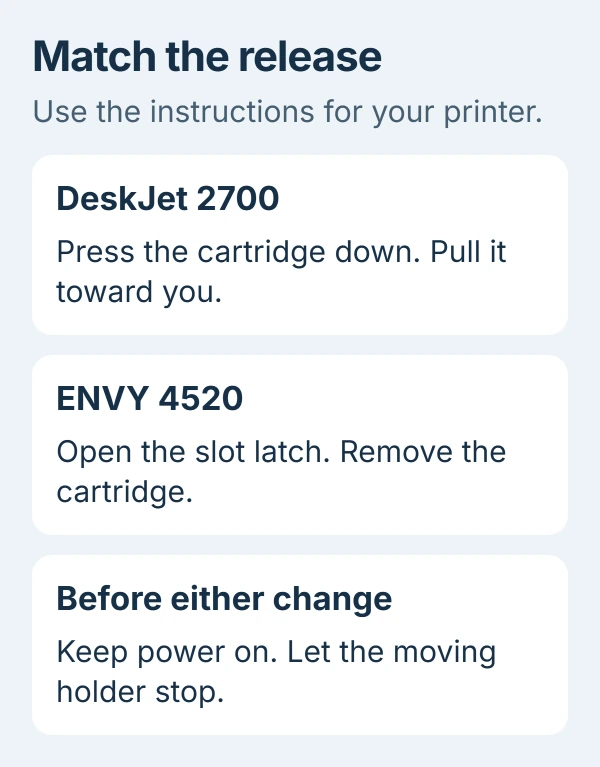
- Press the old cartridge down to release it, then pull it toward you.
- Unpack the replacement and peel off its protective plastic tape using the tab.
- Slide it into the matching slot, tilting it slightly upward.
- Push upward until it clicks into place, then close the access door.
Hold the cartridge by its plastic body. Keep your fingers away from its electrical contacts and ink nozzles; touching those parts can interfere with detection or printing.
The click matters. A cartridge resting loosely in its slot can look installed while the printer still reports it missing. If it doesn't sit properly, check its orientation and number before applying more pressure.
Replace the second cartridge only if it needs changing too. Leave a working cartridge in its matching slot. Fitting a new black cartridge doesn't mean you need to discard a tri-color cartridge that still prints correctly.
After closing the door, check the printer's lights or app message. If the cartridge warning has cleared, continue with alignment. If it stays on, use the installation checks near the end of this guide.
Use the slot latch on an ENVY 4520
The ENVY 4520 has a latch over the cartridge slot. Follow its cartridge replacement instructions in Work with cartridges, rather than the DeskJet's press-down steps.
Keep the power on and open the access door. Open the latch on the slot containing the old cartridge, then remove that cartridge. Unpack the replacement and use its pull tab to remove the protective tape.
Slide the new cartridge into the matching slot, then close the latch until it clicks. Close the printer's access door after both slots are ready. Follow any alignment request on the display or in the printer software.
Match the cartridge's color and symbol to the slot markings. I'd check those markings before opening the replacement's packaging, especially when changing both cartridges at once.
Other ENVY and OfficeJet printers can use different holders. If yours doesn't have this latch, stop and find the instructions for your model. The family name alone won't tell you how to release the cartridge.
Finish the alignment before judging the new ink
Load plain white paper and follow the printer's alignment prompt. Alignment adjusts where the cartridges print their dots. Even after the printer recognizes the new ink, you still need to finish this step.
Some all-in-one models print a page that you then place on the scanner glass. Follow your printer's directions for placing the page and confirming the scan. Other models use a different alignment process through their software.
When alignment finishes, print a small document with text and color. Check both the page and any remaining cartridge warning. The printer may recognize the cartridge even though the print quality still needs attention.
If the new cartridge is recognized but the colors are missing, use the HP color-print checks. That guide compares the printer's own output with the computer's color settings.
Clear an installation error without changing the network
Open the access door again and let the holder stop. Check that the protective tape is gone, the cartridge number matches and the cartridge is pushed fully into its slot. Then close the door and read the message again.
A DeskJet 2700 can work in single-cartridge mode when one cartridge is removed. If it reports that mode while both are installed, inspect their tape and seating. The printer may not be detecting one of them.
If the printer accepts the ink but only one Windows app fails to print, compare another document. Microsoft's application-printing checks cover that separate problem.
If the printer still rejects the cartridge, contact HP or the supplier. Give them your model, cartridge number, color and exact message. Keep the receipt and packaging so they can check compatibility or arrange a replacement.
The Short Version
Match the cartridge number, use your model's release mechanism and remove the protective tape. Seat the replacement securely, close the door and complete alignment. A persistent recognition error needs a compatibility or cartridge check.
Checked November 5, 2026.

Isaac Smith is the founder and editor of PC Glance, a website that covers computers, laptops, and technology. He is a tech enthusiast and a computer geek who loves to share his insights and help his readers make smart choices when buying tech gadgets or laptops. He is always curious and updated about the latest tech trends.