
The underscore (_) is on the iPad keyboard's numbers or symbols layout. Tap the numbers key, often labeled 123 or .?123, and look for _. If it isn't on that page, tap #+= to open the additional symbols.
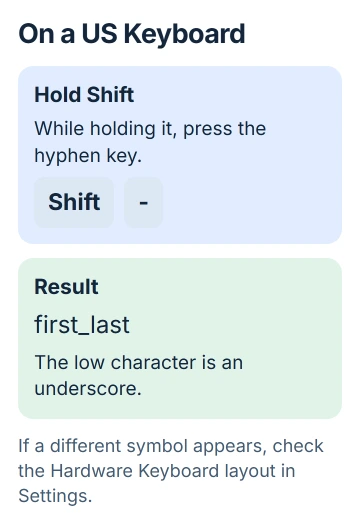
On a physical US English keyboard, hold Shift and press the hyphen key. You'll get an underscore if the iPad's selected hardware keyboard layout matches your keys.
Find the character on the onscreen keyboard
Open Notes and tap inside a new note to bring up the keyboard. It's a good place to practice because you can type ordinary text. Some forms give you only a number pad or another limited keyboard.
Tap the keyboard's numbers key. Look at the keys for the low horizontal character _. If you see only a hyphen -, open the next symbols page with #+= and look there.
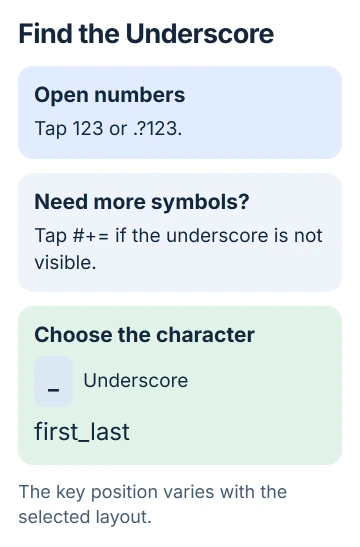
Tap _ once, then tap ABC to return to letters. Try typing first_last in the note. The underscore should sit low between the two words, with no spaces on either side.
Apple's onscreen keyboard guide describes switching to numbers and symbols. The exact key arrangement depends on the keyboard language, layout and whether the keyboard is full-size or floating.
Look for _ itself instead of counting keys from the left. Its position can change with the layout, so a screenshot of a different keyboard may point you to the wrong key.
If the floating keyboard is too small to read, place two fingers on it and spread them to restore full size. The iPad keyboard layout checks cover floating and split layouts separately from a missing character.
Check that you're entering an underscore
These two characters are easy to confuse when a field uses a small font: underscore is _, while hyphen is -. An underscore sits near the bottom of the letters; a hyphen sits higher.
For an email address, username or filename, use the character you were given. A hyphen won't replace an underscore: it creates different text. Adding spaces around either character changes what you've typed too.
The sample first_last is just practice text. In a real form, copy the exact address or username when you can. That saves you from guessing which punctuation the sender meant.
Formatting that puts a line under a whole word doesn't type an underscore. For a username, use the character key itself. A writing app's formatting button won't add that character to an address.
Read a long entry before you submit it. If an app lets you show a password, check its punctuation only when others can't see your screen. One wrong symbol changes the entry, even when the rest looks familiar.
Use the symbol printed on a gesture key
Some full-size iPad keyboards show a smaller number or symbol on a letter key. If you can see _ as that smaller character, drag down on the key and release to type it.
Use that shortcut only when the symbol you want is printed on the key. Another layout may put a different character there. If you can't see the underscore, use the numbers and symbols pages.
The Numbers data-entry instructions also cover dragging down to type a key's alternate symbol. In Numbers, switch to the Text Keyboard if its number keypad doesn't have the character you need.
A spreadsheet has different keyboards for text, numbers, dates and formulas. So the same iPad may show a full set of punctuation in Notes and fewer choices when you're editing a number cell.
Once you can type the character in Notes, return to the form. If it still won't accept an underscore, check which characters the app allows in that field. Finding the key doesn't change those rules.
With a physical keyboard, check the selected layout
On a US English keyboard, press Shift + hyphen. The hyphen key is normally beside the zero key and has _ printed as its shifted character. Hold Shift while pressing it, then release both keys.
If that types another symbol, check Settings > General > Keyboard > Hardware Keyboard while the keyboard is connected. Select the language and choose a layout that matches the physical keyboard's printed keys.
Don't change the whole iPad language to fix one physical key. Your keyboard layout can differ from the language in the iPad's menus. If you bought the keyboard in another region, you may need to choose its matching layout.
For initial pairing or attachment problems, use the iPad keyboard connection guide. A keyboard that sends no letters needs its connection restored before a punctuation shortcut can work.
If the physical layout is unfamiliar, bring back the onscreen keyboard. Tap the keyboard control in the Shortcuts bar, then choose Show Keyboard. Its symbol pages let you type the character without changing the hardware layout.
Switch keyboards or copy a character when needed
A third-party keyboard or one in another language may arrange symbols differently. Touch and hold its globe or emoji key to choose a keyboard. You'll find the installed choices in Settings > General > Keyboard > Keyboards.
Choose Add New Keyboard there to add another language keyboard. Keep your existing one if you still use it. Adding a keyboard doesn't switch to it, so return to the text field and select it afterward.
If you only need the character once, copy the underscore from first_last in your practice note and paste it into the field. Select just _ so you don't copy the letters or a space beside it.
If Notes accepts the character but the other app rejects it, ask that app's support about the field. If it won't work in Notes either, tell Apple support your iPadOS release, keyboard language and which keyboard you're using, if any.
The Short Version
Open the numbers layout, then the additional symbols if needed, and choose _. A US hardware keyboard uses Shift plus hyphen. Check the selected layout or the app's input restrictions when the expected character doesn't appear.
Checked November 5, 2026.

Isaac Smith is the founder and editor of PC Glance, a website that covers computers, laptops, and technology. He is a tech enthusiast and a computer geek who loves to share his insights and help his readers make smart choices when buying tech gadgets or laptops. He is always curious and updated about the latest tech trends.