
Press Option + Right Arrow to move to the next sheet in Excel for Mac, or Option + Left Arrow to return to the previous sheet. Plain Tab moves between cells, so it won't switch the worksheet tab you're viewing.
Bring your workbook to the front and finish any cell entry first. When the shortcut works, the selected sheet name changes. These steps are for the desktop Mac app; a browser can handle the same keys differently.
Move to the next or previous worksheet
Click an ordinary cell in the workbook. Hold Option and press Right Arrow once. Release the keys and read the selected sheet's name in the tab row.
To go back, hold Option and press Left Arrow. These shortcuts follow the order of the sheet tabs. Moving right takes you to the next sheet in this workbook, rather than another open Excel file.
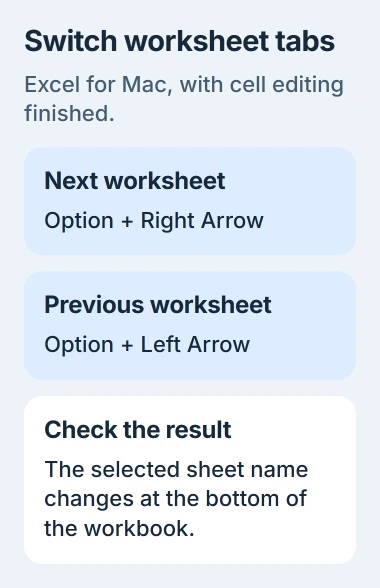
Microsoft lists these combinations in its Excel Mac keyboard instructions. They avoid needing Page Up and Page Down keys on a compact MacBook keyboard.
Try the shortcut from a middle tab in a workbook with several visible sheets. That lets you check both directions. If the file has only one available worksheet, you can't switch to another.
If the selected tab changes but the cells look the same, check the sheet name and a heading you recognize. Monthly sheets often use the same layout, which can make it hard to notice that you've switched.
Use the Page Up and Page Down alternative
If your keyboard has these keys, Control + Page Down takes you to the next worksheet and Control + Page Up takes you to the previous one. Both work in desktop Excel for Mac.
The screen-reader navigation instructions list this pair alongside Option and the horizontal arrow keys. Hold Control for Page Up or Page Down, rather than Command.
On a compact MacBook keyboard, Fn + Down Arrow acts as Page Down and Fn + Up Arrow acts as Page Up. Hold Control too when you want to use either combination to switch sheets.
I'd start with Option and the horizontal arrow keys on a MacBook. It's a shorter combination, and the left/right directions match the row of worksheet tabs you can see on screen.
If you use an external keyboard, check which key acts as Option. A Windows-style keyboard may have different labels from Apple's, especially if it has separate Mac and Windows modes.
Finish editing before using navigation shortcuts
Press Return to accept a cell entry before changing sheets. If you want to discard an unfinished edit instead, press Esc. Then click a cell and try the worksheet shortcut again.
While you're editing a value or formula, the keys can change the text you're typing instead of moving around the workbook. A cursor in the formula bar means you're editing, rather than simply selecting a cell.
Tab normally moves right between cells, and Shift + Tab moves left. Return finishes an entry. Those keys work within a sheet; Option with an arrow key changes which sheet you're viewing.
Check that you're in the right workbook too. The worksheet shortcuts won't bring another Excel file to the front. Use your Mac's window controls to bring that file's window forward first, then switch its sheets.
If you need to rearrange a sheet after opening it, the Excel column-moving guide explains moving columns by inserting or replacing them. Switching sheets only changes your view; it doesn't rearrange your data.
Use the tabs when you need a specific sheet
Click a worksheet's tab at the bottom of the workbook to open it directly. Shortcuts are handy for moving between neighboring sheets. If the tab you need is already visible, clicking it can be quicker.
If the whole tab row is missing, open Excel > Preferences > View and check Sheet tabs in the workbook display options. The Mac display preferences change this for the active workbook.
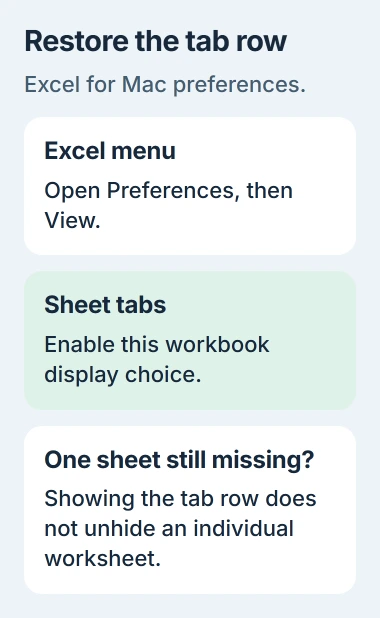
Showing the tab row won't restore an individual hidden worksheet. If other tabs are visible but one sheet is missing, ask the workbook's owner whether they hid it, removed it or left it out of the file they sent.
When comparing a converted workbook, check every important sheet instead of just the first one. The Excel-to-Google-Sheets guide covers the checks needed when a file has moved between those apps.
Keep switching separate from selecting several sheets
Keep one worksheet selected when you just want to switch sheets. Holding extra selection keys while clicking tabs can select several at once. That's useful for some formatting jobs, but it changes which sheets your edits affect.
Check the selected tabs before typing into an important workbook. If sheets are grouped, your edit can also change the same cell on the other selected sheets. Select just the sheet you want before entering data.
The worksheet-selection guidance explains the difference. To view the next sheet, you don't need to select several sheets or copy any cells.
When the keyboard combination still does nothing
Click the tab you want to open. If that works, the sheet is available and you can focus on the shortcut. Try both the Option combination and Control with Page Up or Page Down.
If another Mac app uses that combination, check its shortcut settings. System shortcuts and other apps can take the keys before Excel receives them. Changing your workbook's data won't fix that conflict.
If neither shortcut works in a simple file with several sheets, tell support your keyboard layout and Excel version. Include whether clicking a tab worked and whether you were editing a cell when you tried the keys.
The Short Version
Use Option + Right Arrow for the next Mac Excel sheet and Option + Left Arrow for the previous one. Control + Page Down or Page Up is the alternative. Finish cell editing first and confirm that the selected sheet name changes.
Checked November 5, 2026.

Isaac Smith is the founder and editor of PC Glance, a website that covers computers, laptops, and technology. He is a tech enthusiast and a computer geek who loves to share his insights and help his readers make smart choices when buying tech gadgets or laptops. He is always curious and updated about the latest tech trends.