
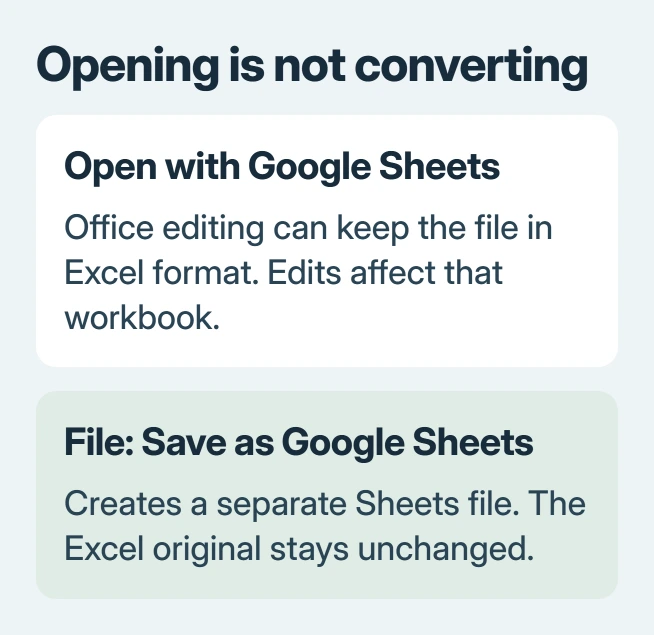
Converting Excel to Google Sheets requires File > Save as Google Sheets after opening the workbook in Google's editor. That creates a separate Sheets file. Simply opening an Excel workbook in the browser can leave it in Excel format.
Keep the original workbook until its formulas, dates and charts have been compared with the converted copy. Uploading successfully does not establish that every Excel feature has transferred correctly.
Upload the workbook and open the editor
On a computer, open drive.google.com and sign into the intended destination account. Choose New > File upload, select the Excel file and let the upload finish.
Double-click the uploaded workbook. If Drive shows a preview, select Open with Google Sheets. Google describes this distinction in its Excel and Sheets instructions.
Status: Excel-to-Sheets conversion, imports and macro limitations reviewed November 2, 2026 against Google's documentation. No workbook was uploaded or converted for this guide.
In Office-editing mode, changes are saved back in the Excel file format. If preserving the uploaded original matters, perform the conversion before editing cells.
Save a native Google Sheets copy
In the spreadsheet editor, choose File > Save as Google Sheets. Let the new spreadsheet open, then return to Drive and confirm that it contains both the Excel file and the Sheets version.
Google says this conversion leaves the Excel original unchanged. Add Sheets working copy to the converted file's name so collaborators can distinguish the versions without opening both.
A participant in an owner discussion confirmed that this save command worked. The original question concerned a workbook that opened in Sheets without becoming a permanent Sheets copy.
For a presentation accompanying the workbook, PowerPoint needs its own Slides conversion. Choosing a Google editor for either file does not by itself guarantee that its format changed.
Add the workbook's tabs to an existing spreadsheet
Open the destination Google spreadsheet and choose File > Import. Select the Excel file, then choose the import result before confirming Import data.
Google's steps offer Create new spreadsheet, Insert new sheet(s) and Replace spreadsheet for Excel imports. Use Insert new sheet(s) to bring the workbook's sheets into the destination without choosing replacement.
Treat Replace spreadsheet as a deliberate overwrite choice. Keep a copy of important destination content before selecting it; that option serves a different purpose from adding worksheet tabs.
For an Excel import, Google lists Append to current sheet, Replace current sheet and Replace data at selected cell as unavailable. Do not search for a paste-style option the import dialog does not support.
If the information starts in a PDF instead, first extract its tables into an Excel workbook. A PDF page is not an Excel file merely because it displays rows and columns.
Check the spreadsheet features that matter
Compare representative formulas, totals, dates, worksheet names and chart labels with the source workbook. Test the cells people will edit during normal use, rather than checking only the first visible tab.
Google states that some Excel-specific work belongs in Excel, including certain unusual chart types and the Hyperion add-on. Keep the Excel version in use if the converted file cannot preserve a required feature.
VBA automation needs separate work. Google's macro migration guidance describes recreating Excel macros with Apps Script; a file conversion does not rewrite those programs automatically.
If a formula returns a different value, stop using the converted result for decisions until its inputs and supported functions have been checked. Ask the workbook author or Google Docs Editors Help about that specific formula or feature.
Make future uploads convert automatically, if wanted
Open Drive's Settings, then its settings page. Enable Convert uploaded files to Google Docs editor format beside Convert uploads if future Office uploads should become Google editor files automatically.
This is a Drive setting, so changing a Sheets document's options is not the same action. Google says existing uploads are not retroactively converted; use the explicit save command for those files.
If the conversion command is missing, check the file type and whether Drive opened a preview instead of the editor. A workbook already saved in native Sheets format does not need conversion again.
When conversion repeatedly fails, keep the original and report the file type, failing step and any error to Google Docs Editors Help. A small non-sensitive example can help explain a formula or layout problem.
The Short Version
Upload the workbook, open it with Sheets and use Save as Google Sheets to create the new format. Use File > Import for adding sheets to another spreadsheet. Verify important calculations and rebuild any required VBA automation separately.

Isaac Smith is the founder and editor of PC Glance, a website that covers computers, laptops, and technology. He is a tech enthusiast and a computer geek who loves to share his insights and help his readers make smart choices when buying tech gadgets or laptops. He is always curious and updated about the latest tech trends.